Document generation for Salesforce Field Service
Built for the field.
Ready for everything else.
Docable makes the service reports and certificates technicians sign in the Field Service mobile app, even offline. And everything else a document generation app should: quotes, invoices, contracts and letters for every team, as PDF and editable Word.
£399 a monthWhole orgAny number of people


Get the highlights.
No signal? Preview, sign, submit. Made when the phone syncs.
Write it like Word. Inside Salesforce.
Type @. Your data drops in.
Describe it. AI drafts it.
One Brand Kit. Every document.
Proved on a real record. Live when a person says so.
One record or thousands. PDF and Word.


Salesforce Field Service
No signal.
No problem.
Preview, answer and sign in the Field Service mobile app with no signal, then tap Submit. When the phone syncs, the document is made and filed on the work order.
- 1
No signal.
The job opens from the schedule. The app still lists the documents for this visit, and only the ones that apply to it.
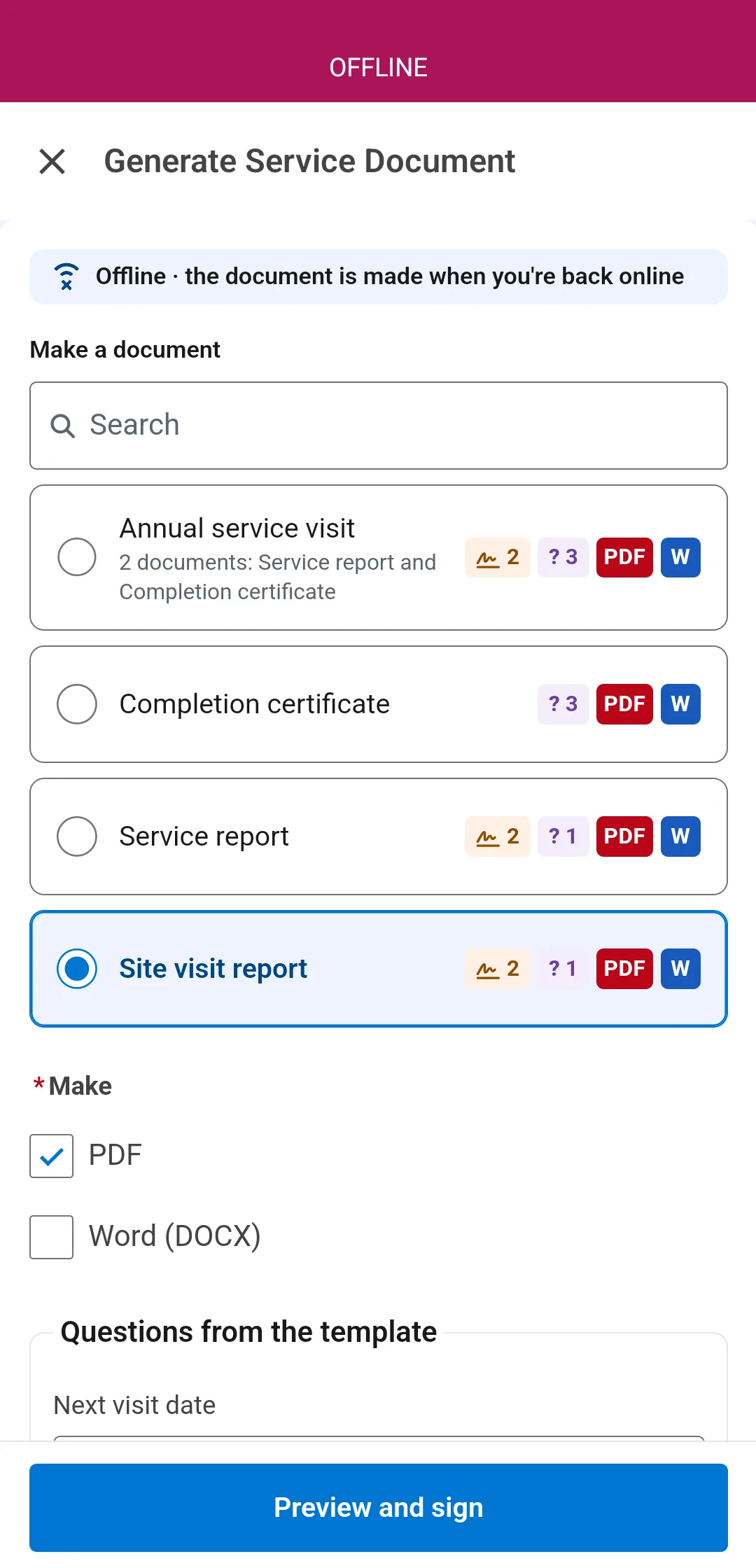
- 2
Preview and answer.
An example of the document is on the phone, filled from what it holds, with its photos and its questions. The technician checks it and answers them on the spot.
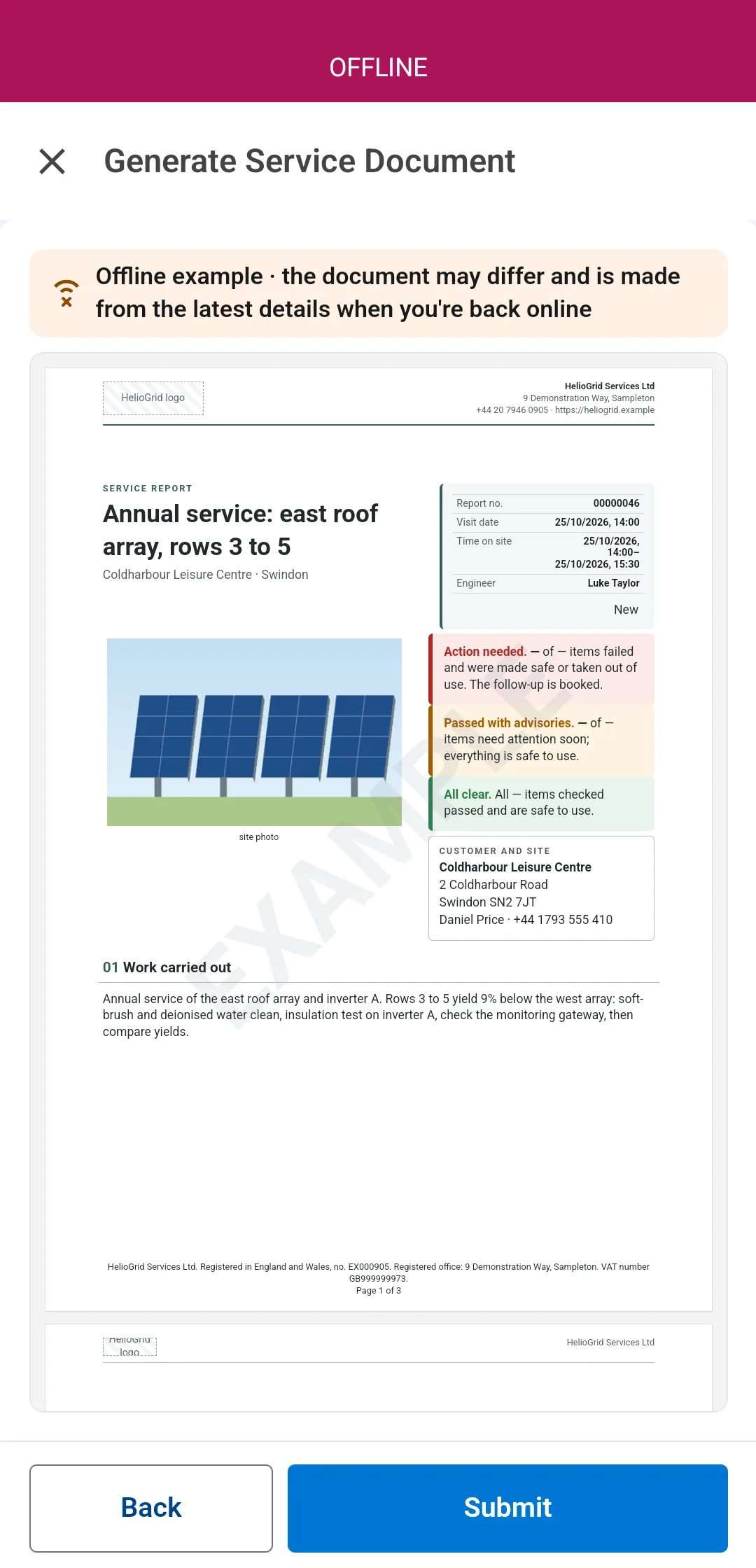
- 3
Sign on the screen.
Where the document collects signatures, the customer signs with a finger on the phone, with no signal. Each signature is kept on the job and printed in the document.
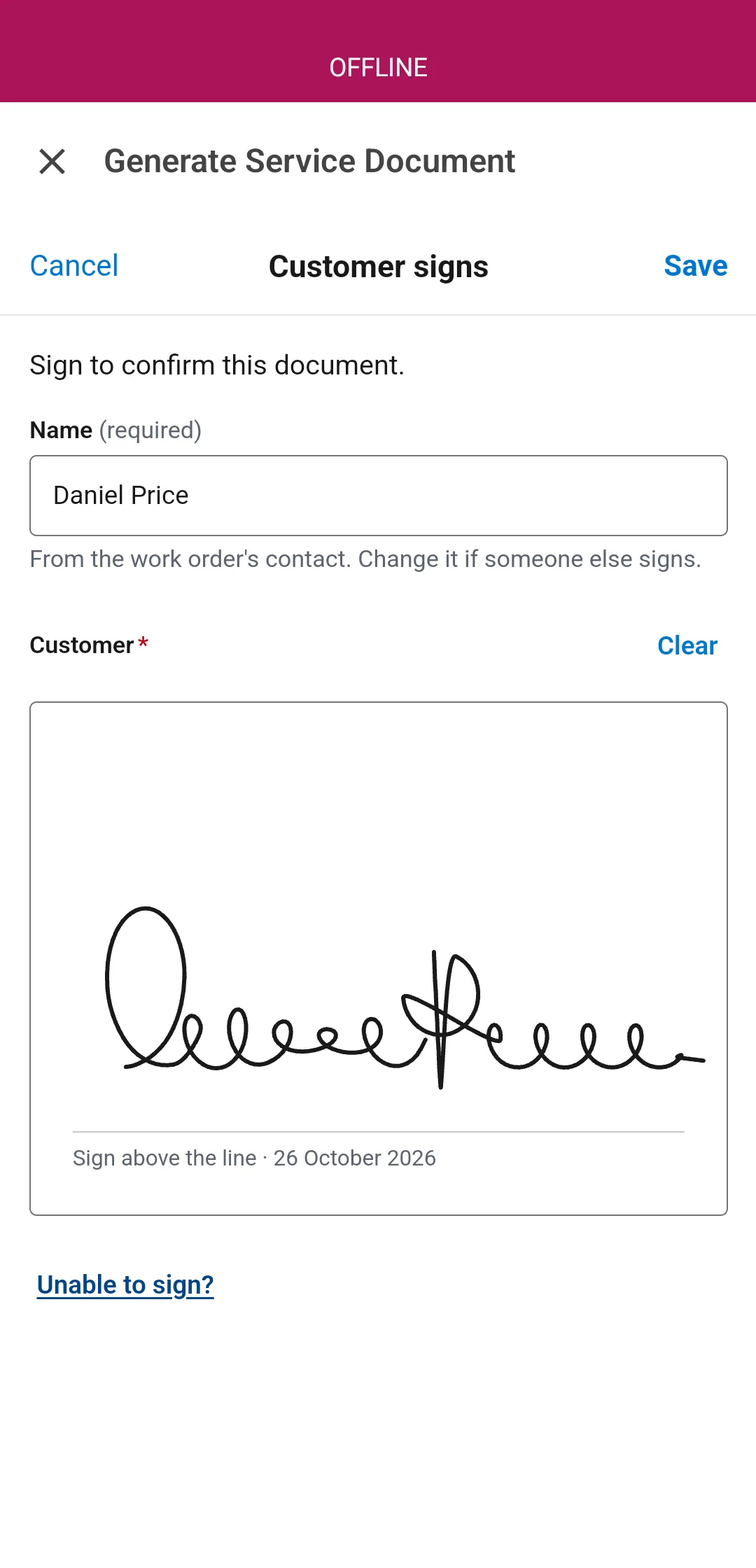
- 4
Submit. Done.
The request is saved on the phone with the job's other changes. The technician moves on to the next job.
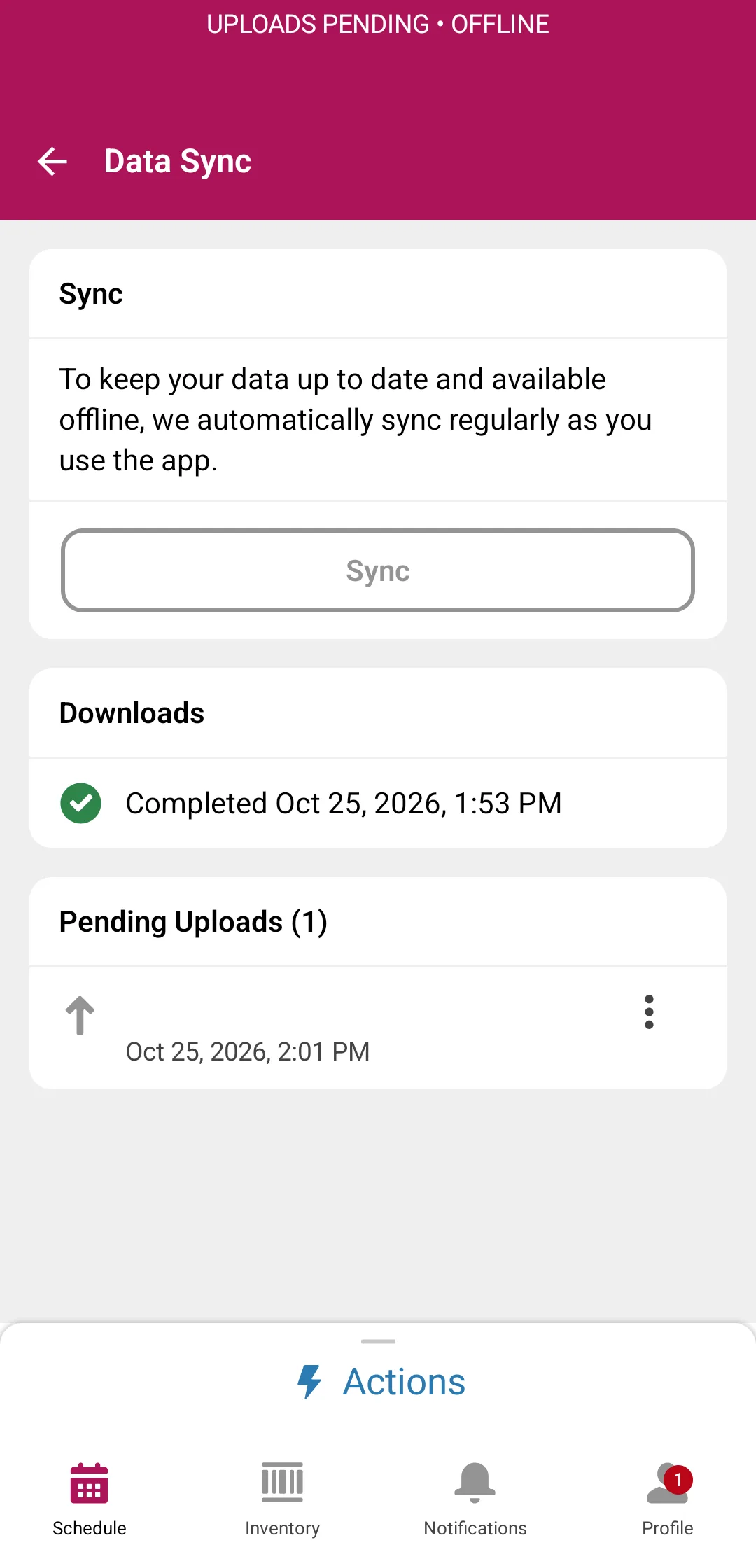
- 5
Synced. Made and filed.
When the phone reconnects, Docable makes the file from the latest details, with the signatures and the photos taken on the job, and saves it to the work order. Nothing to tap again.
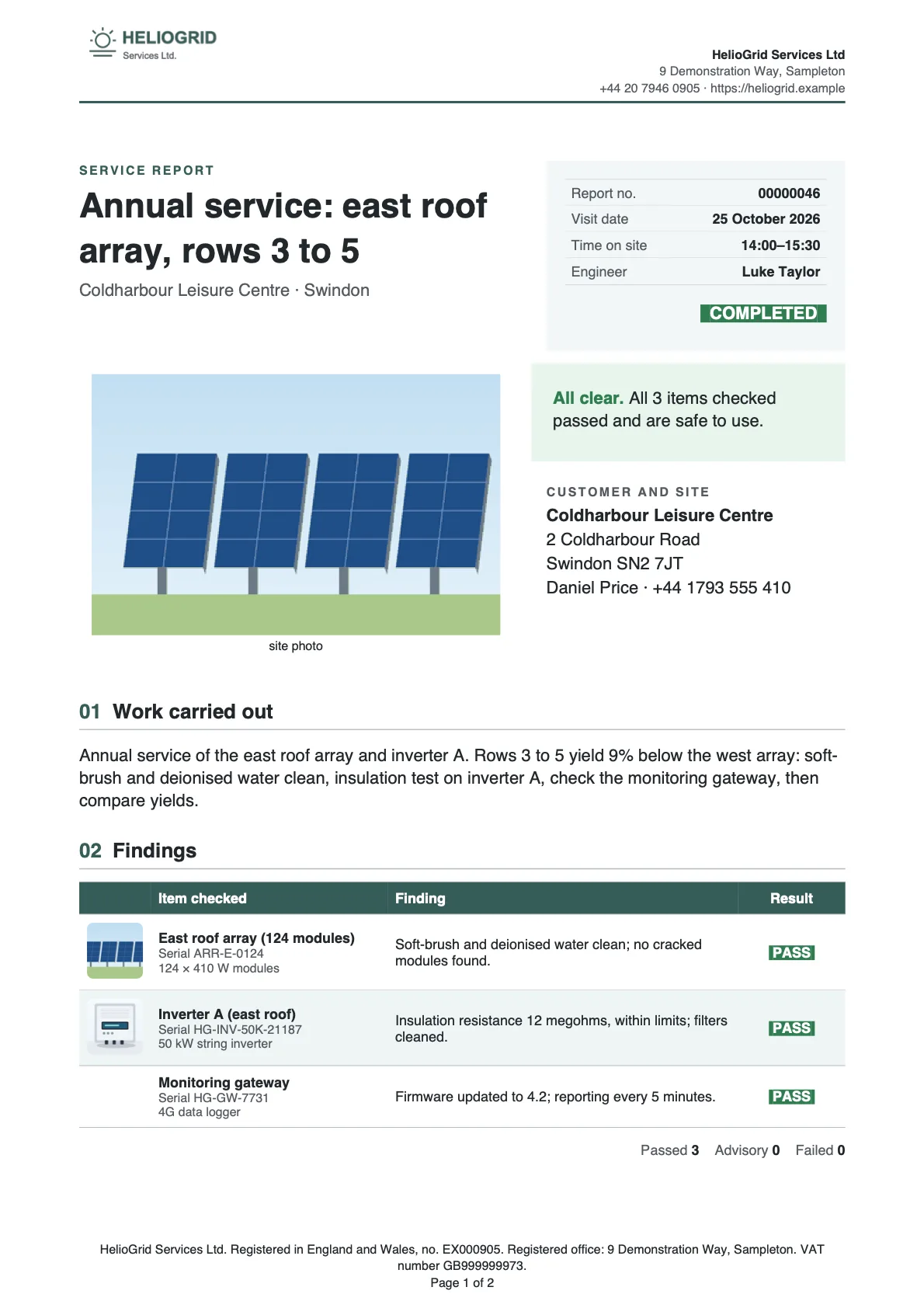


- Works inside Guided Experience
- Only the documents that apply to the job
- Questions answered on the phone
- Customer and technician signatures
- Unable to sign, with the reason
- Photos taken on the job
- Visit packs: one signing, one PDF
Every document a visit needs.
30 field service starters, each ready as PDF and editable Word. Make them yours in the editor.


Ready for everything else
Any document.
Any team on Salesforce.
64 ready-made starters in PDF and Word, and your own templates for everything else. The same editor, Brand Kits and approval for the office as for the field.
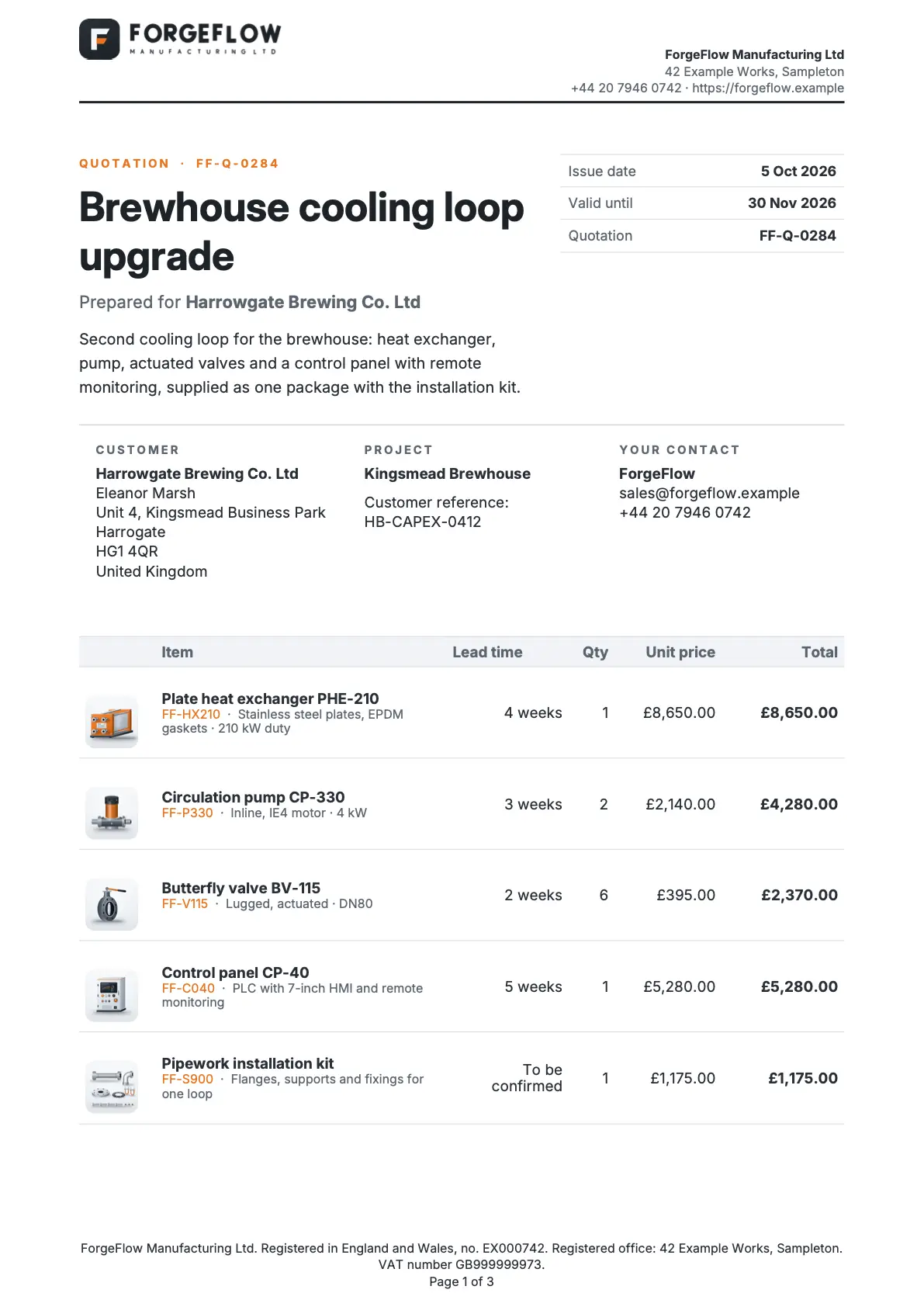
Sales and contracts
Quotation, Branded quotation, Sales proposal, Statement of work and more
12 starters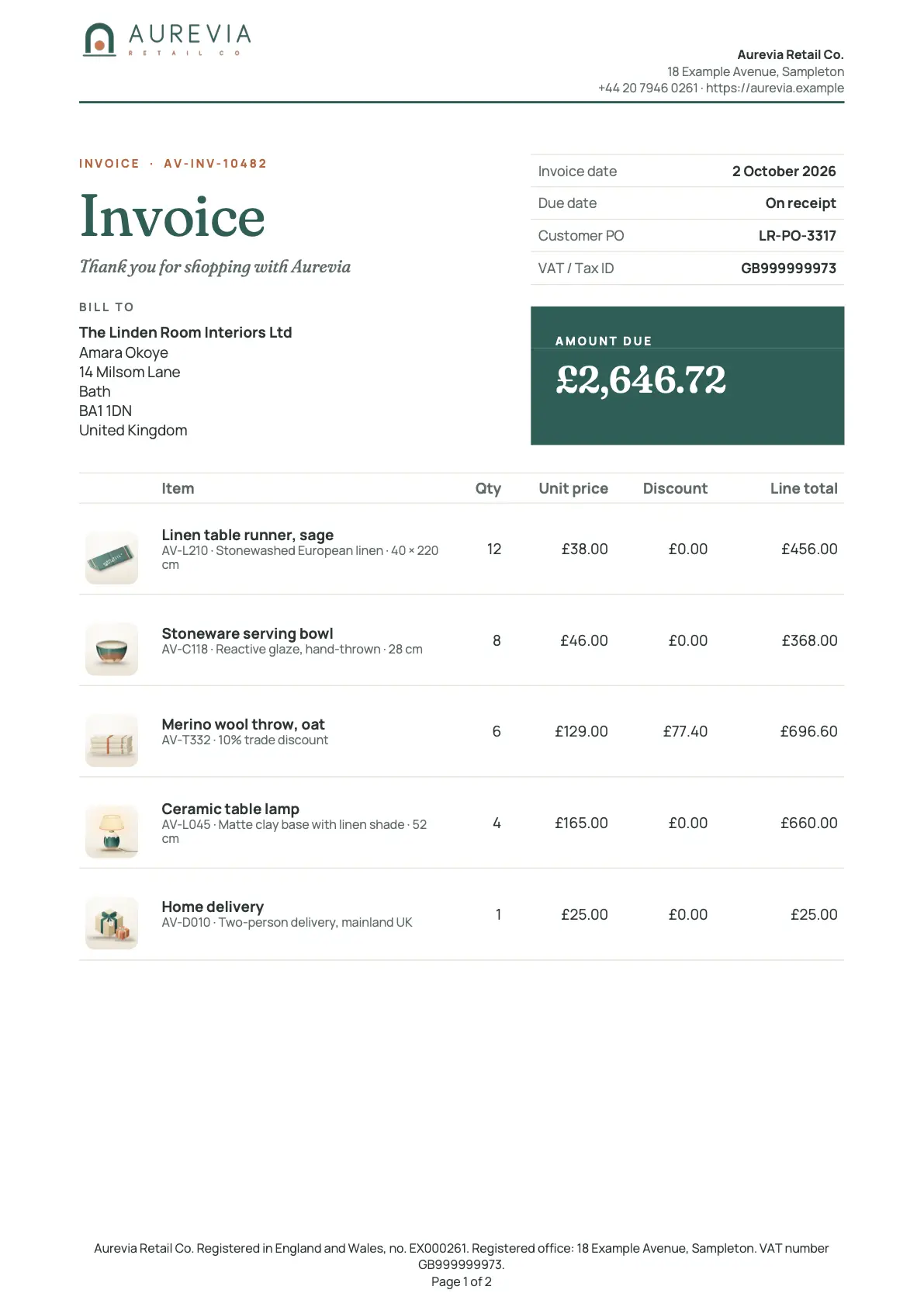
Orders, invoices and payments
Invoice, Branded invoice, Order confirmation, Branded sales order and more
15 starters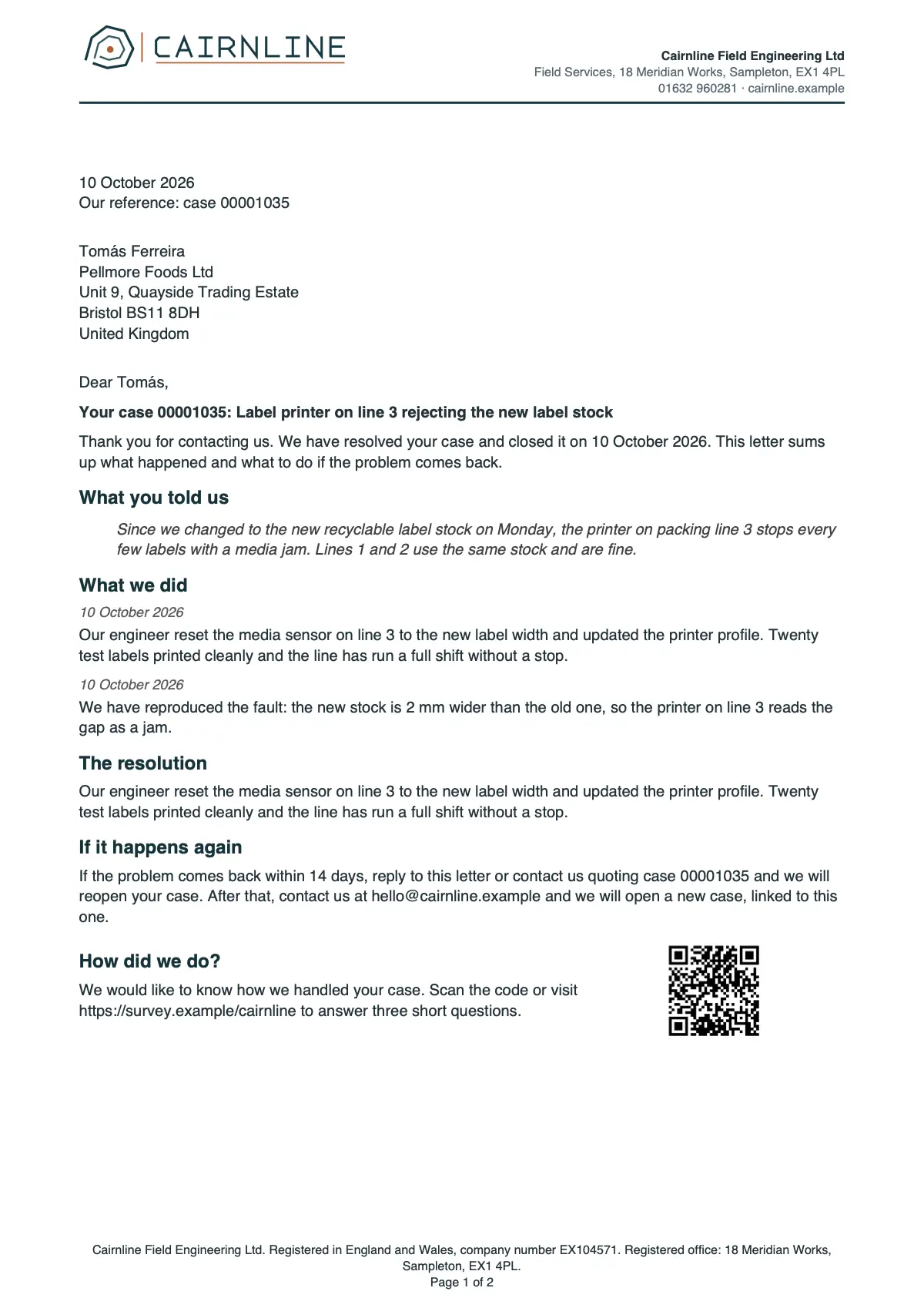
Customer service
Case summary report, Case resolution letter, Support plan schedule, Monthly service review and more
5 starters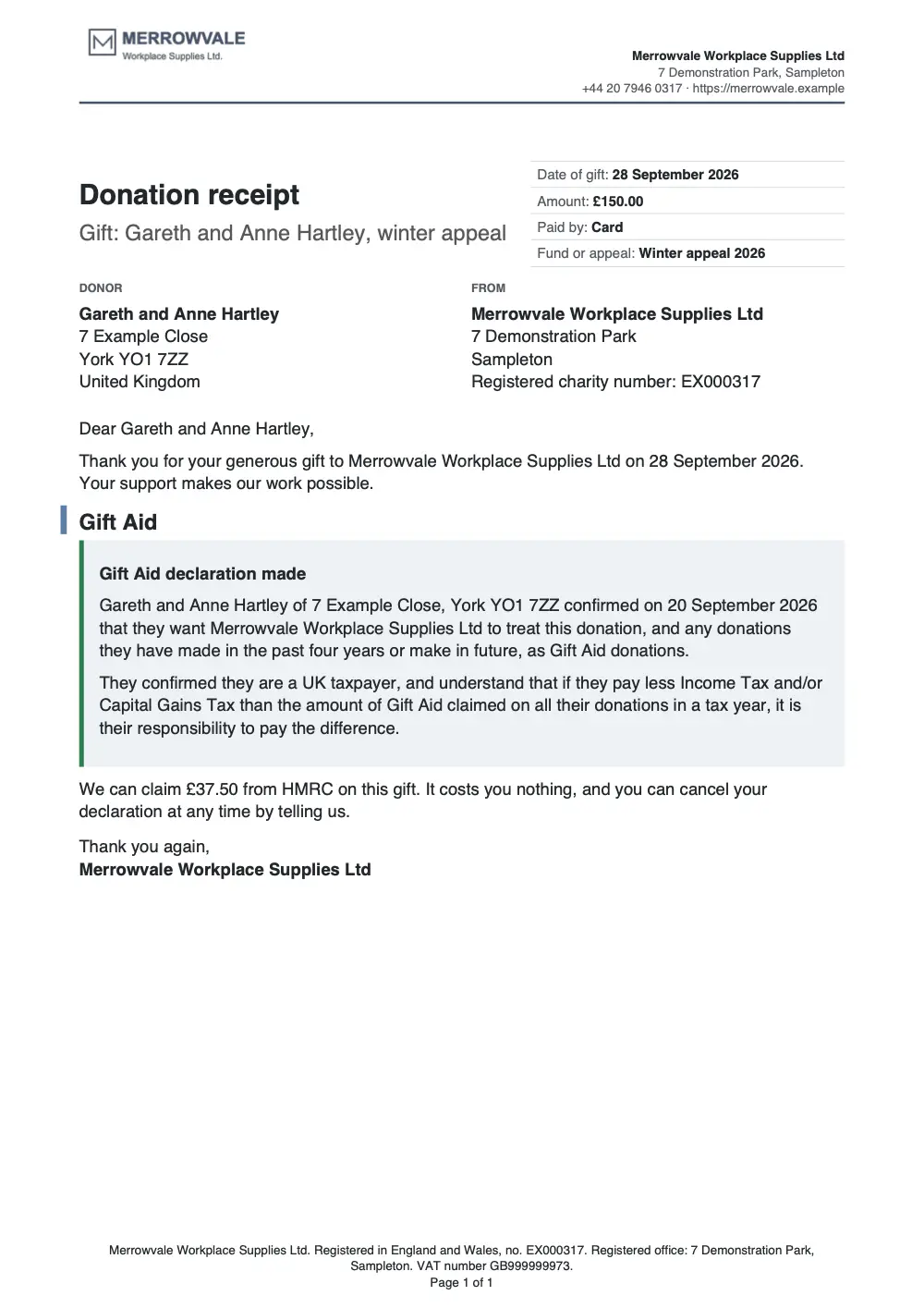
Partners, events and nonprofits
Deal registration confirmation, Partner fund claim summary, Event certificate of attendance, Donation receipt, Gift Aid or IRS acknowledgment
4 starters


Write it like a document.
A real editor, inside Salesforce. No merge codes. No desktop files.

- Headers and footers
- Table of contents
- Footnotes
- Legal numbering
- Columns
- Watermarks
Your data,
right where you type.
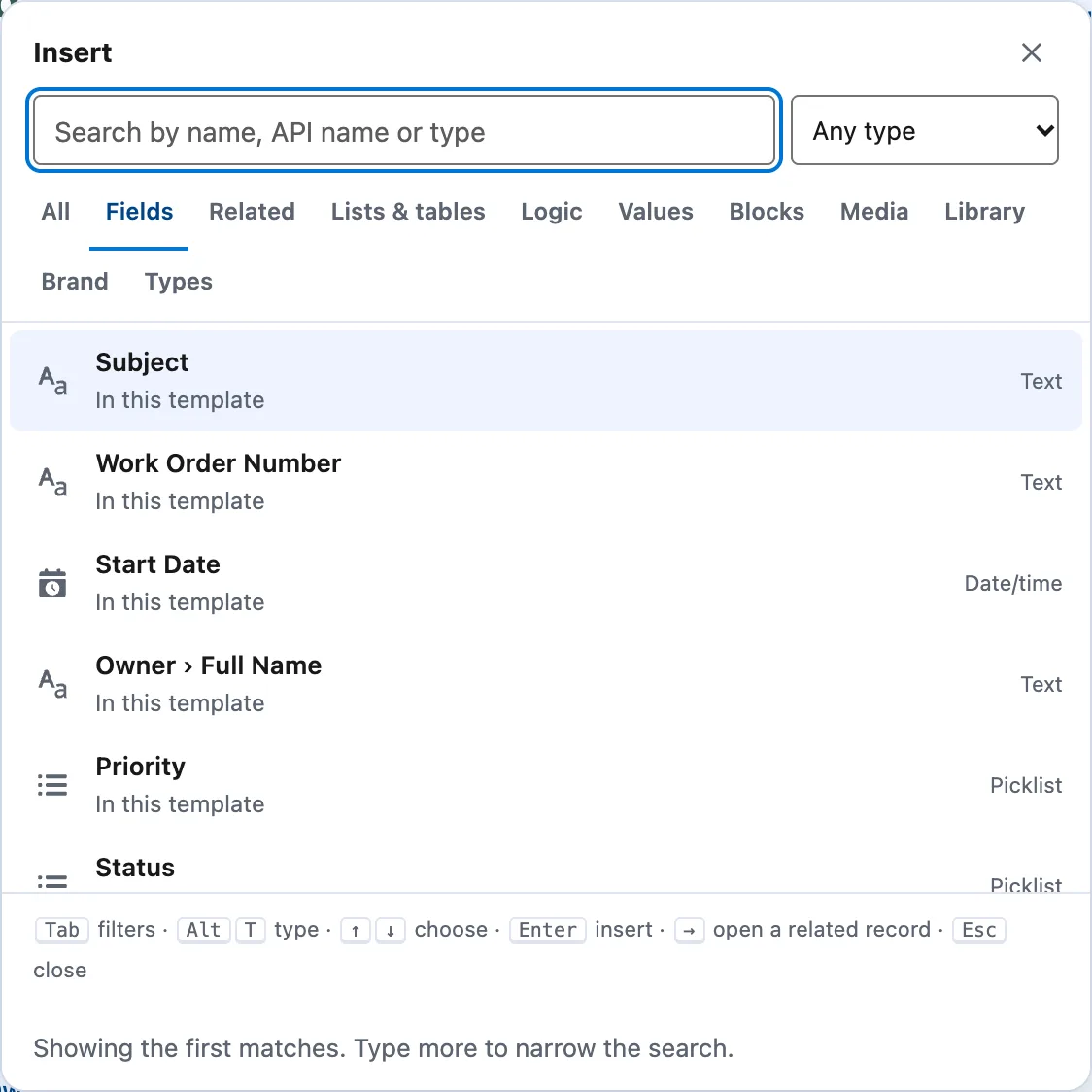
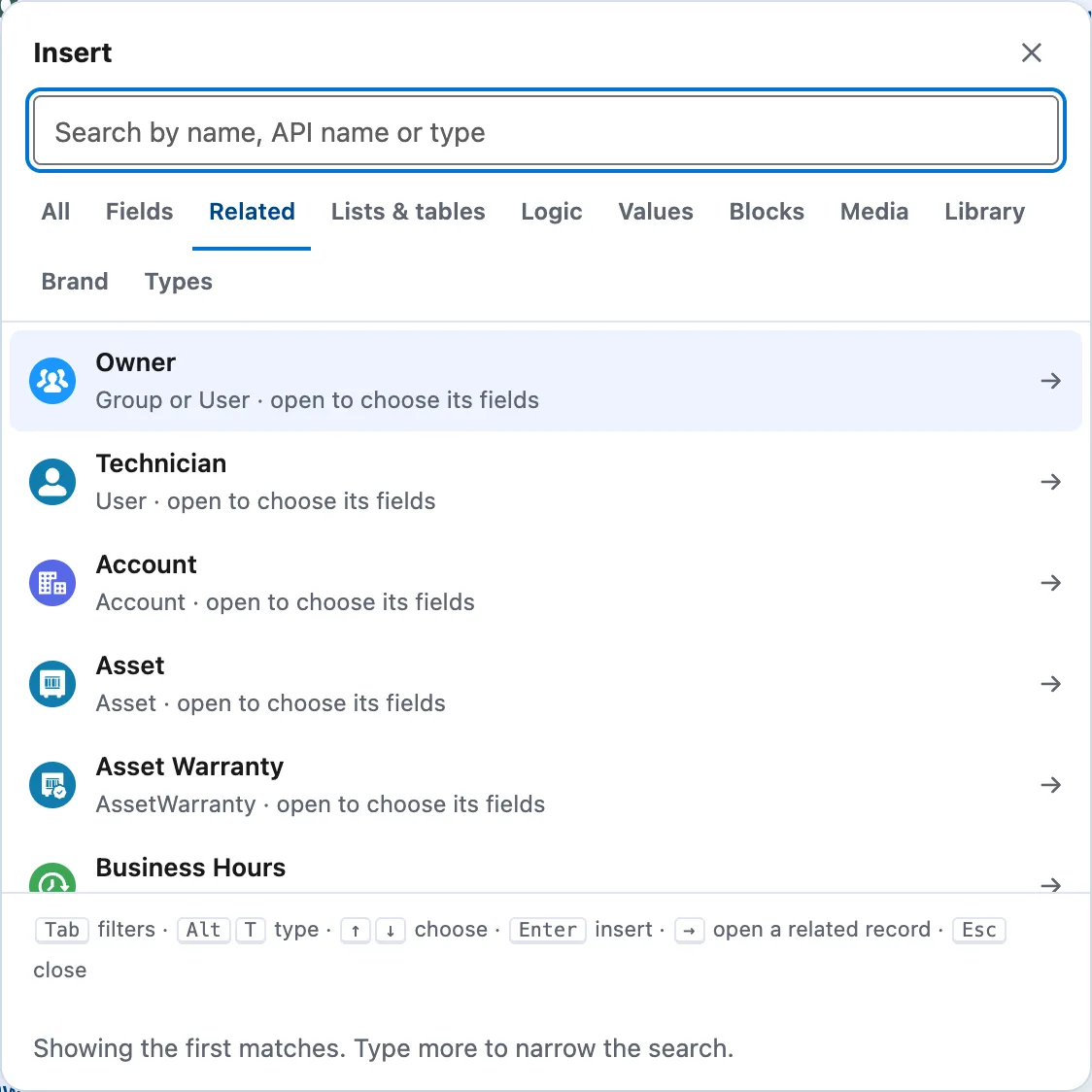
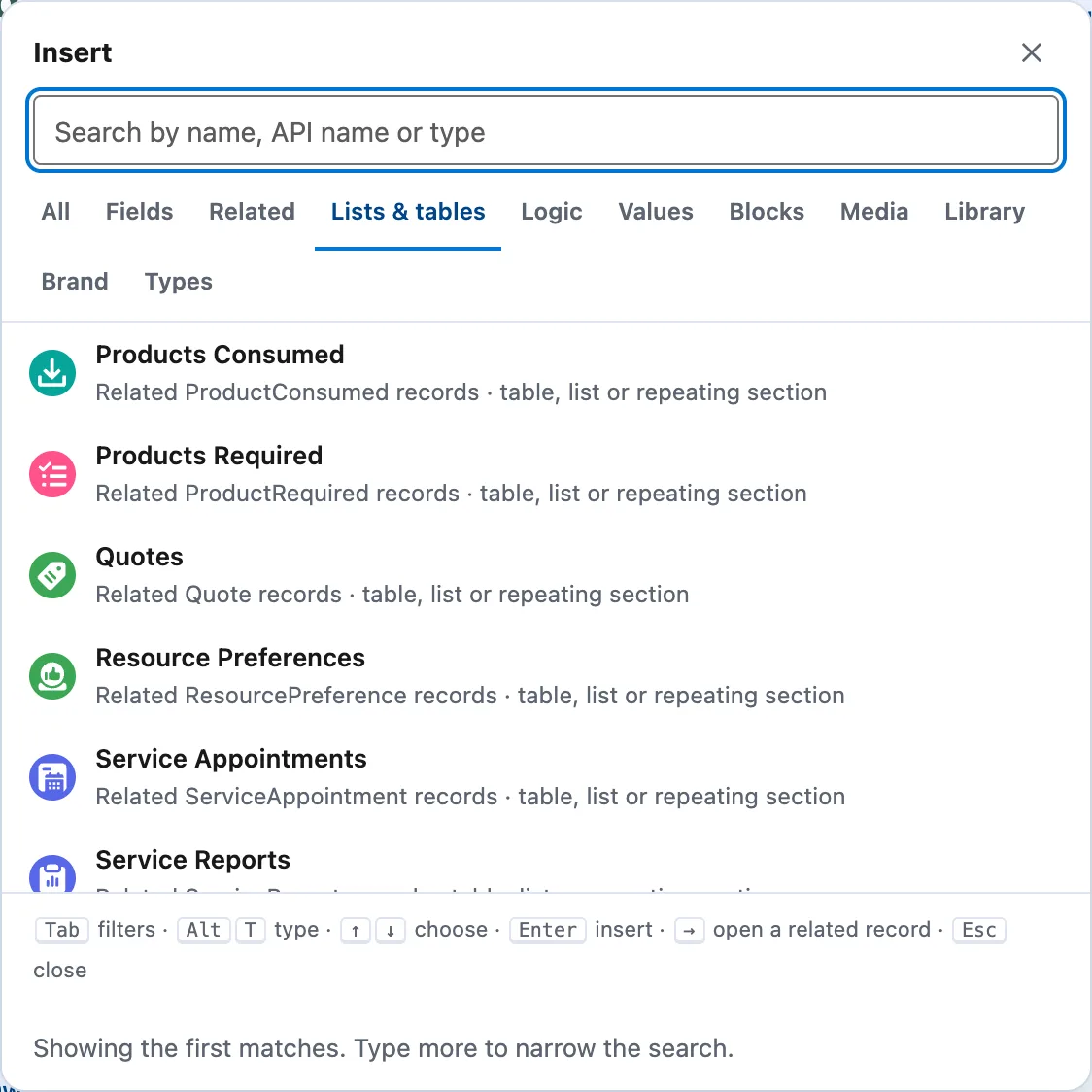
Type @. Pick a field, a related record, a table, a rule, a question or a photo.
- Fields
Any field on the record.
Subject, dates, owner, picklists. Each one sits in the sentence as a chip and is filled in when the document is made.
- Related
And the records around it.
Account, asset, contact, technician. Open one and pick its fields, as far along the chain as you need.
- Lists & tables
Lists, as tables or sections.
Products consumed, service appointments, service reports: a table, a list, or a section that repeats for each one.
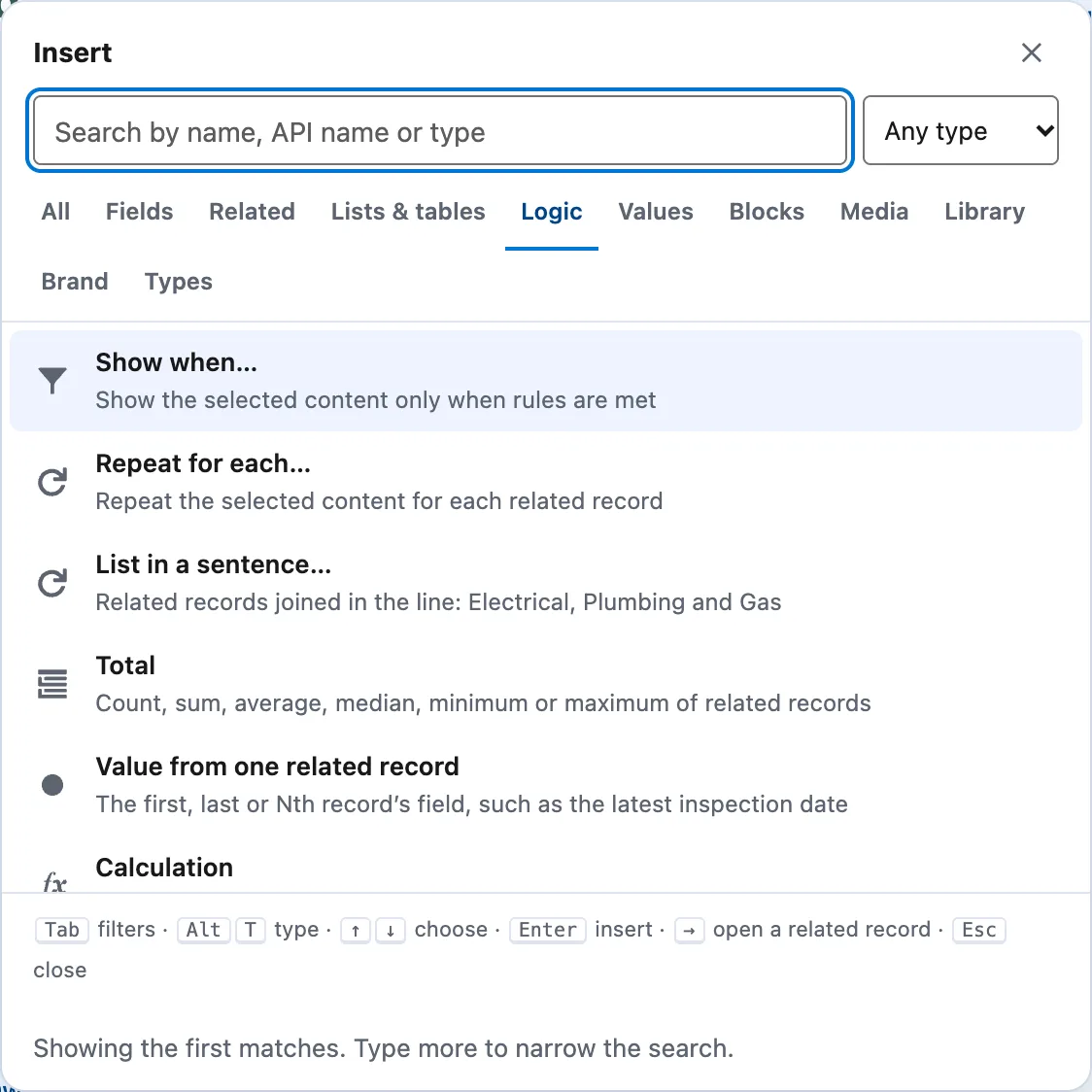
- Logic
Rules, without code.
Show a section only when a rule is met. Repeat for each record. Totals, calculations and lists in a sentence.
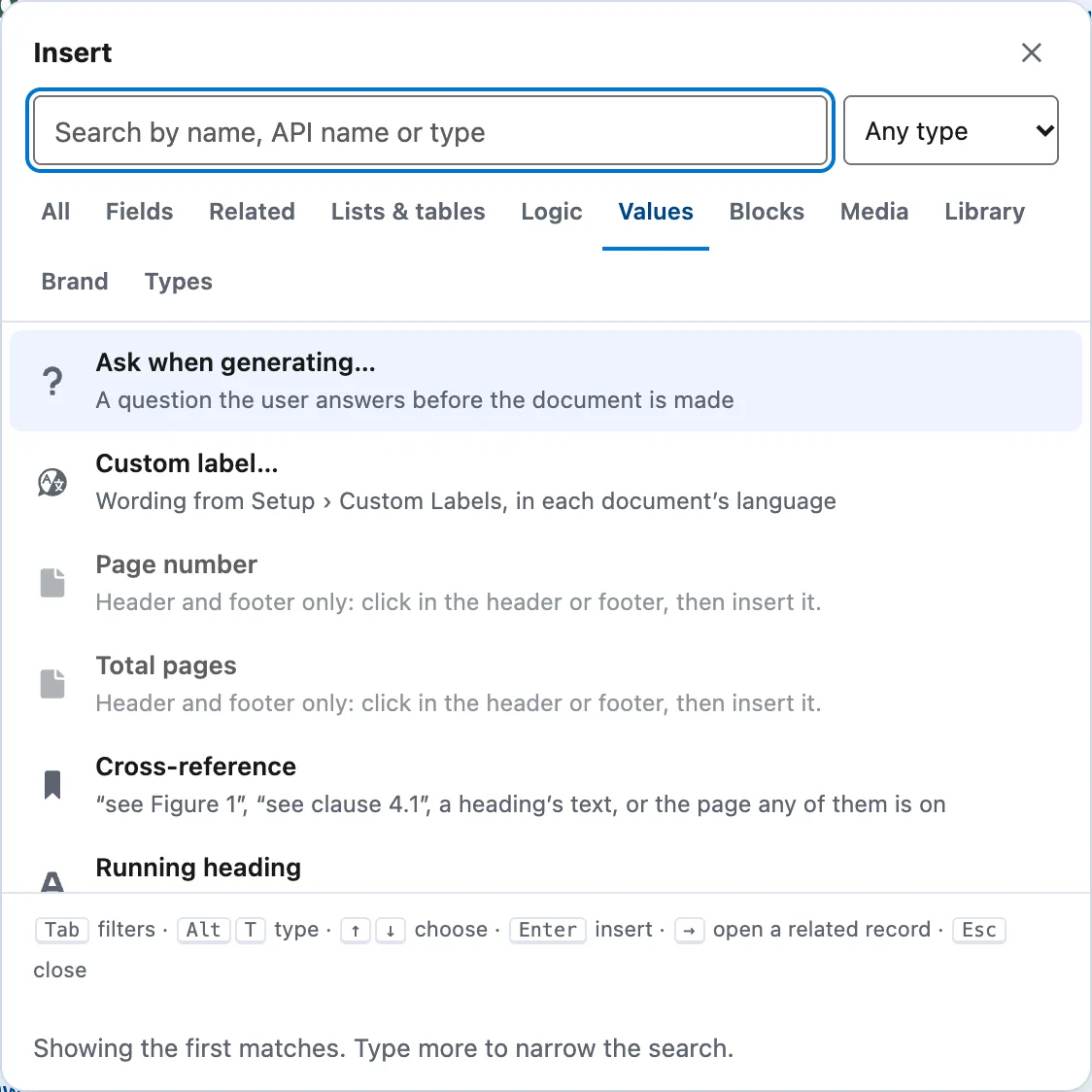
- Values
A question, when the record hasn't got it.
Ask when generating. Page numbers, cross-references and labels in each document's language.
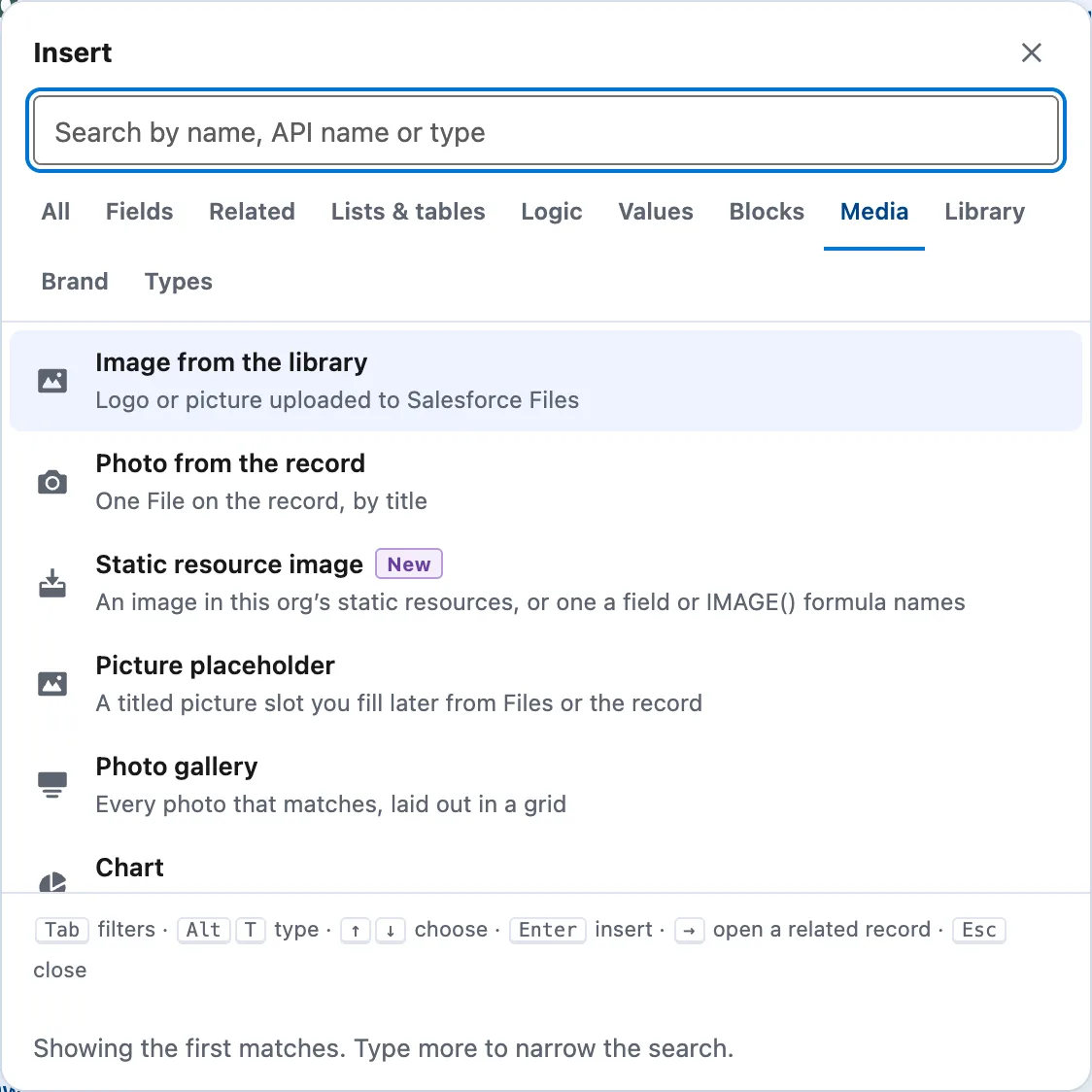
- Media
Photos and charts.
Every photo from the job in a gallery, a picture from the library, a chart from the records.


Take a closer look.
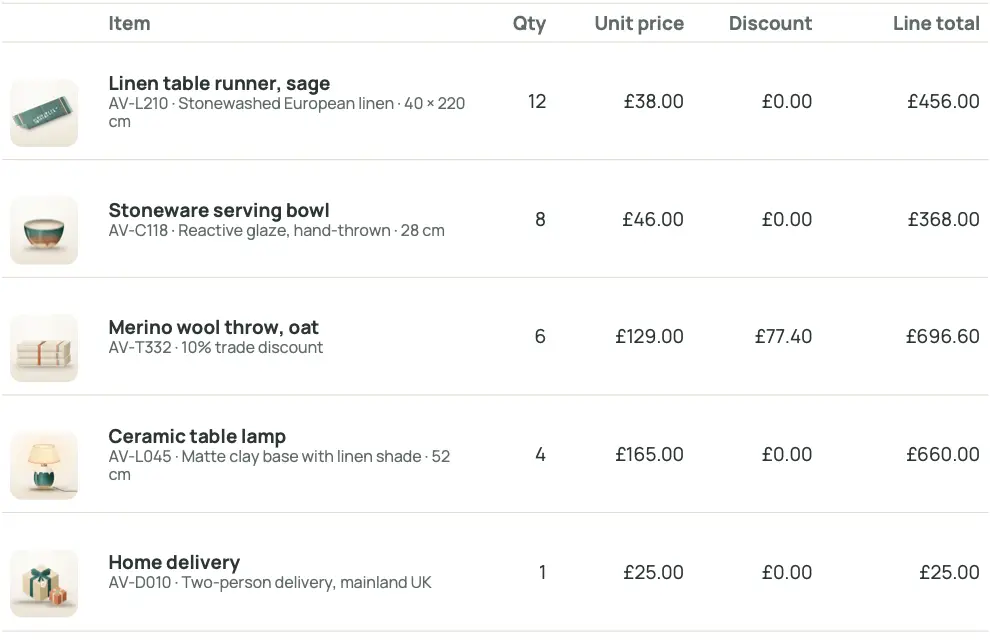
A picture on every row.
Product photos straight from Salesforce.
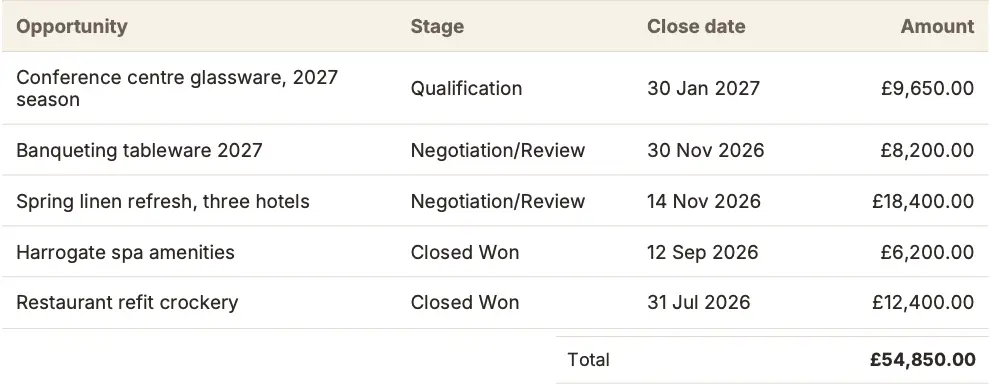
Totals that add up.
Totals, subtotals and running totals.

Every photo on the record.
Galleries of the record's photos, laid out for you.
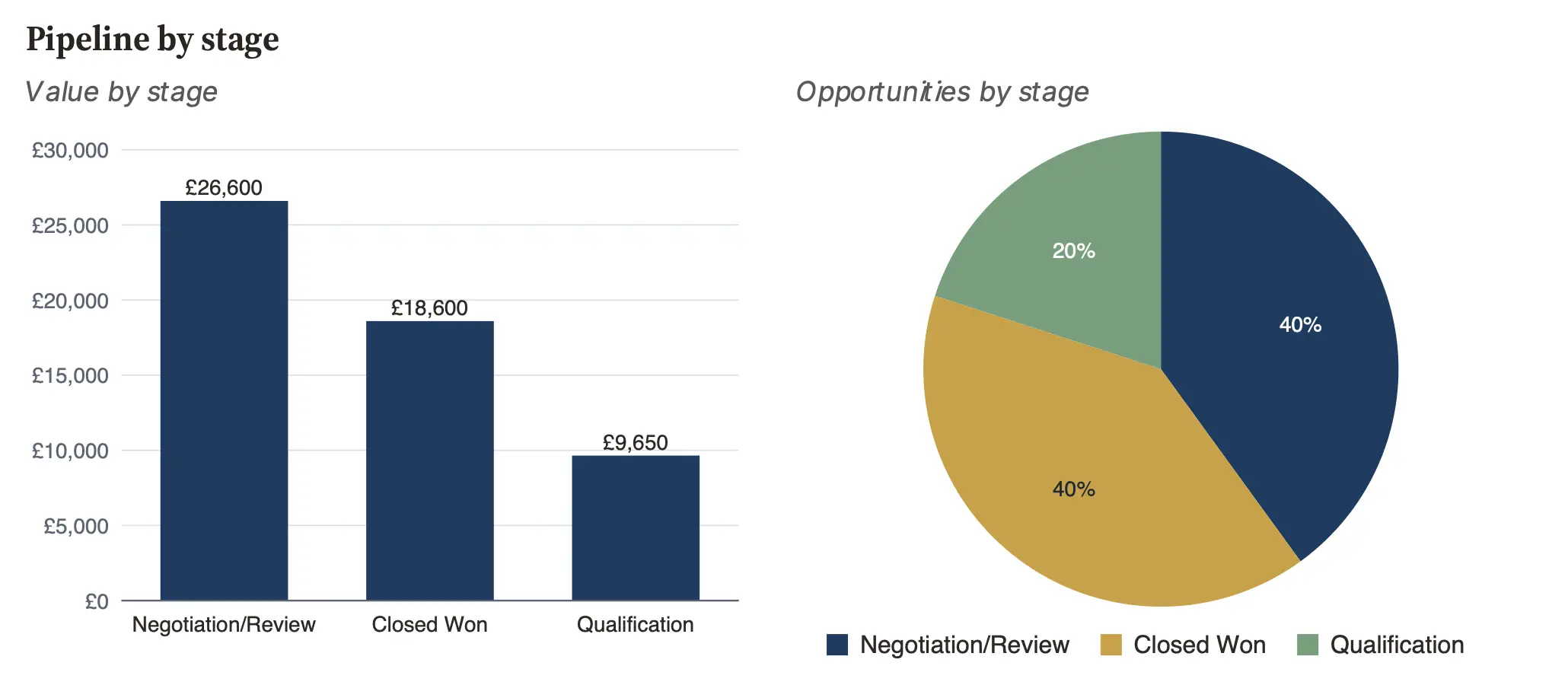
Charts from your records.
Bar, line, pie and doughnut.


Shown only when it applies.
One template. A section that appears only when the job needs it.
| Location | Appliance | Safe to use |
|---|---|---|
| Kitchen cupboard | Combination boiler | Yes |
| Living room | Gas fire | No |
| Kitchen | Gas hob | Yes |
| Location | Appliance | Safe to use |
|---|---|---|
| Utility room | System boiler | Yes |
| Kitchen | Gas hob | Yes |
- One appliance failed
- Everything passed
Describe it.
Get a draft.
AI writes the first version. You finish it. It never sees your records.

AI agents can now work inside Salesforce. Docable gives them the tools to build documents, and keeps people in charge.
- In DocableBuild with AI, and an assistant in the editor.
- In ClaudeThrough Docable's MCP server.
- In AgentforceDocable actions inside your agents.
- Never sees record values
- Can't approve or go live
- Runs with each person's access
- Your Salesforce AI or your Claude
Optional. Everything works without AI. How AI works
Switching to Docable
Already have templates?
Bring them.
From another document tool, or the Word documents your team fills in by hand today. No starting again.

Import a Word file.
Inside Salesforce, with no AI. Merge fields become your Salesforce fields; anything else becomes a placeholder you connect with @.
Move from WordOr let Claude rebuild it.
From another document tool, a PDF or a picture. Claude, connected to Docable, rebuilds the layout and matches the fields.
Rebuild with ClaudeOr we help you move.
Hundreds of templates, or documents your team fills in by hand? Tell us what you have, and we'll help you bring it across.
Talk to us about moving
Every moved template stays a draft until a person proves it and makes it live. How moving works
Your brand.
Every time.
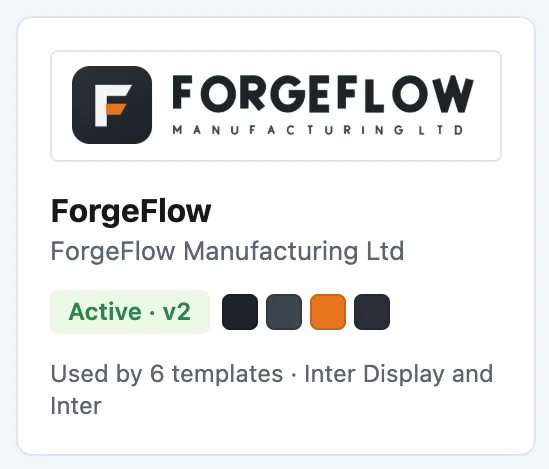
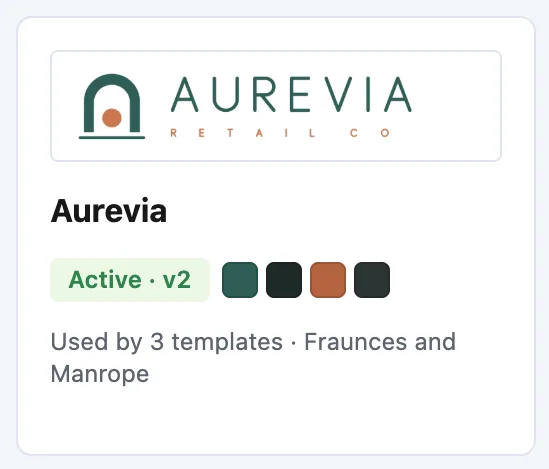
One approved Brand Kit styles every document.
ForgeFlow
Quotation · sample brand
Aurevia
Invoice · sample brand
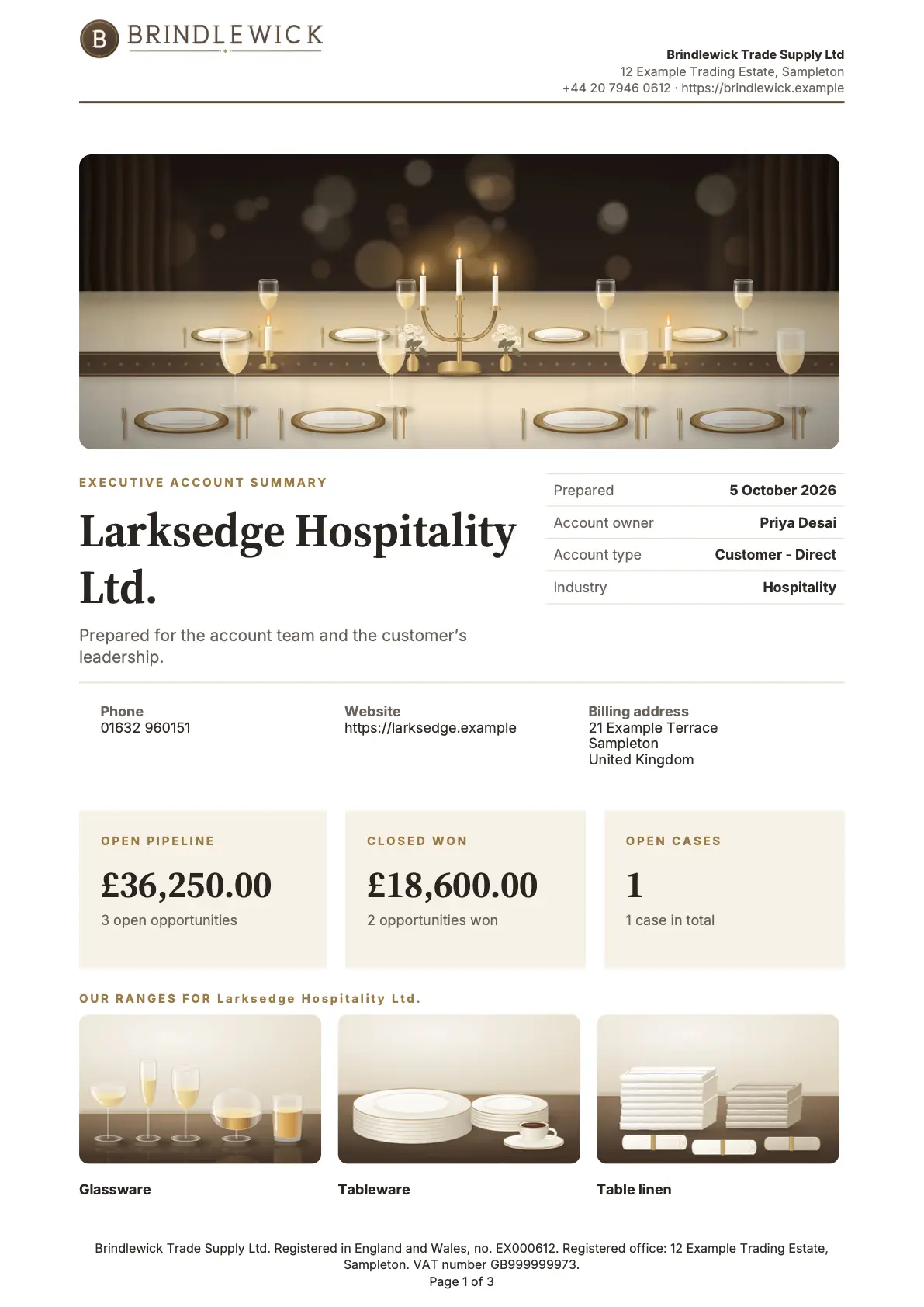
Brindlewick
Account summary · sample brand
Cindervale
Letter · sample brand
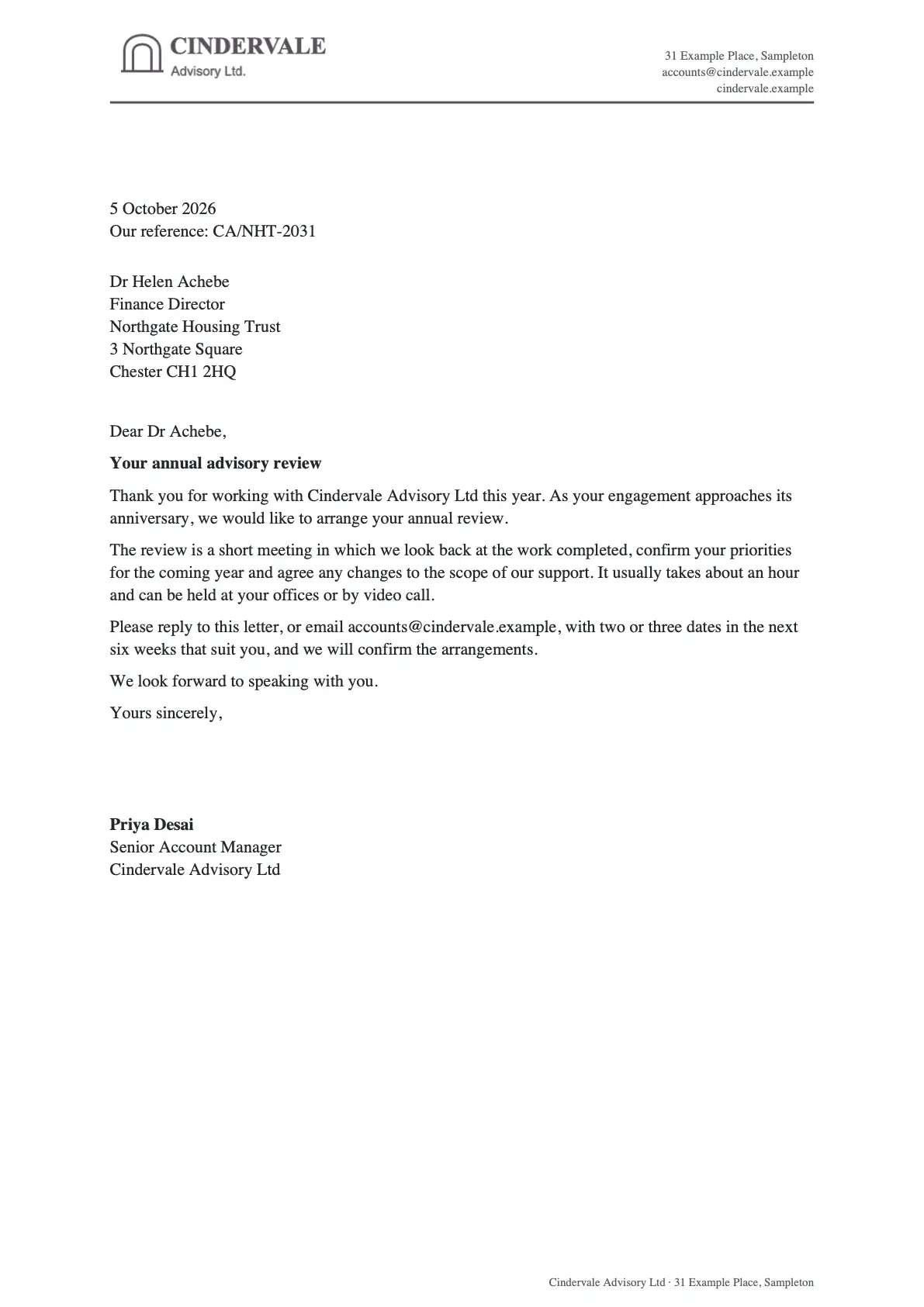


A kit for every company, trading name or division. Pick one per template, or choose it as you generate.
- Same document, different branding
- Letterhead artwork
- Bank details need a second approver
Checked before
it's live.
See the exact PDF and Word file on a real record. A second person approves it first, unless you switch that off.
- 1
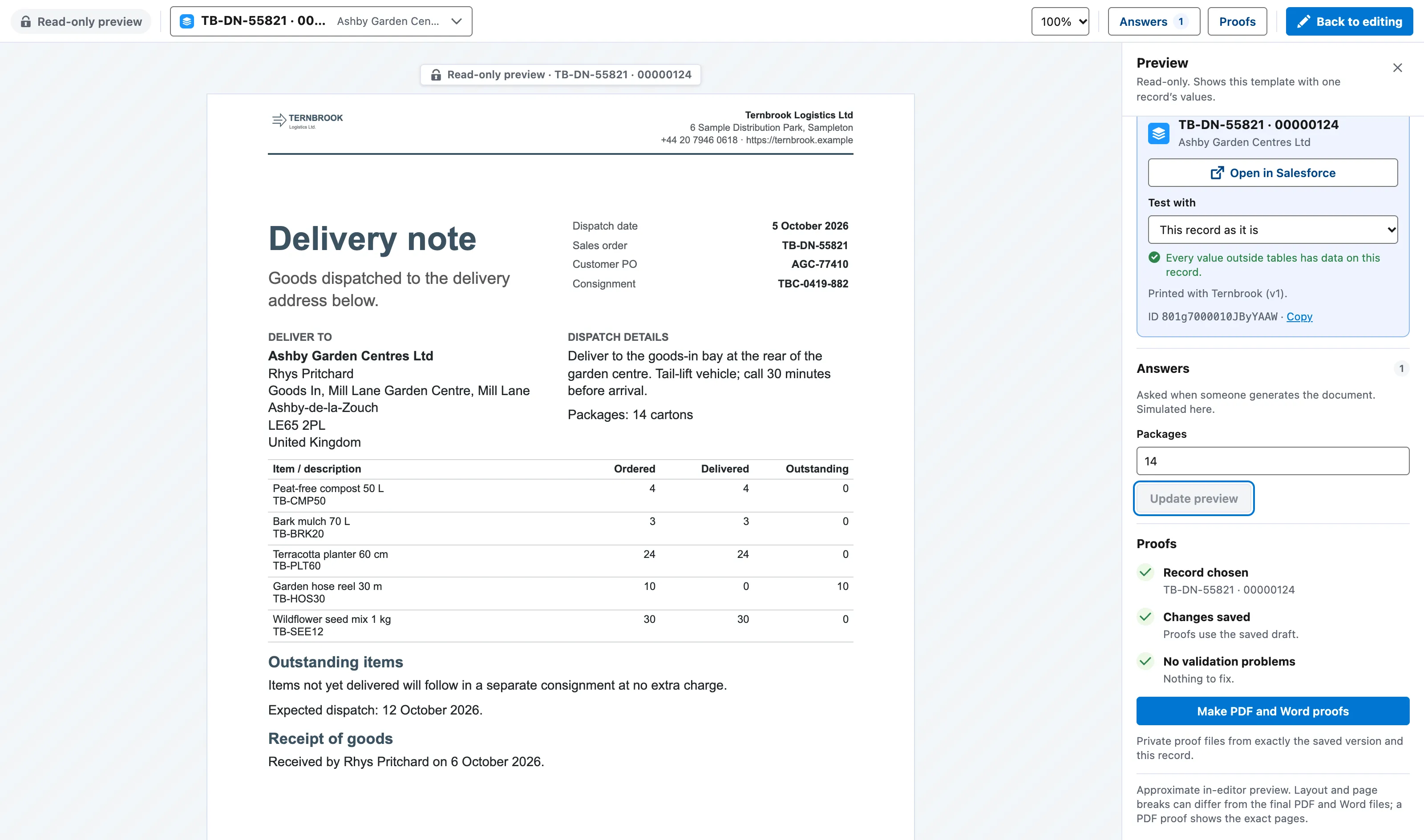
Preview it on a real record.
Pick any record and see its values on the page.
- 2
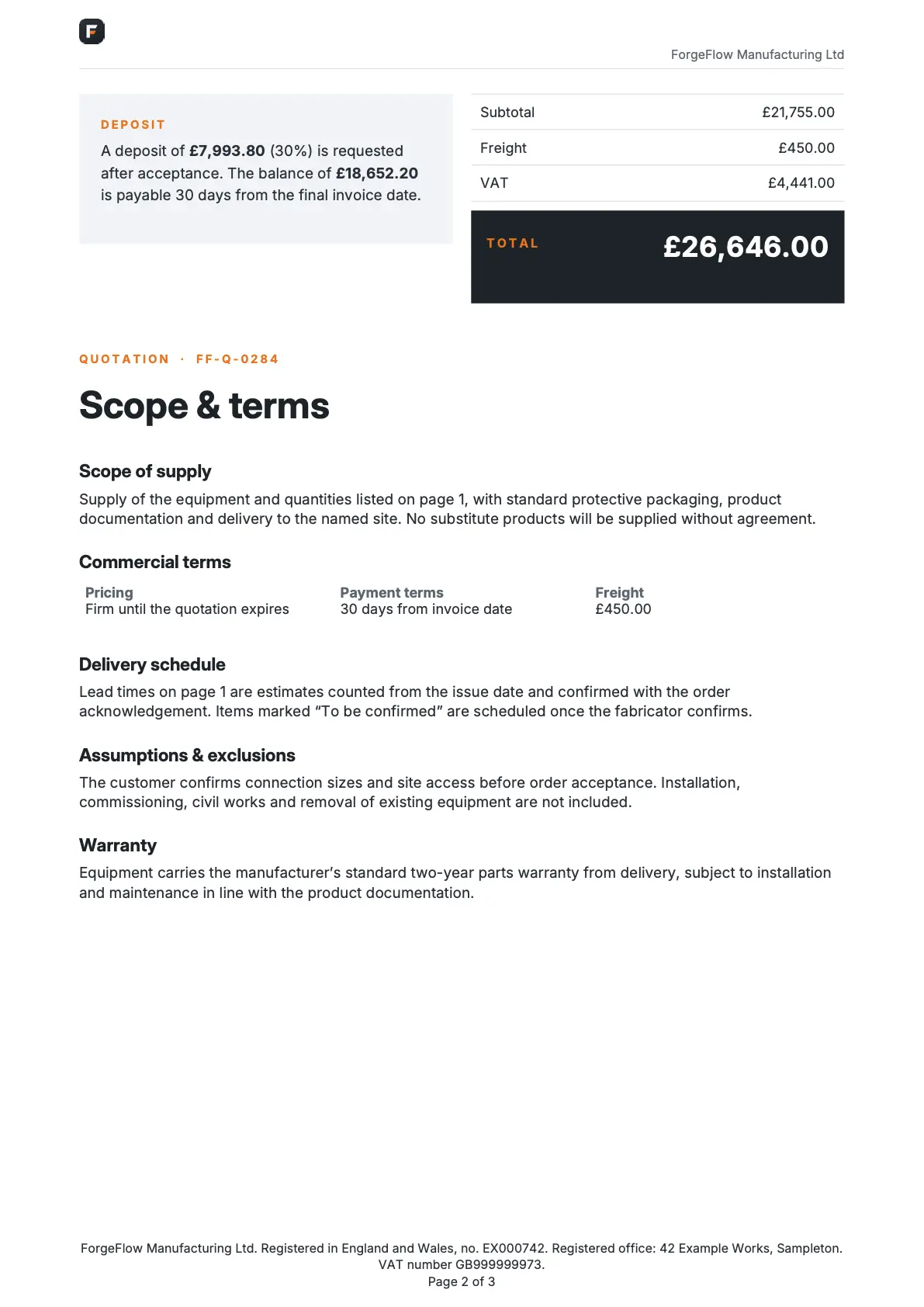
Proof the exact files.
Docable makes the real PDF and Word file, so you check what customers will get.
- 3
Approval, on unless you switch it off.
A second person approves it first, unless you switch that off. Then a person makes that version live. Earlier versions stay, ready to roll back.
ApprovedVersion 3 is live. Version 2 is kept.


- Versions and roll back
- Validate, then jump to the fix
- Accessibility checks
- AI can't approve
PDF and Word.
One template.
The Word file is a real document. Open it, edit it, send it.

- Accessible PDF
- PDF/A
- Password protection
- Fillable fields
- E-signature anchors
- Terms added as PDF pages
One record
or thousands.
In bulk, in the background, from wherever work happens.
- Record page
- List
- Mobile
- Flow
- Schedule
- Apex
- REST
- Experience Cloud
- Claude
- Agentforce


No per-document fee. No record cap. One price for the whole org.
- One combined PDF, ready to print
- Saved to the record, SharePoint or OneDrive, Google Drive or Amazon S3
- Retry from the same data
Look closer.
Real pages, made by Docable.
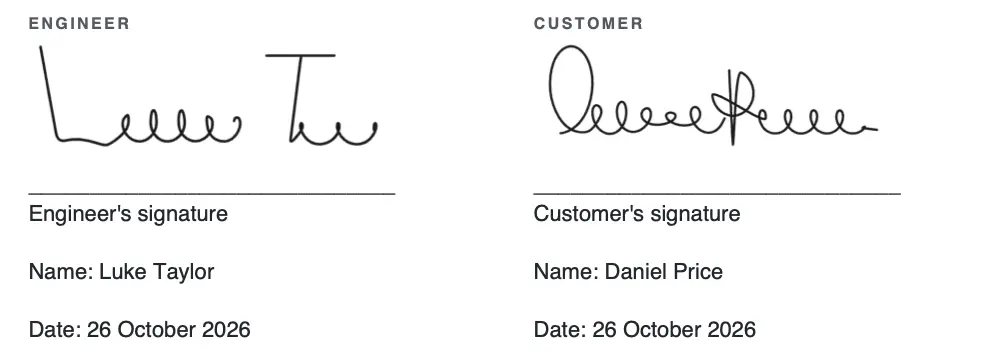
Signed on the phone
Customer and technician, drawn on the screen and printed in the report.
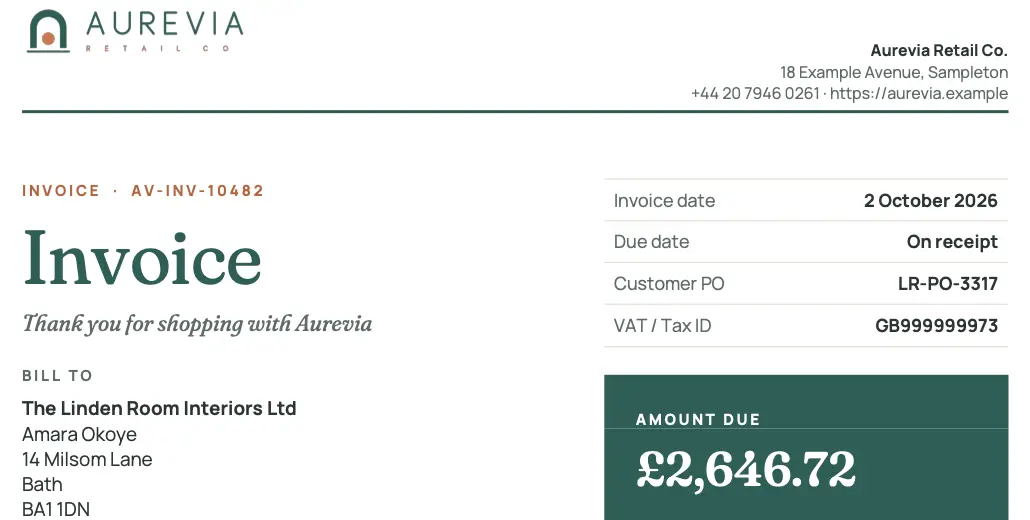
Letterheads
Logo and details from the Brand Kit.
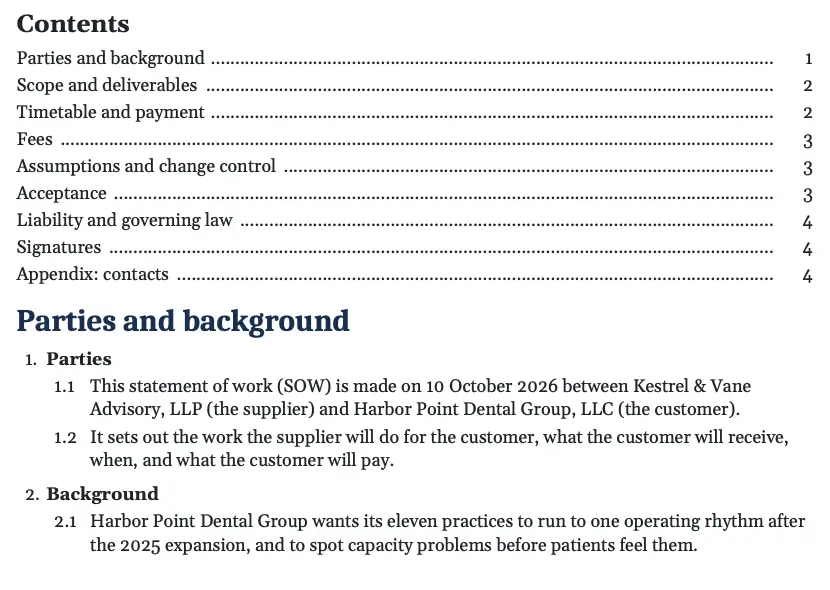
Contents
Dotted leaders to every page.
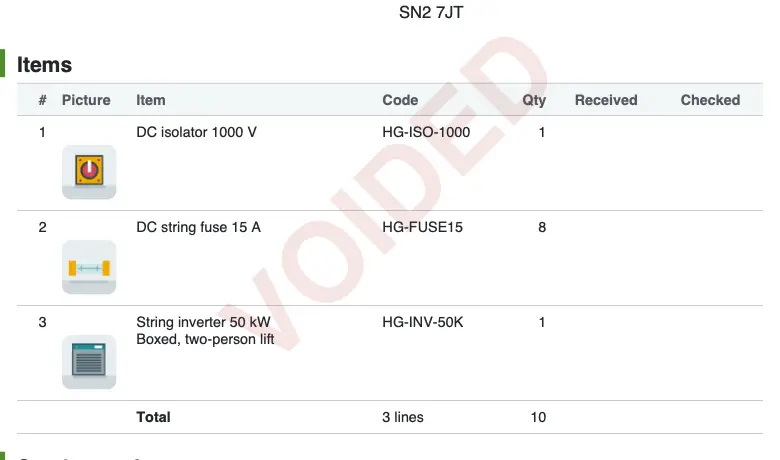
Watermarks
Draft, Not approved or Voided, by a rule.
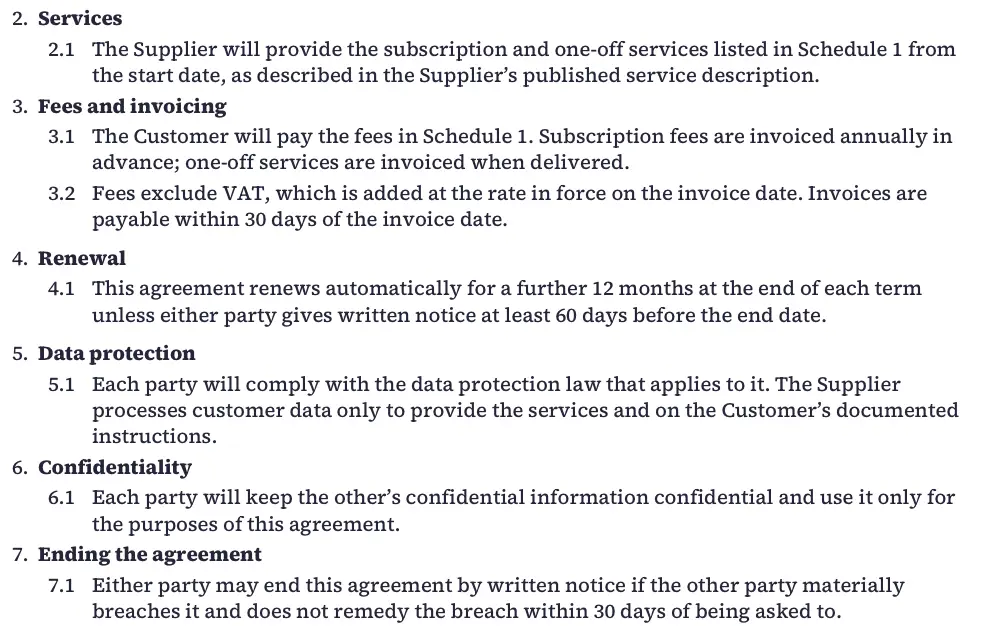
Numbered clauses
Clauses and sub-clauses, numbered for you.
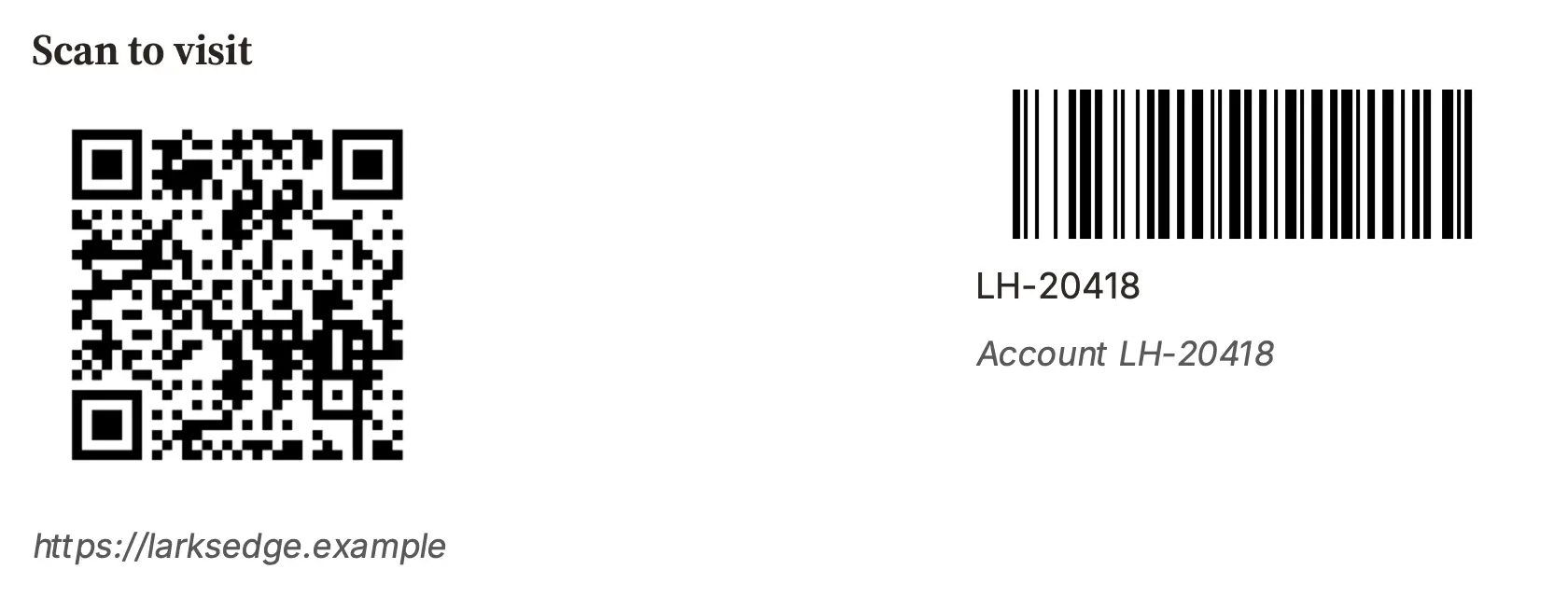
QR codes and barcodes
From any field, ready to scan.
Every page, made by Docable.
Open the PDF. Edit the Word file. See them all


More than 340 capabilities.
All in the one price.
- Charts
- QR codes
- Barcodes
- Photo galleries
- Product pictures in tables
- Fillable form fields
- E-signature anchors
- Watermarks
- Signature images
- Picture cropping
- Text wrap around pictures
- Picture placeholders
- Running totals
- Pivot tables
- Amount in words
- Currency conversion with dated rates
- Subtotals by group
- Sum, average, min and max
- Age and tenure
- Card grids
- Relative dates
- Masked values
- Multi-currency
- Roll-up summaries
- Else-if conditions
- Rules on whole tables
- Nested rule groups
- Reusable conditions
- Pictures chosen by a rule
- Columns shown by a rule
- Stop the document on a rule
- Questions asked when generating
- Document numbers
- Flow and Apex values
- Per-rule preview
- Nth related record
- Legal clause numbering
- Table of contents
- Footnotes
- Cross-references
- Multiple languages
- Tagged accessible PDF
- PDF/A
- Password-protected PDF
- Append PDFs
- Window-envelope address
- Text columns
- Different first page
- Snippet library
- Version compare and rollback
- Brand Kits with approval
- Word import
- Build with AI
- Rebuild with Claude
- SharePoint and OneDrive
- Amazon S3
- Bulk generation
- Combined PDF
- Flow, Apex and REST
- Agentforce
Lives inside Salesforce.
Documents are made in your org, with each person's own access.

 Docable
- DesignTemplates, data and Brand Kits
- ProofPDF and Word from a real record
- ApproveA person makes it live
- Made herePDF and Word, in your org
As the person who asks, with their permissions and sharing.
Nothing else leaves.
- Made in your org.
- Your permissions apply.
- AI drafts. You decide.
£399 a month
for your whole org.
Any number of people. Any number of documents. Every sandbox included. Or a year upfront at ten months’ price.
- Unlimited users
- Unlimited documents
- Every sandbox
- Bulk included
- Works with your AI
- Brand Kits
Or US$499 a month · £3,990 or US$4,990 for a year upfront · within Salesforce's own limits · Pricing and the savings calculator
Questions, answered.
The ones buyers ask first.
Does our data leave Salesforce?
Not to make documents. Every PDF and Word file is made in your org by Docable's own code, as the person who asks. Nothing goes out unless your admin connects a storage destination or a data provider.
What happens when a technician has no signal?
In the Field Service mobile app they still preview the document, answer its questions, sign and tap Submit. When the phone syncs, Docable makes it with the signatures and photos and files it on the work order. Nothing to tap again.
Why not Salesforce's own Service Reports?
They come with Field Service and do a standard signed report well. Docable adds a Word-like editor, Brand Kits, photo galleries, conditional sections, any object, phone questions, visit packs, PDF and editable Word, and the rest of the org's documents.
Is Docable only for field service?
No. The field is where it stands out. The same product makes quotes, contracts, invoices, statements, letters and reports for every team, with 64 ready-made starters. One tool, one price, for the whole org.
How much work is it to switch?
Import a Word file in Salesforce: its merge fields become Salesforce fields, no AI needed. Claude can rebuild templates from another tool, a PDF or a picture. Each is checked on a real record first. Hundreds? We'll help move them.
Is the AI safe?
AI drafts and checks templates. It never sees your records' values, can't approve or make a template live, and runs with the user's access. Docable brings no AI model: it works with your Salesforce AI or your own Claude.
Do we need AI at all?
No. The editor, the Word import, the starters, proof, approval and every way of making documents work without it.
Who checks a template before it's used?
Your people. A draft is checked on a real record as the exact PDF and Word file, then a person makes it live. Second-person approval is on by default and optional. Earlier versions are kept for rollback.
What does it cost?
£399 a month (or US$499) per production Salesforce org, or £3,990 (or US$4,990) for a year upfront at ten months' price. Any number of people and documents, every sandbox included. Salesforce licences, AI usage and storage are separate.

Any number of documents.
One flat price.
£399 a month for your whole org: the field, the office, every sandbox. Join the waitlist and be first to install.