
Use the Docable Setup page
Last updated 26 October 2026.

For administrators: at the end you know where each Docable setting lives and how to change it.
Docable Setup keeps Docable’s own settings. It opens on Finish setup. Changes apply to everyone in the org, and changes to generation settings and access are recorded.
Before you start
- Org settings, Finish setup and People and access need the Docable Admin role. Giving people a role also needs Salesforce’s Assign Permission Sets. A template’s generation settings need the Approver role.
Steps
-
Open the Docable Setup tab in the Docable app.
-
Choose a section from the list.
-
Change the setting, then choose Save settings.
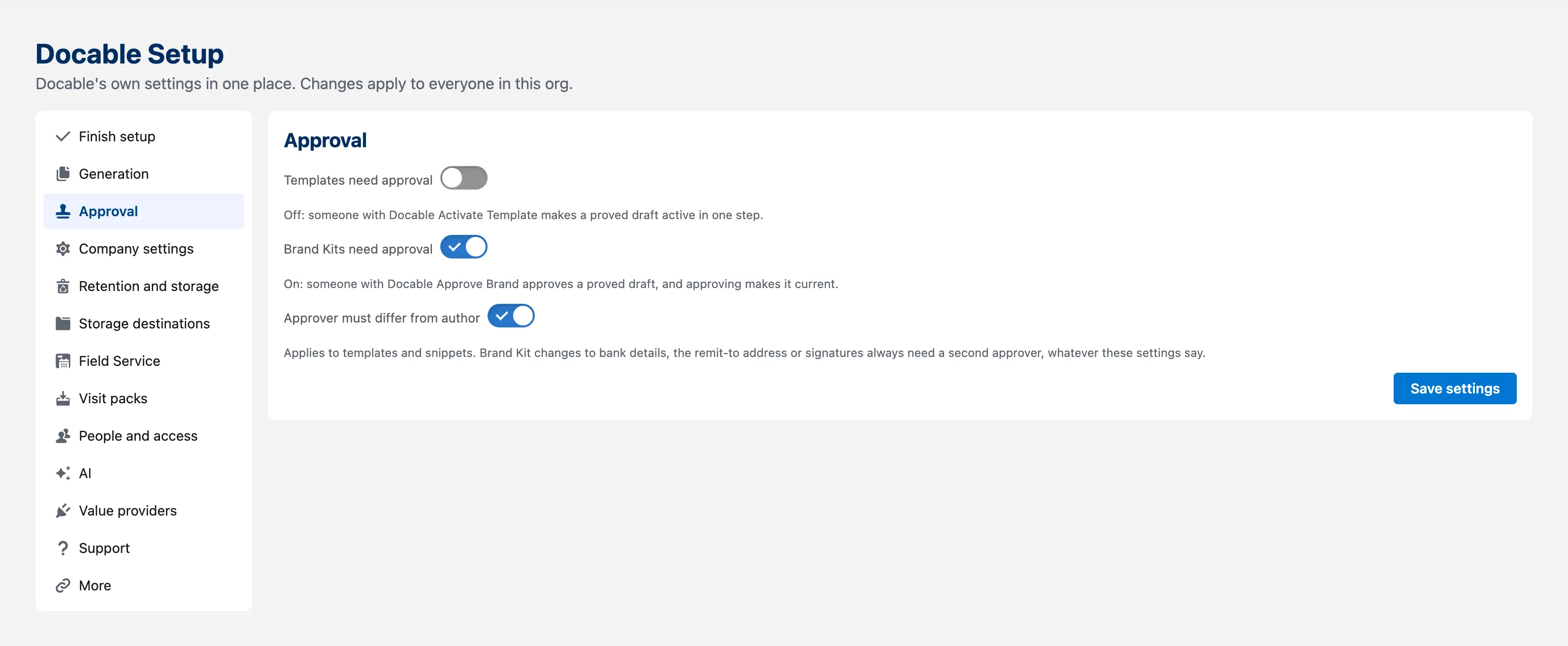
Docable Setup › Approval: Templates need approval, Brand Kits need approval, Approver must differ from author, and Save settings.

Example
The sections and what each holds.
| Section | What it holds |
|---|---|
| Finish setup | The background jobs Docable relies on: the clean-up sweeps, the nightly usage summary and any job an extension adds. Finish setup schedules the missing ones to run at night as you, in one click. Choosing it again changes nothing that is already running. Stop all stops every Docable background job, for example before you uninstall. Schedules made on the Schedules tab aren’t changed here |
| Generation | For each template, whether system mode is allowed, whether portal and guest users may request it, and whether Site users choose the Brand Kit (off by default: site documents use the template’s own kit). The portal and guest generation user. The queue |
| Approval | Templates need approval and Brand Kits need approval, both on by default. The approver must be someone other than the author, on by default, for templates and snippets. See Approval settings |
| Company settings | Values templates may print. Add or change them in Salesforce Setup › Custom Metadata Types › Docable Company Setting |
| Retention and storage | How long Docable keeps its working data, the clean-up sweeps, and this org’s data storage, file storage and API requests today |
| People and access | Who holds each Docable role and each extra access, and buttons to give or remove them. See People and access |
| AI | Whether Docable’s AI extension is installed, and how many people can use AI |
| Value providers | The Apex or Flow providers templates may read values from. Register them in Setup › Custom Metadata Types › Docable Provider. Running one needs Docable Execute Providers |
| Field Service | What Generate Document needs in the Field Service mobile app, checked for this org and for a technician you choose, each marked Ready or Check with its fix. See Set up Docable for the Field Service app |
| Support | The support file |
| More | Links to Brand Kits, Document number series and Generation runs |

People and access

Give each person one role that matches their work. Each role is a Salesforce permission set group, so it also shows in Salesforce Setup.
| Role | For | Can |
|---|---|---|
| Docable Admin | The person who sets Docable up | Settings, Finish setup, People and access, diagnostics. Doesn’t write, approve or make documents |
| Template Author | People who build templates | Write templates, make proofs, use AI and analyse files |
| Approver | People who make templates live | Approve and activate templates, approve snippets |
| Document User | Everyone who makes documents | Generate from records, lists, Flow and the other doors |
No role both writes and approves templates. Extra access is kept apart on purpose and given only to the people who need it: Brand Manager and Approve Brand (make and approve Brand Kits), Generate in System Mode, Schedule Manager (activate schedules), running value providers, and Portal Requester.
- Under a role, choose Add people.
- Find people by name, username or email, tick them, then choose the button to give the role.
- To remove a role, choose the cross beside the person.
Docable names risky combinations before and after a change, under Check these. Approval roles are never given to API-only, integration or AI agent users, and you can’t remove your own Docable Admin.
Approval settings
With Templates need approval off, someone with the Approver role makes a proved draft live in one step with Activate…. It still needs current PDF and Word proofs of that exact revision, and a person at the screen. With Brand Kits need approval off, a Brand Manager makes a proved kit draft current in one step. A change to a kit’s bank details, remit-to address or signatures still needs a second, different person, whatever these settings say. AI, Claude, Agentforce and Flow can never approve or activate.
Check it worked
After Save settings, the page shows a confirmation. The change applies to everyone in the org, and a change to a generation setting is recorded.
If it doesn’t work
| What you see | What to do |
|---|---|
| The fields are greyed out. | You need the Docable Admin role for org settings, or the Approver role for a template’s generation settings. |
| Approval is on and nobody else can approve. | Give a second person the Approver role on People and access, or switch The approver must be someone other than the author off. |
| Add people is missing. | Changing access needs Docable Admin and Salesforce’s Assign Permission Sets. |
| The Health panel on Get started shows background jobs missing. | Open Finish setup and choose Finish setup. |
| A section you expect is missing. | Optional extensions add their own links under More, such as storage destinations. |
Next
Something unclear or wrong? Tell support.