
Send documents to your own storage
Last updated 26 October 2026.

For administrators: at the end documents go straight from your org to your own Amazon S3, Google Drive or SharePoint storage.
By default every document is saved as a Salesforce File. If you want, send documents to storage you own instead. Docable never stores or relays them: they go from your Salesforce org straight to your storage. Until you connect a destination, generation makes no call outside Salesforce.
Before you start
- The Docable storage extension is installed, and you hold Docable Manage Storage. Docable creates the connection in Salesforce, so you also need Salesforce’s right to manage Named Credentials.
- You have the provider’s details ready: your own app or access key, as the table below says.
Steps
-
Open Docable Setup › Storage destinations, then choose Add destination.
-
Choose the provider and give the Destination name. The page lists what to do on the provider’s side.
-
Paste what the provider gave you, then choose Create connection. Secrets go straight to Salesforce’s credential store and Docable keeps none.
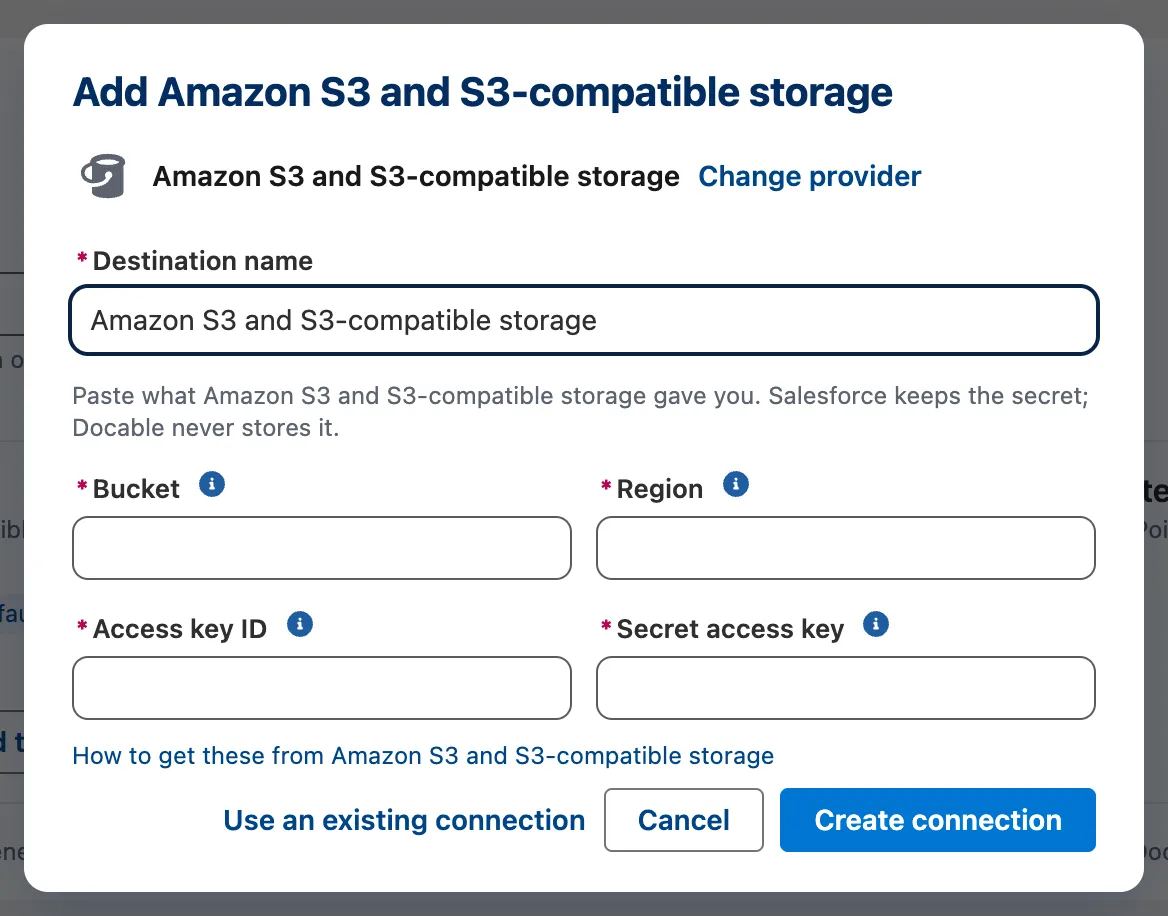
Add Amazon S3: the destination name, bucket, region, access key ID and secret access key, then Create connection. -
For Google Drive, choose Sign in once as an administrator.
-
Optionally set Folder for each document with a pattern such as
Invoices/{Year}/{Record Name}, Also keep a copy in Salesforce Files, and Allow preview on the record page. -
Choose Send test file. The destination reads Connected, Needs sign-in, Refused or Not tested.
-
Under Templates, choose a Destination for each template, or set the Organisation default.
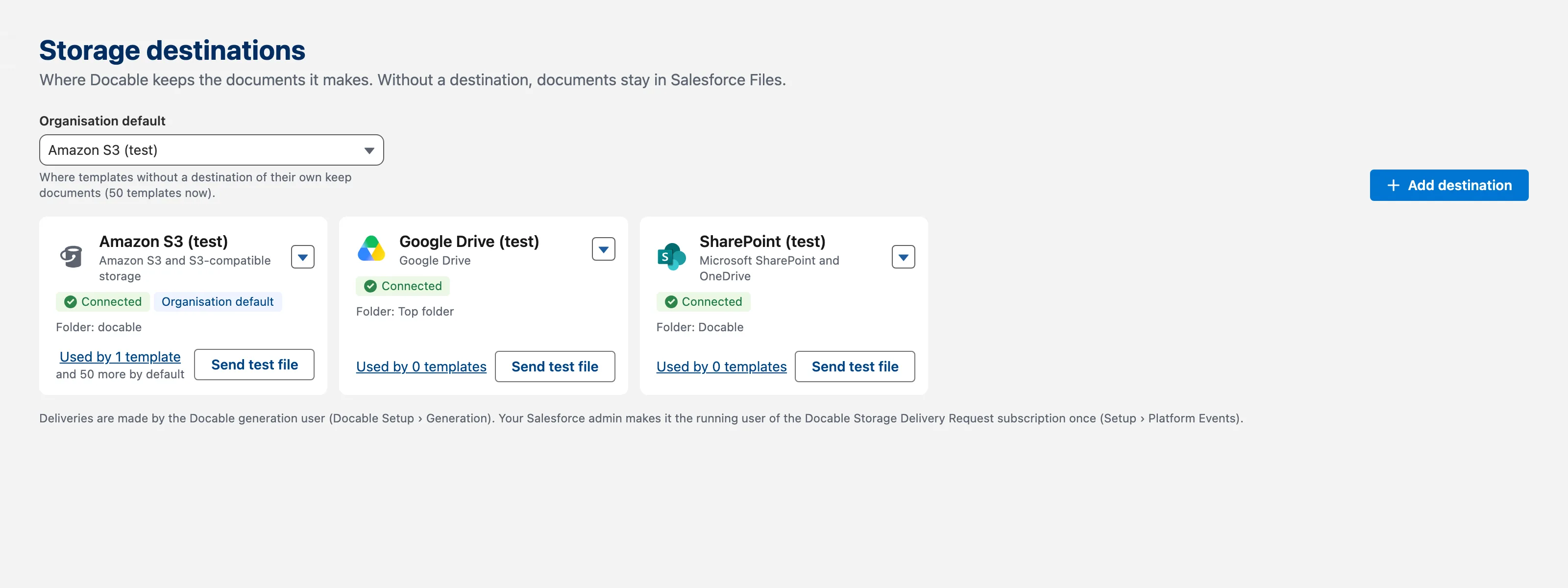
Storage destinations: the organisation default, each connected destination with its folder and how many templates use it, and Send test file.


Example
| Provider | How Docable signs in |
|---|---|
| Microsoft SharePoint and OneDrive for Business | Your own app registration: the tenant, client ID and client secret. It writes to one site only. Personal OneDrive is not supported |
| Google Drive | Your own Google OAuth client, and one administrator signs in once. Docable sees only the files it creates |
| Amazon S3, and S3-compatible storage | An IAM user’s access key, limited to one bucket and folder |
Check it worked
The test file arrives in the folder, and the destination reads Connected. The destination you choose is shown when a template is approved, and is recorded for every generation. The Docable Documents component on a record page lists the documents made for that record, wherever they are kept.
If it doesn’t work
| What you see | What to do |
|---|---|
| The destination reads Needs sign-in or Refused. | The page shows the provider’s reason. Sign in again, or fix the provider’s side, then Send test file again. |
| Documents do not arrive. | Set the Docable generation user in Docable Setup, and set the same user on the Docable Storage Delivery Request subscription in Salesforce Setup, then suspend and resume it. |
| A delivery failed. | A refused delivery is not retried. A delivery that could not reach the provider is retried to the same place, and never to another destination. |
Next
Something unclear or wrong? Tell support.