
Add the Generate Document button to a record page
Last updated 26 October 2026.
People make a document from a record with the Generate a document panel. You add it to a record page once, in Lightning App Builder, and choose which documents it offers and in which formats. For the Field Service app, the quick action is set up separately: see Set up Docable for the Field Service app.
Before you start
- You can edit Lightning record pages in the org.
- At least one template for the object is active and shared with the people who will use the page.
- Those people have the Document User role (Docable Generate and Docable Runtime Generator Storage). See Permission sets and roles.
Steps
-
Open a record of the object, for example a quote.
-
Open the setup menu and choose Edit Page. Lightning App Builder opens with the record page.
-
In the components list, find Docable Generate Document and drag it onto the page where people will see it, for example the right-hand column.
-
Select the component. Its properties show on the right.
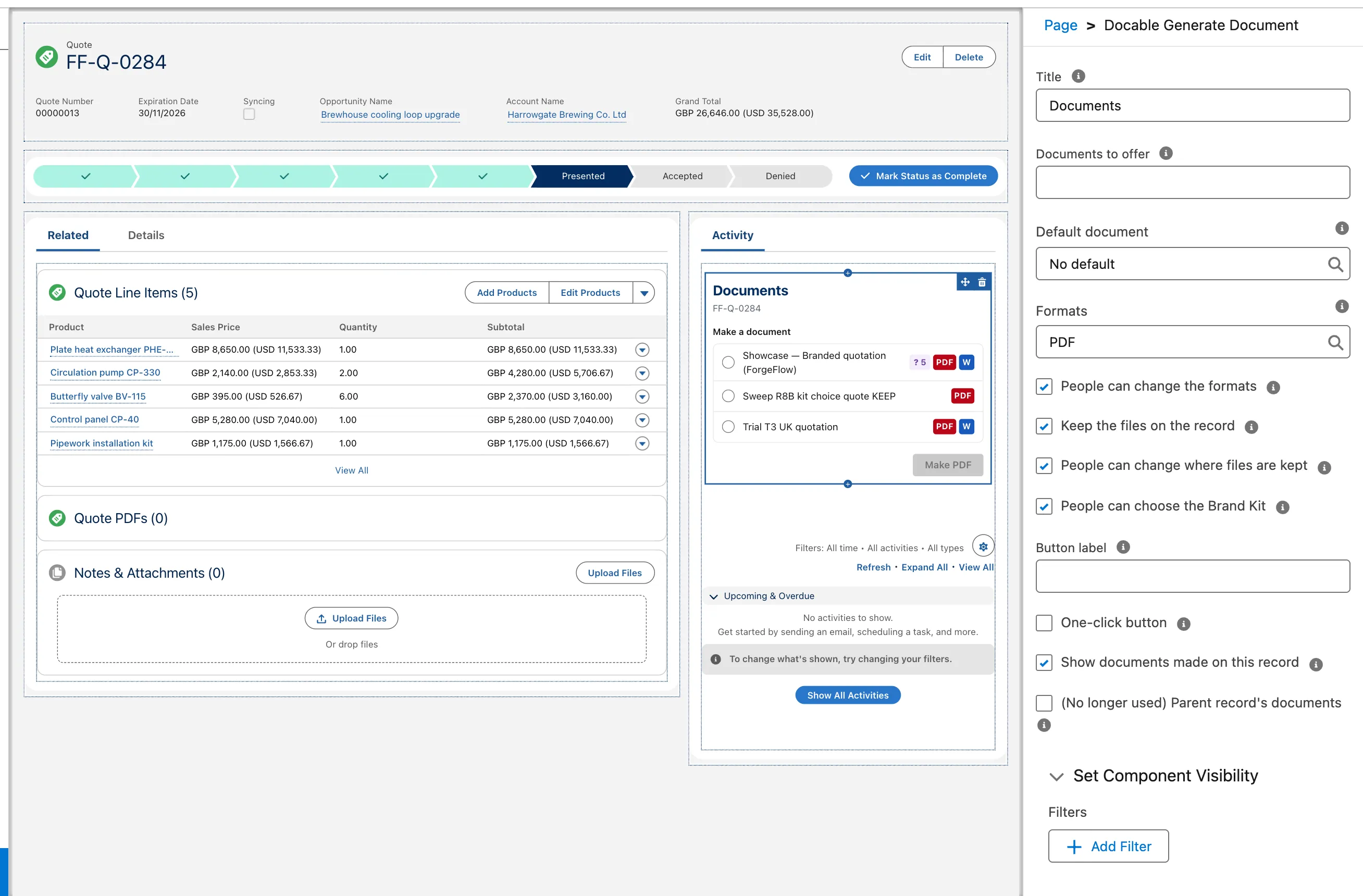
Lightning App Builder: the Docable Generate Document component on a quote record page, with its properties on the right. -
Set Title to what the panel should be called on the page.
-
Set Documents to offer to the documents this page should list, and Default document to the one chosen first.
-
Set Formats to PDF, Word or both. Turn People can change the formats off to keep everyone to that choice.
-
Leave Keep the files on the record on so the files are saved to the record. Turn People can change where files are kept off if nobody should make temporary files from this page.
-
Optional: change Button label, turn on One-click button for a single button that makes the default document, and turn People can choose the Brand Kit off so documents always use the template’s own choice.
-
Optional: add Docable Documents to the same page. It lists the documents Docable made for the record, newest first, with open, download, make again and details. Set How many to show, up to 50.
-
Choose Save.
-
If the page is new, choose Activate and assign it as the org default, or to the apps, record types or profiles that should use it. Save the activation.
-
Choose Back to return to the record.

Make documents from a list view
To make documents for the records people tick in a list view, add a list view button that opens a screen Flow with the Docable Generate for Selected Records screen component and the generation action. For a template that allows more than one Brand Kit, the screen offers a Brand Kit choice for the whole run. See Make documents for many records and Flow.
Example
| Property | Value |
|---|---|
| Title | Generate a document |
| Documents to offer | The ForgeFlow Branded quotation |
| Default document | The ForgeFlow Branded quotation |
| Formats | PDF and Word |
| Keep the files on the record | On |
| People can choose the Brand Kit | On |
Check it worked
Open a quote as someone with the Document User role. The Generate a document panel lists the documents you chose, with the formats you set. Make one: the file is listed under the quote’s Files and the run is on the Generation Runs tab.
If it doesn’t work
| What you see | What to do |
|---|---|
| The component is not in the components list. | Check that Docable is installed and that you are editing a record page, not an app or home page. |
| The panel says no active template makes documents from this kind of record for you. | A template appears once it is approved, activated and shared with the person. Check the template’s object matches the page. |
| A template you expected is missing from the list. | Check Documents to offer, and the template’s Offer when rule. See Offer when. |
| People still see the old page. | Check the activation: the page must be assigned to the app, record type or profile they use. |
| A quick action on a feed-tracked object opens in the feed publisher. | Use the record-page panel on those records. |
Next
Something unclear or wrong? Tell support.