
Make your first document without AI
Last updated 26 October 2026.
By the end you have a customer letter template of your own, made from a quick start without AI and ready to check. This guide is for template authors.
Before you start
- You have the Template Author role (Docable Configure and Docable Definition Author).
- A Brand Kit is approved, or you are happy to choose None for now.
Steps
-
In the Docable app, open Templates.
-
Choose New.
-
Choose Start from a quick start.
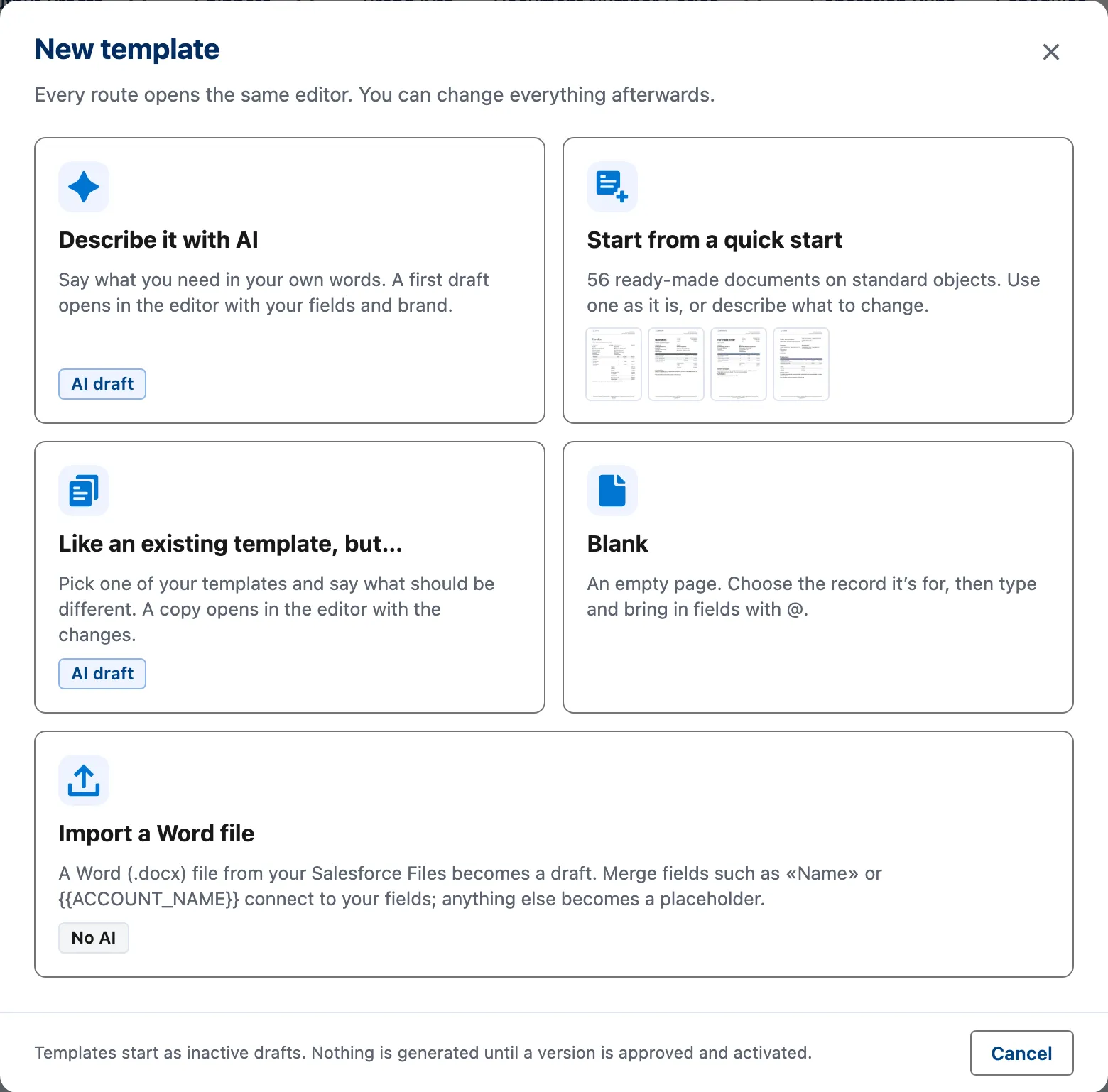
The New template dialog. Start from a quick start is the second card. -
Choose Formal customer letter in the gallery. Choose Preview first if you want to look at it.
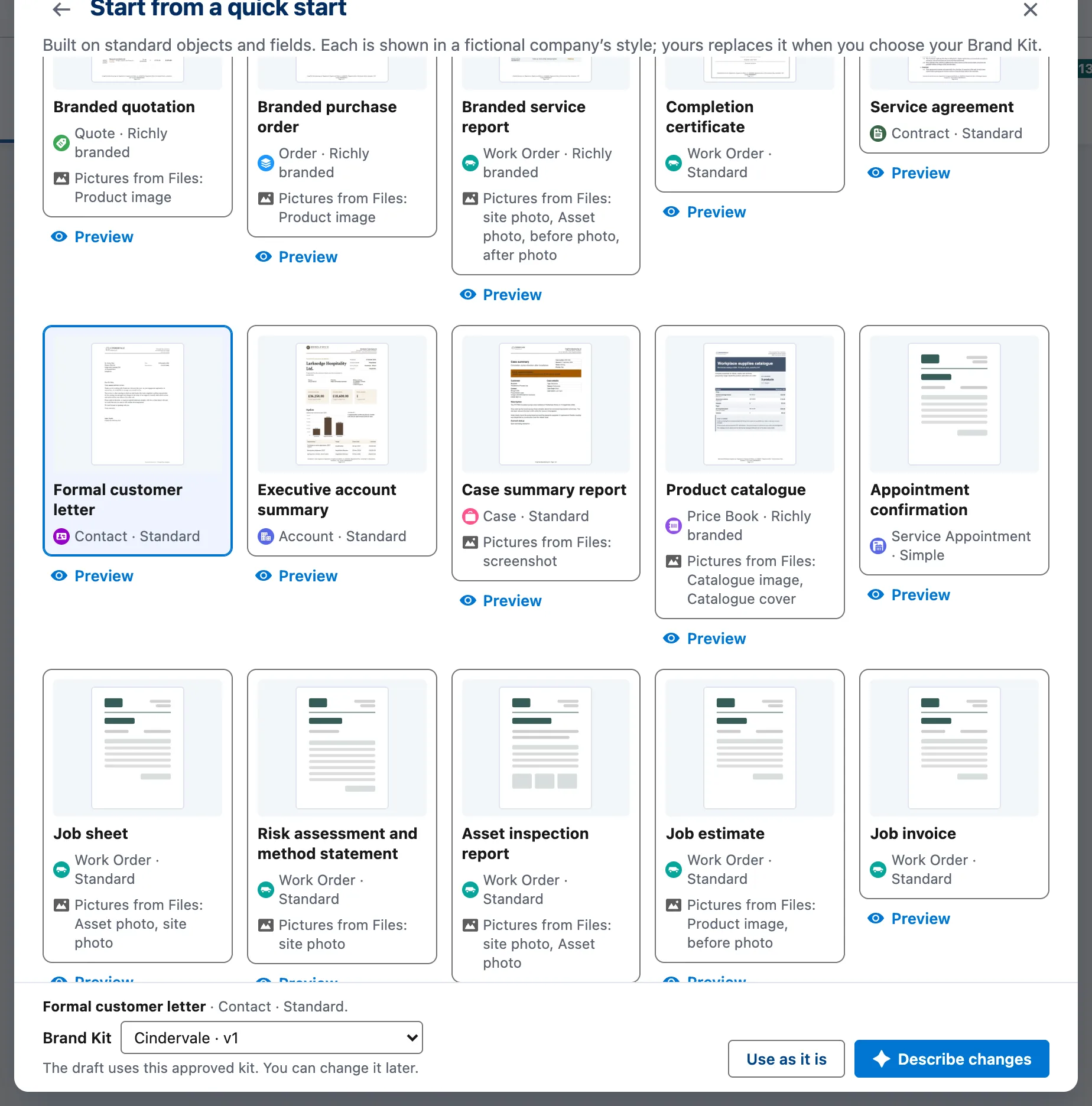
Start from a quick start: the card gallery with Formal customer letter selected, Preview on each card, the Brand Kit choice, Use as it is and Describe changes. -
Choose your approved kit under Brand Kit, or None for now.
-
Choose Use as it is. The draft opens in the editor.
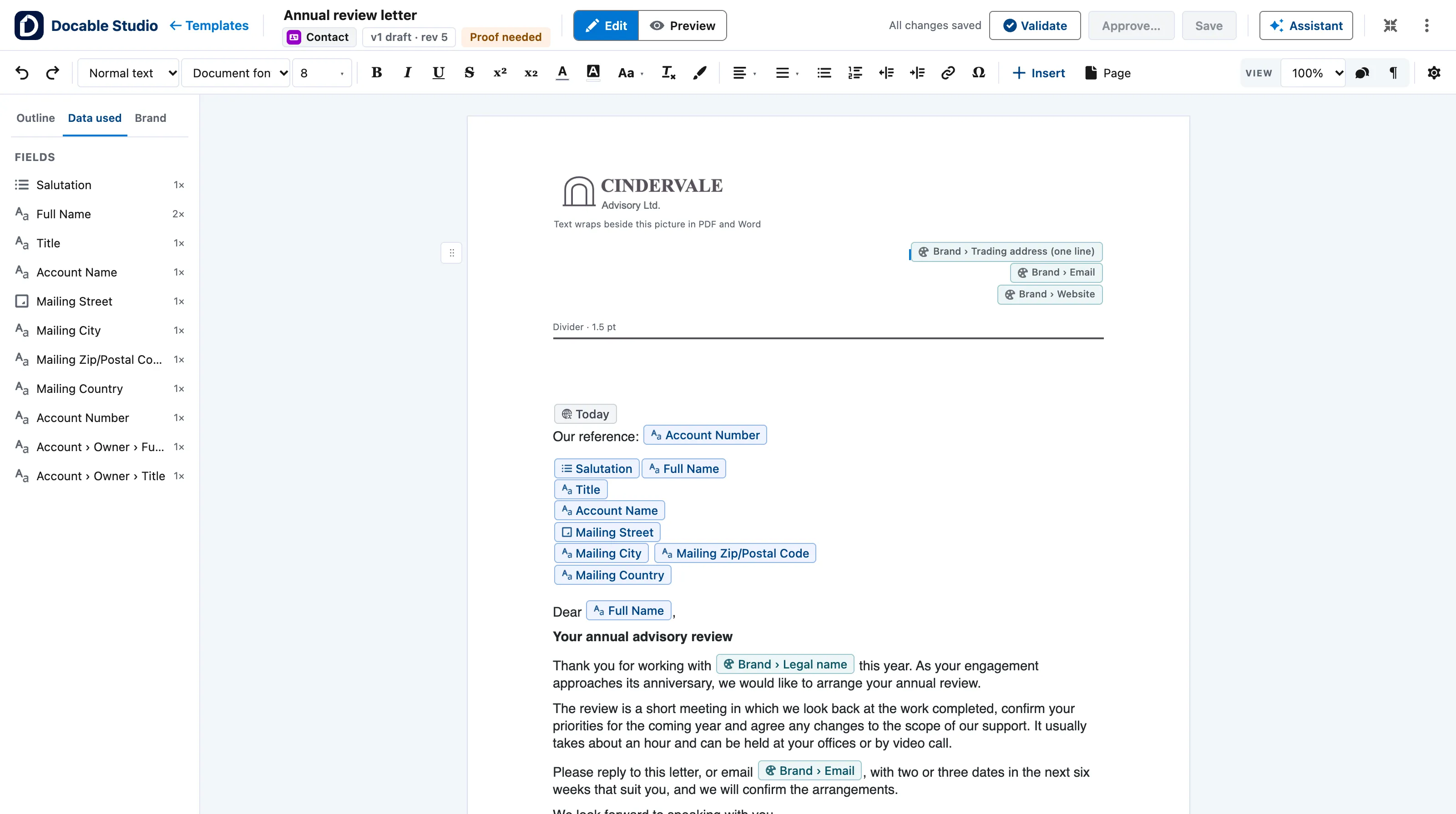
The opened letter in the editor. Fields sit in the text as chips. -
Replace the subject and the four paragraphs with your own words. The blue chips are Salesforce fields: type
@to insert another.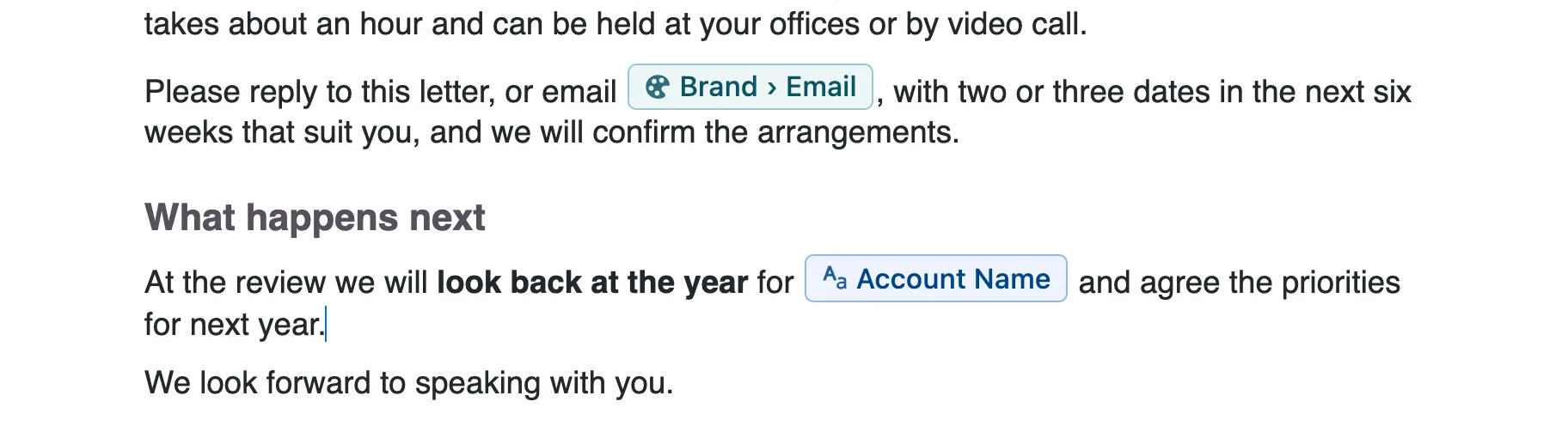
Typing in the letter. A field chip sits inside the sentence like a word. -
Choose Preview, then pick a contact to see the letter filled in.
-
Choose Validate, then check, approve and generate.


No quick start fits? Choose Blank for an empty page, or Import a Word file to bring in a Word template. In the editor, More actions › Duplicate… copies one of your own templates.
Example
The Formal customer letter quick start is built on Contact. It prints today’s date, an Our reference line from the account number, the address block, a salutation that fits what the record holds, and your four paragraphs.
| Setting | Value |
|---|---|
| Quick start | Formal customer letter |
| Brand Kit | Cindervale |
| Replace | The subject line and the four paragraphs under it |
Check it worked
In Preview, choose the contact Helen Achebe. The salutation reads Dear Dr Achebe, and the reference reads CA/NHT-2031. Choose Back to editing to carry on.
If it doesn’t work
| What you see | What to do |
|---|---|
| Use as it is is greyed out. | Choose a Brand Kit first, or None for now. |
| A quick start you expect is not listed. | It needs a feature this org does not have, such as Orders, Quotes, Field Service or Salesforce Billing. The gallery says how many it left out. |
| Preview asks you to choose a test record. | Search for a contact by name or ID. Preview lists only records you can read. |
Next
Something unclear or wrong? Tell support.