
Give your documents a Brand Kit
Last updated 26 October 2026.
By the end of this guide you will have an approved Brand Kit with your logo, colours, fonts and company details, chosen in a template. It is for Brand managers and template authors.
Brand Kit: ForgeFlow

A ForgeFlow quotation


Before you start
- You have Docable Brand Manager as extra access, which lets you make and change kits.
- Someone else holds Docable Approve Brand to approve the kit.
- Your logo is a PNG, JPEG or simple SVG, saved in Files as a private File you own.
Make the kit
-
Open the Brand Kits tab.
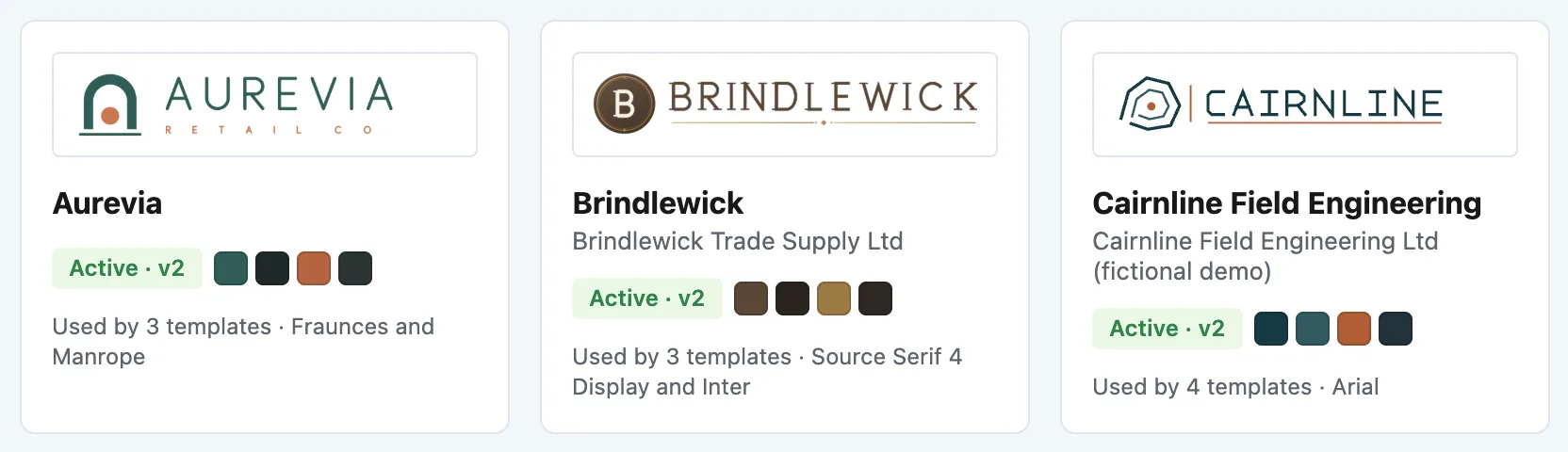
Kits on the Brand Kits tab, each with its logo, status, colours and fonts. -
Choose New Brand Kit, then choose how to start: Start from a logo, Start blank, Duplicate a kit or Describe it with AI.
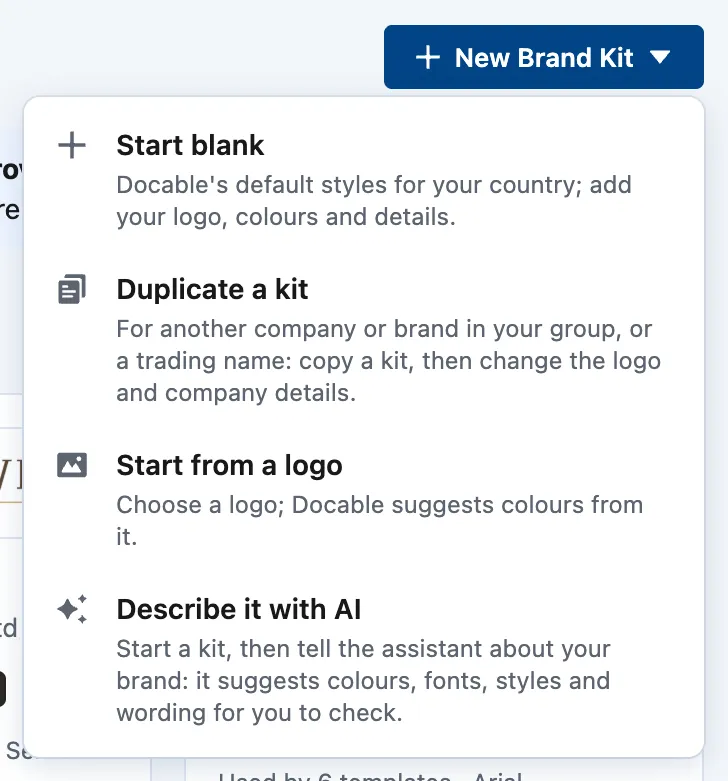
The New Brand Kit menu: Start blank, Duplicate a kit, Start from a logo, and Describe it with AI. -
Enter the Kit name.
-
Enter the Country the company is registered in.
-
If you started from a logo, choose the file and check the Suggested colours.
-
In the kit editor, fill in Logos, Colours and Fonts. The sample document on the right updates as you type.
-
Fill in Company details. Bank details, the remit-to address and signatures are protected: a change to any of them needs a second approver.
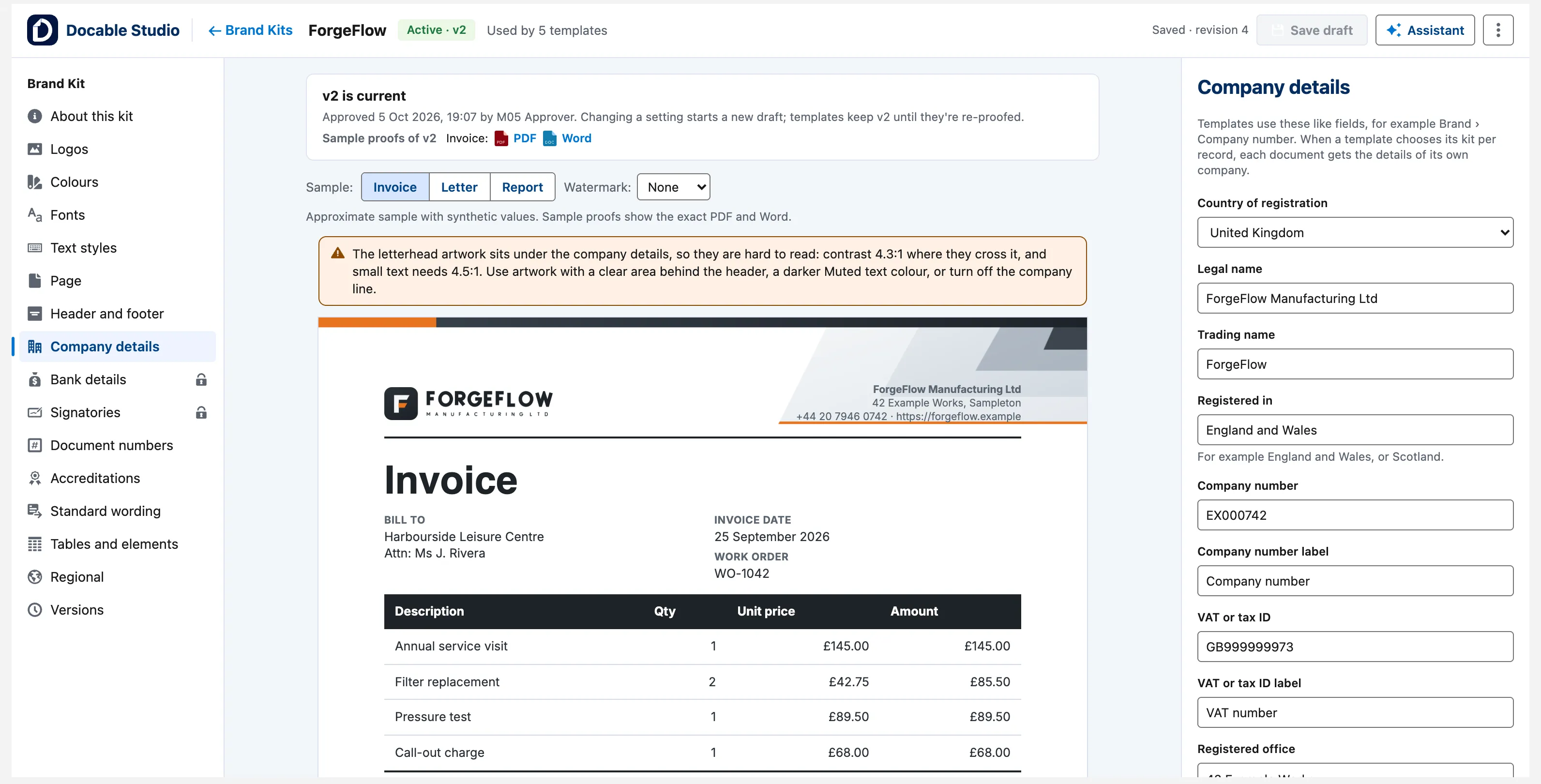
The kit editor on Company details: the section list on the left, the sample invoice in the middle, and the company fields on the right. -
Choose Save draft.
-
Choose Make sample proofs.
-
Open the PDF and Word sample proofs, and check the logo, colours, fonts and company details.
-
Ask someone with Docable Approve Brand to approve the kit.


Use the kit in a template
-
Open the template and choose Page › Brand Kit.
-
Under How this template gets its brand, choose One Brand Kit, then pick the kit under Brand Kit.
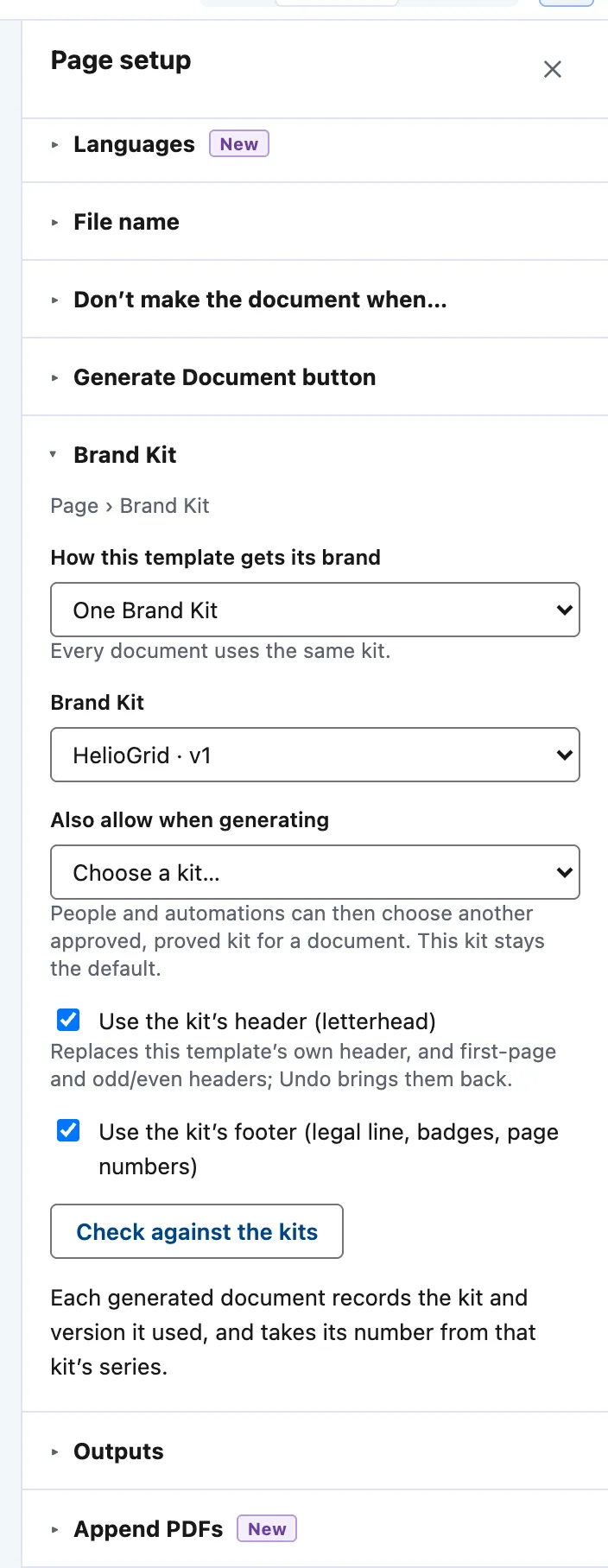
Page setup › Brand Kit: how the template gets its brand, the kit and version, Also allow when generating, and the kit's header and footer. -
Tick Use the kit’s header (letterhead) to print the kit’s header.
-
Tick Use the kit’s footer (legal line, badges, page numbers) to print the kit’s footer.
-
Choose Save, then make new proofs: Check a template with Preview, Validate and proofs.

Same document, different branding
One template can print with more than one kit, for example a UK and a US company, or two brands of one group. Under How this template gets its brand, choose one of these:
- Choose per record: say which kit each record gets.
- A default kit, others chosen when generating: pick the Default Brand Kit, then add each other kit under Also allow when generating. Documents use the default unless the person or automation generating them chooses another of these kits: on the record page, the list view screen, Flow, Apex, REST, Claude or Agentforce.
Then prove each kit: in Preview › Proofs, choose the kit under Prove with and make proofs. A run can choose only a kit that is approved and proved with the template’s active version. Any other is refused with the allowed kits named; Docable never quietly prints a different kit.
Example
The ForgeFlow kit, as the quotation prints it.
| Section | Setting |
|---|---|
| Company details | Legal name ForgeFlow Manufacturing Ltd, Trading name ForgeFlow, Registered in England and Wales, Company number EX000742, VAT or tax ID GB999999973 |
| Company details | Registered office 42 Example Works, Sampleton; Phone +44 20 7946 0742; Email [email protected]; Website https://forgeflow.example |
| Colours | Primary for the total band, Accent for the orange labels, Callout fill for the panels, Lines for the rules |
| Fonts | Inter and Inter Display, uploaded to the kit |
| Header and footer | Show the legal line (registered name, number, office, VAT) on, and Page numbers as Page 1 of 2 |
Check it worked
The kit is listed on Brand Kits as a draft, and its sample proofs show your logo, colours and company details. Once approved, its card reads Active · v1.
If it doesn’t work
| What you see | What to do |
|---|---|
| You cannot create or change a kit. | Only people with Docable Brand Manager can. Template authors use approved kits. |
| Your logo is refused. | Save it as a private File you own, not attached to a record. PNG, JPEG and still GIF work. Keep an SVG logo simple; WebP is not supported. |
| The editor warns under a font. | The PDF replaces a font that is not a standard PDF font and not uploaded. Upload the font file to the kit to print it exactly. |
| A run refuses the kit. | Approve the kit, then prove it with the template’s active version under Preview › Proofs › Prove with. |
Next
Something unclear or wrong? Tell support. Product page: Brand Kits.