
How the ForgeFlow case summary was built
Last updated 26 October 2026.
The sample uses the ForgeFlow Brand Kit. Colours are Brand Kit colours (Accent, Lines and Callout fill).
Before you start
- Docable installed, and access to create templates: see Permissions and readiness.
- An approved Brand Kit: see Give your documents a Brand Kit.
- A case, 00001030 in the sample, with published comments.
Start from the Case summary report quick start
-
In the Docable app, open Templates, choose New, then Start from a quick start.
-
Choose Case summary report.
-
Under Brand Kit, choose your approved kit. The sample uses ForgeFlow.
-
Choose Use as it is. The template opens in the editor, built on Case, with the case’s comments and child cases as lists.
The blocks on the page
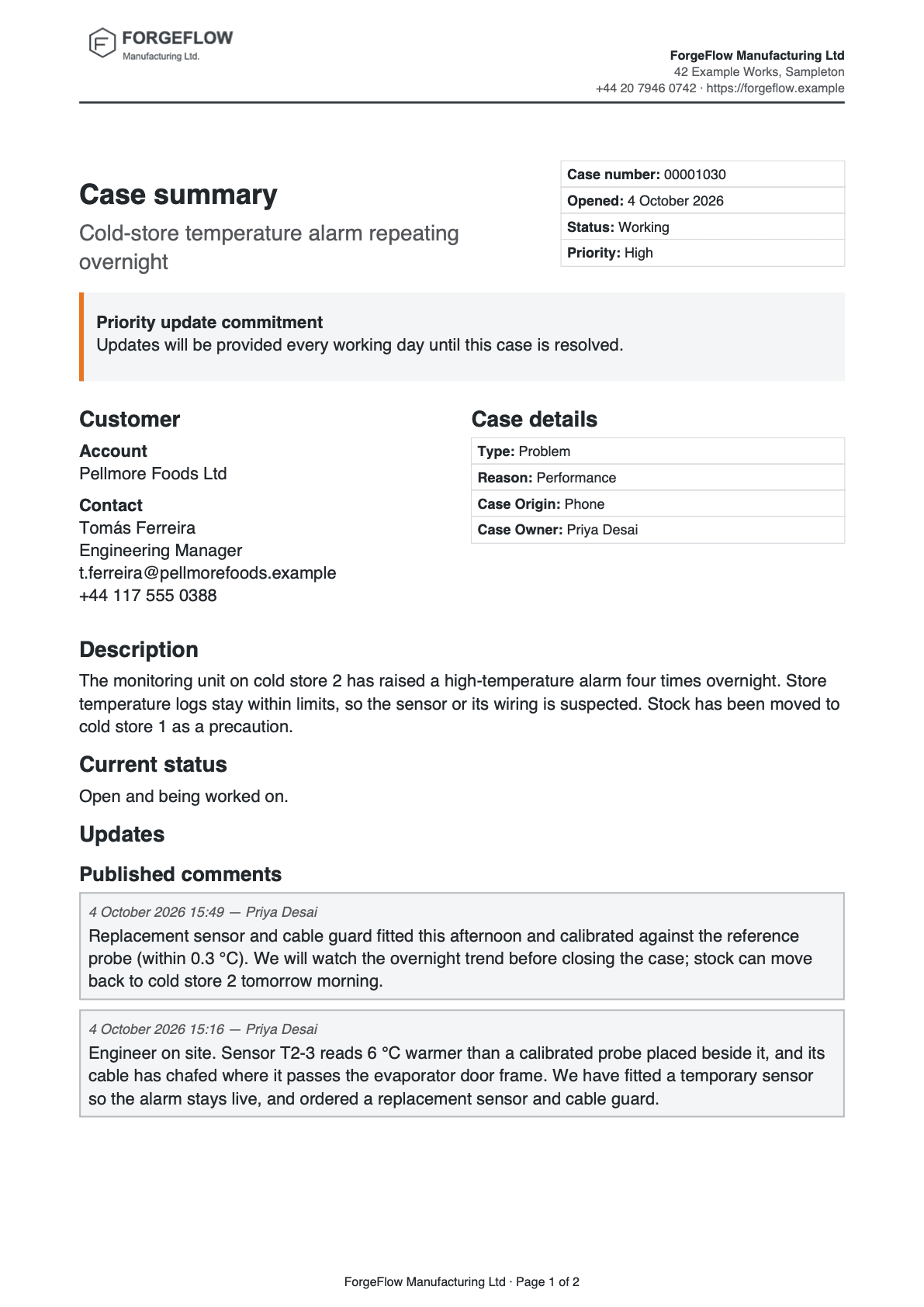
- Title and facts. The subject, with the case’s number, date, status and priority.
- Priority banner. Shown only for high and critical cases.
- Customer and case details. Two columns.
- Description and current status. Open or closed wording.
- Updates. A box for each published comment, newest first.
Title and facts
Guide: Put Salesforce data in a document.
| Part | Setting |
|---|---|
| Layout | Two columns, widths 62% and 38% |
| Title | Heading 1 Case summary, then the case’s subject |
| Facts (right) | A Field grid with one column: Case number, Opened, Status, Priority. Date format 4 March 2026 on Opened |
| Header and footer | Page › Brand Kit: Use the kit’s header (letterhead) on and Use the kit’s footer (legal line, badges, page numbers) off. The footer is the template’s own: the Brand Kit’s legal name, · Page, Page X of Y |
Priority banner
Shown only for urgent cases. Guide: Show a section only when it applies.
| Part | Setting |
|---|---|
| Show when | High or critical priority: Any rule is met. Rule 1: the priority is High. Rule 2: the priority is Critical |
| Box | A Callout box: Sides Left, Border width (pt) 3, Border colour Accent, Fill Callout fill, Padding (pt) 8 |
| Text | Priority update commitment in bold, then: Updates will be provided every working day until this case is resolved. |
Parent case
| Part | Setting |
|---|---|
| Show when | Has parent case: the parent case is not blank |
| Text | Part of case , the parent’s number, : , its subject, · Status:, its status. A Divider follows |
Customer and case details
| Part | Setting |
|---|---|
| Layout | Two columns, widths 50% and 50% |
| Customer | Heading 2 Customer, then Account and the account’s name, then Contact and the contact’s name, title, email and phone, each on its own line |
| Case details | Heading 2 Case details, then a Field grid with one column: Type, Reason, Case Origin, Case Owner |
| Empty values | Hide the whole line when empty on each field, so a case with no contact title prints no gap |
Description and current status
| Part | Setting |
|---|---|
| Description | Heading 2 Description, then the case’s description with Hide the whole line when empty |
| Current status | Heading 2 Current status. Show when Case closed: Closed is true (ticked): Closed on and the closed date, then a full stop |
| Otherwise | Open and being worked on. Add it with Add or remove “Otherwise” |
Updates: a box for each published comment
Content that repeats for each related record. Guide: Repeat a section for each record.
| Part | Setting |
|---|---|
| Section | Show when Has published comments or child cases: Any rule is met, with the number of published comments > 0 or the number of child cases > 0 |
| Heading | Heading 2 with a calculation, Updates heading: Updates & related cases when both exist, Updates when only comments exist, Related cases when only child cases exist. It is two nested If / otherwise value calculations |
| Comments | Heading 3 Published comments, in a section with Show when Published comments section: the number of published comments > 0 |
| Repeat for each | Case Comments, filtered with Filter, sort and limit…: Only records where Published comments only (Published is true (ticked)). Sort Created Date, Z → A, high → low. At most (records) 200 |
| Each comment | A Callout box: Border width (pt) 1, Border colour Lines, Fill Callout fill, Padding (pt) 5, with Keep on one page. Line one: the created date and time, —, the author’s name. Line two: the comment’s body |
| Related child cases | Heading 3 Related child cases, shown when the number of child cases > 0. Repeat for each Cases, newest first. Each is a box with a Lines border: the case number, —, the subject; then Status, Priority and Opened on one line, each hidden when empty |
Contact us
Heading 2 Contact us, then: Please contact the Brand Kit’s email (Brand tab, Company details › Email) and quote case, followed by the case number.
Make it yours
- Choose Page › Brand Kit. Under How this template gets its brand, choose One Brand Kit and pick your own approved kit.
- Retype the priority commitment for your service level.
- To print only the latest comments, select the comments and, under Records, set Show only the first to 3. Under Then print, type
and {count} more. - To start each comment on its own page, tick Start each record on a new page under Between records.
- Choose Validate, then check, approve and generate.
Check it worked
In Preview, choose the case 00001030. The banner is there because the priority is High. The case has two published comments, newest first, 4 October 2026 15:49 and 15:16, and the status reads Open and being worked on. Choose a case with low priority and no comments: the banner and the Updates section are gone.
If it doesn’t work
| What you see | Why | What to do |
|---|---|---|
| The figures differ from the ones above. | They are for the sample record and answers. | Choose the sample record, enter the answers given, then choose Update preview. |
| Validate lists problems. | Proof, approval and activation refuse a draft until it is clean. | Fix them one block at a time and validate again. |
A field you expect is not listed after @. |
You see only fields you can read. Fields two or more lookups away are not found by search. | Open the lookup with its arrow in Insert and choose the field there. |
| A Show when section prints nothing, and neither does its Otherwise. | The value the rule tests is blank on that record. | Set If the rule can’t be checked to Show “Otherwise” instead. |
DATA_COLLECTION_TRUNCATED |
The record has more related rows than the list allows. | Raise At most (records) on that list. |
| The Generate a document panel lists no template. | A template appears once it is approved, activated and shared with you. | Finish check, approve and generate. |
More in Troubleshooting.
Next
Something unclear or wrong? Tell support.