
Add a chart
Last updated 26 October 2026.
For template authors: at the end, your template draws a bar, line, pie or doughnut chart from related records.

Before you start
- You have the Template Author role (Docable Configure and Docable Definition Author), and the template lists the related records you want to chart.
Steps
-
Click where the chart goes.
-
Type
@and open the Media tab.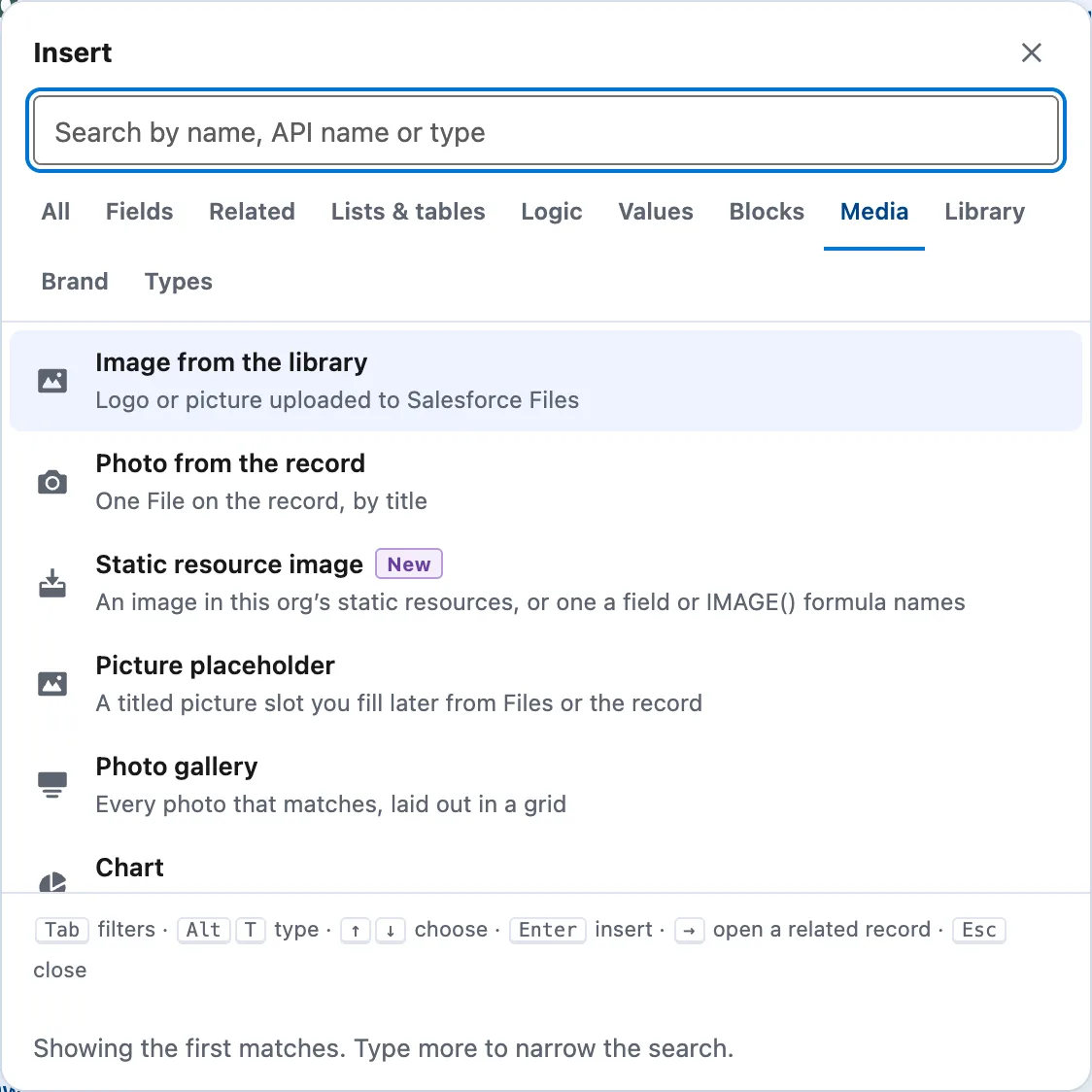
The Media tab, with Chart last in the list. -
Choose Chart. If the template lists more than one set of records, choose which to use.
-
In the Chart panel, set Chart type: Bar, Line, Pie or Doughnut.
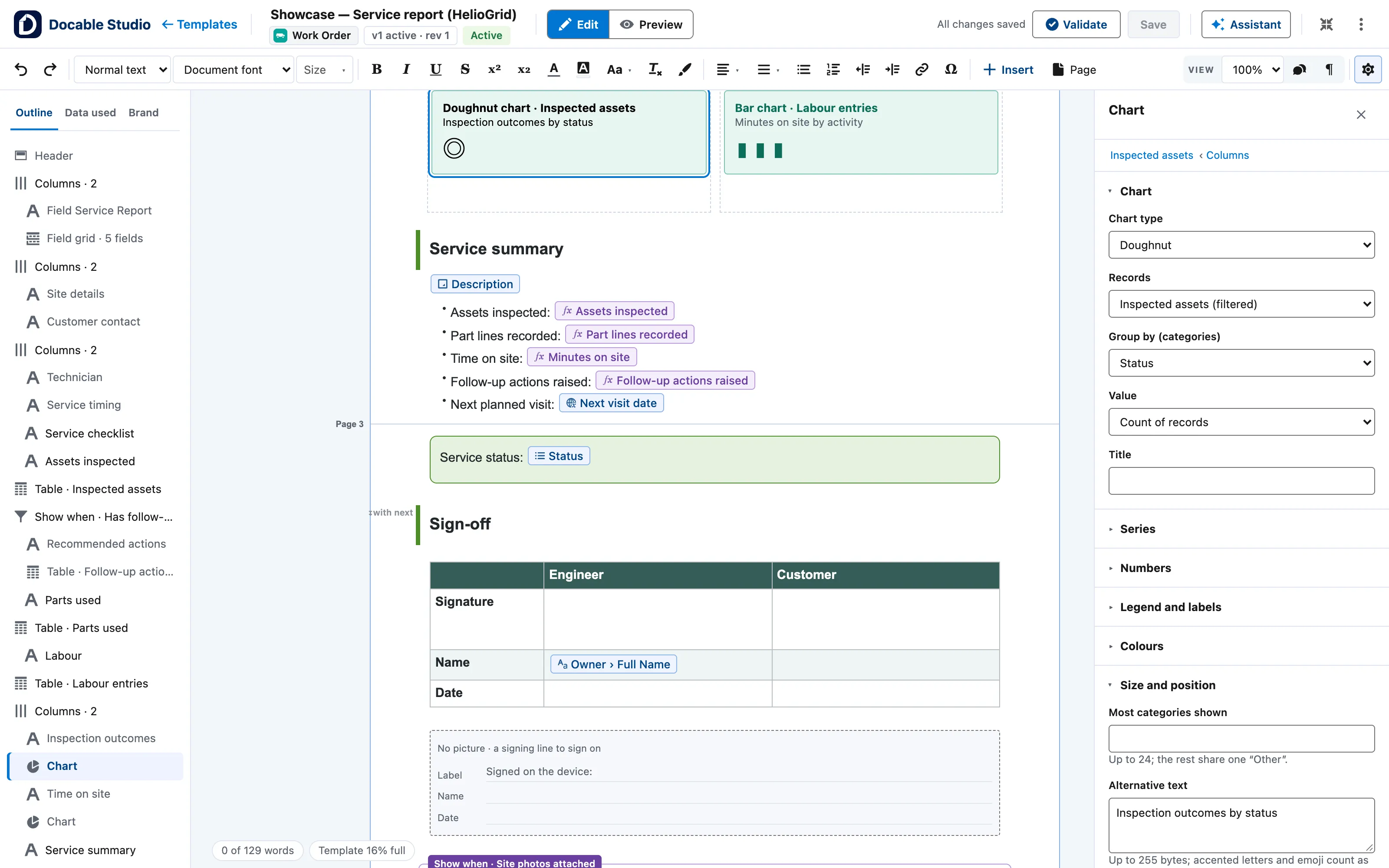
The Chart panel for a doughnut chart of inspected assets: Chart type, Records, Group by, Value and Title. -
Set Records and Group by (categories).
-
Set Value to Count of records, Sum of, Average of, Minimum of or Maximum of, and choose the Field.
-
Type a Title.
-
Under Legend and labels, set Legend and Data labels.
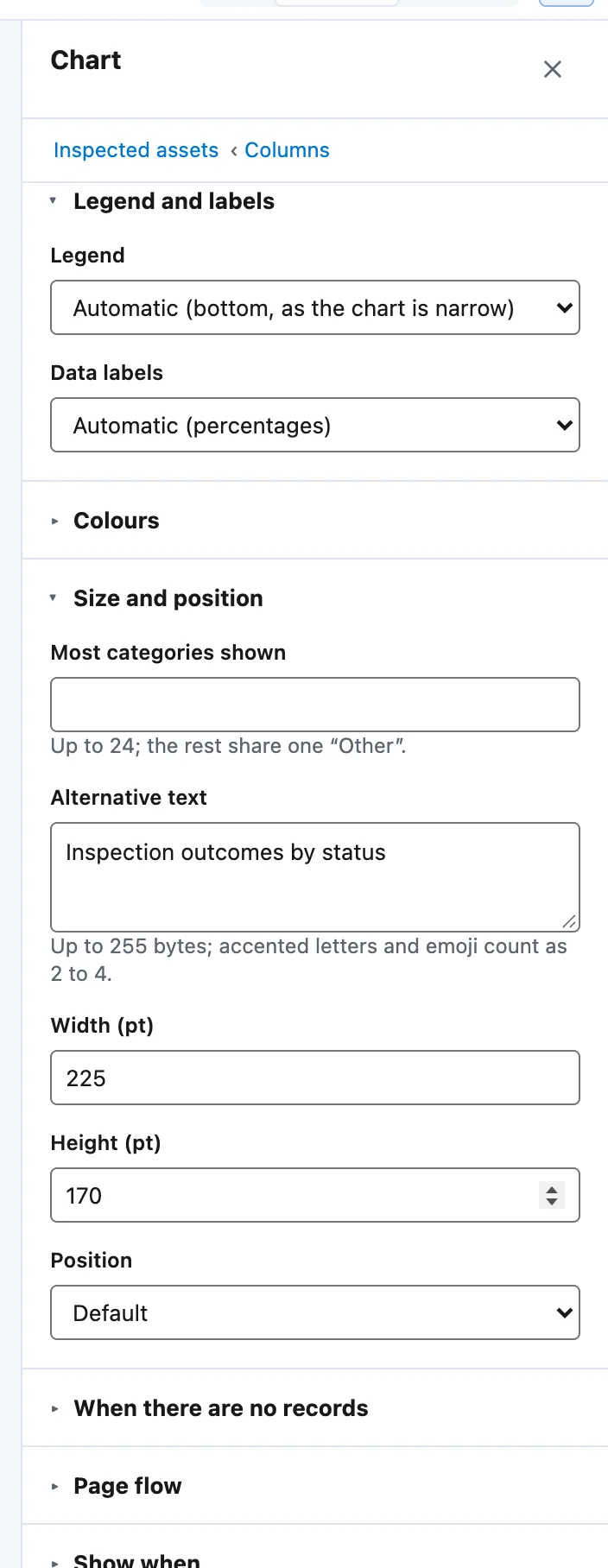
The Chart panel's Legend and labels and Size and position sections: legend placement, data labels, categories shown, width, height and position. -
Under Size and position, set Width (pt), Height (pt) and Alternative text.
-
Leave Colours on Brand Kit chart colours, or choose Choose colours.


Example
The pipeline chart in the Executive account summary quick start.
| Setting | Value |
|---|---|
| Chart type | Bar |
| Records | Opportunities |
| Group by (categories) | Stage |
| Value and Field | Sum of and Amount |
| Title | Opportunity value by stage (GBP) |
| Legend | None |
| Colours | Choose colours, with Colour 1 set to the Brand Kit’s primary colour |
| Width (pt) and Height (pt) | 285 and 170 |
Check it worked
In Preview, choose the account Larksedge Hospitality Ltd. The chart shows three bars: Qualification 9,650, Negotiation/Review 26,600 and Closed Won 18,600. An account with no opportunities shows no chart.
If it doesn’t work
| What you see | What to do |
|---|---|
| The rest of the categories are grouped as Other. | A chart shows at most 24 categories. Raise Most categories shown to 24, or group the records first. |
| A pie or doughnut cannot show a second value. | A pie shows one value. Use a bar or line chart, and Add a series to compare up to five. |
| Small slices have no label. | Slices under 3% are not labelled. Use a bar chart when you have many small values. |
Next
Something unclear or wrong? Tell support. Product page: The editor.