
Add totals and calculations
Last updated 26 October 2026.
For template authors: at the end, your template adds up related records and works out values such as a deposit.

Before you start
- You have the Template Author role (Docable Configure and Docable Definition Author). Totals and calculations are built from fields, not typed formulas.
Steps
-
Click where the value goes.
-
Type
@and open the Logic tab.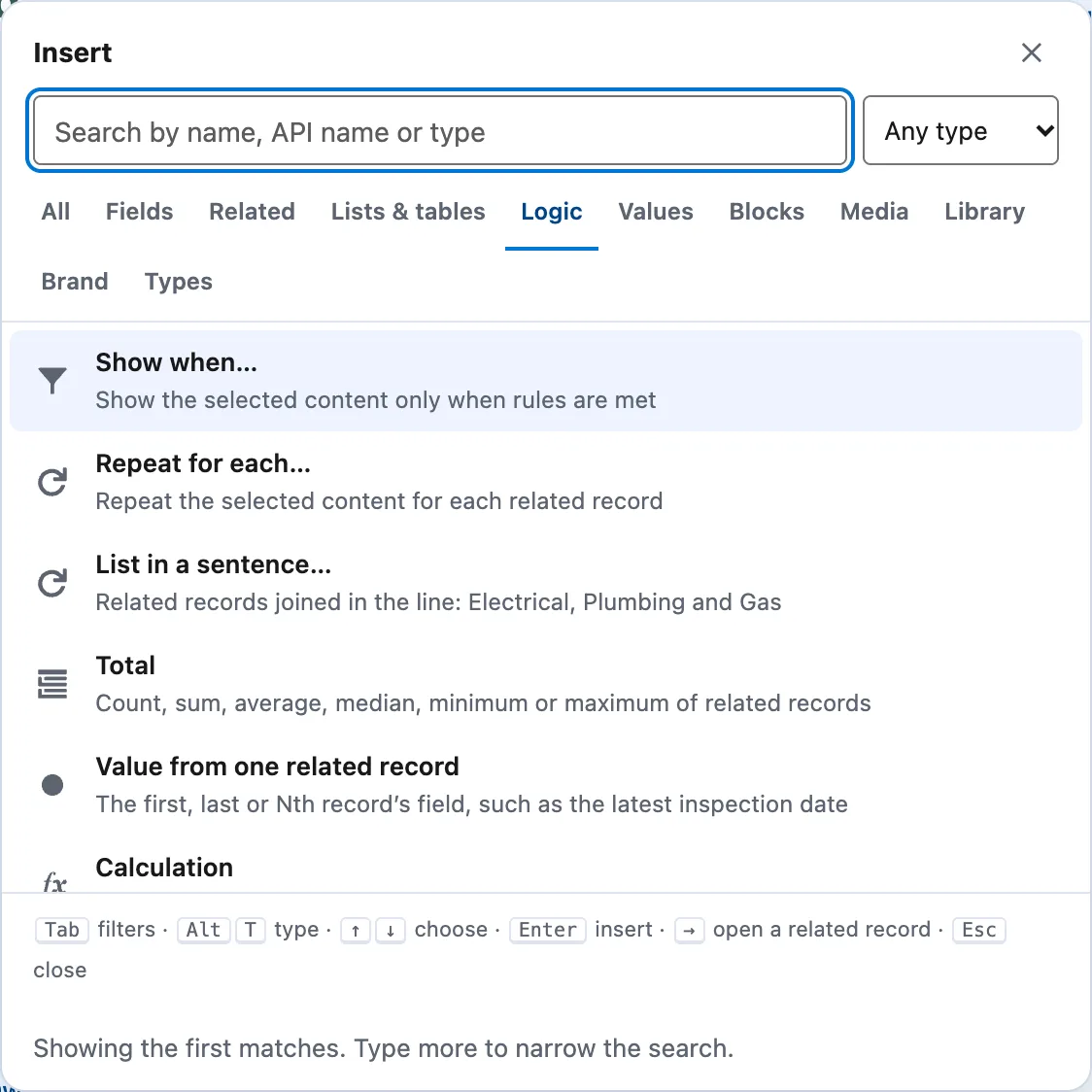
The Logic tab: Show when, Repeat for each, List in a sentence, Total, Value from one related record and Calculation. -
Choose Total to add up a related list, or Calculation to work a value out from fields.
-
For a total, choose the Collection, a Total operation (Count, Sum, Average, Median, Minimum or Maximum) and a Collection field. Optional: set Only include rows where.
-
For a calculation, type a Local value name, then set First value, an Operation such as Add, Subtract, Multiply, Divide or Round, and a Second value.
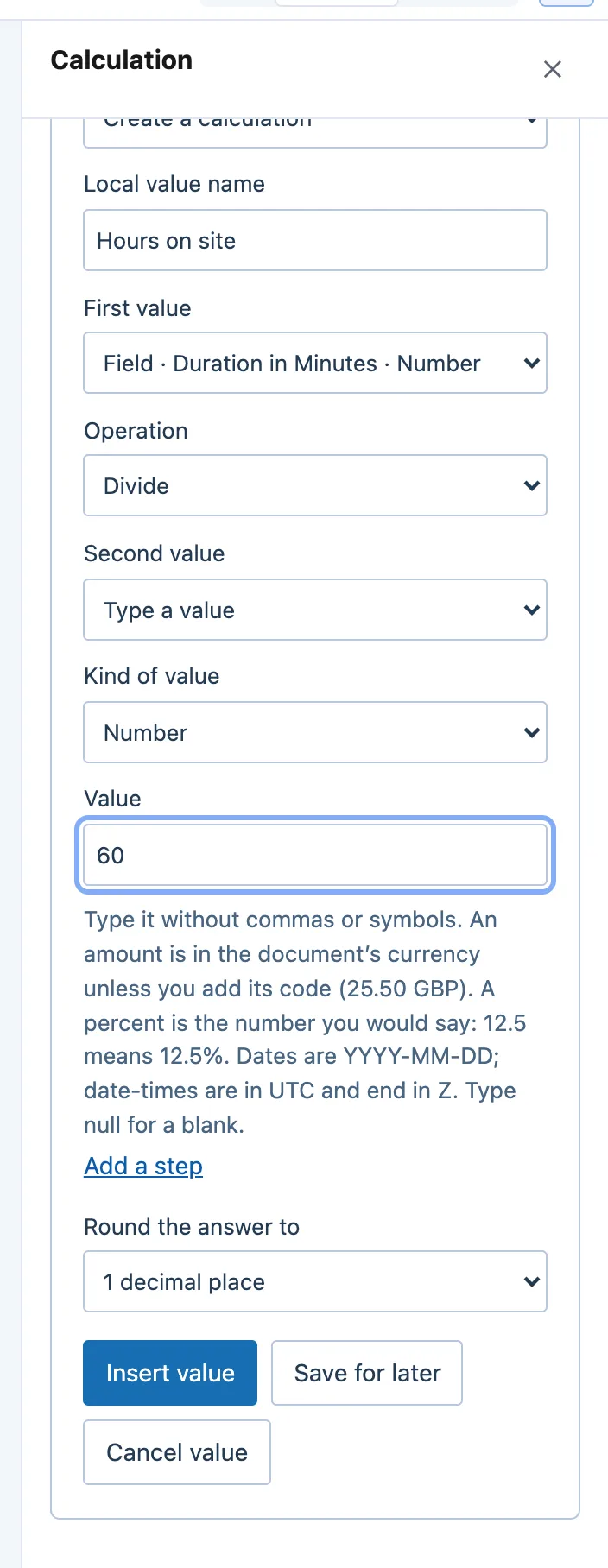
The Calculation panel: Local value name, First value, Operation, Second value, Round the answer to, and Insert value. -
To total a table’s columns, select the table, open Totals row and choose Add a totals row.
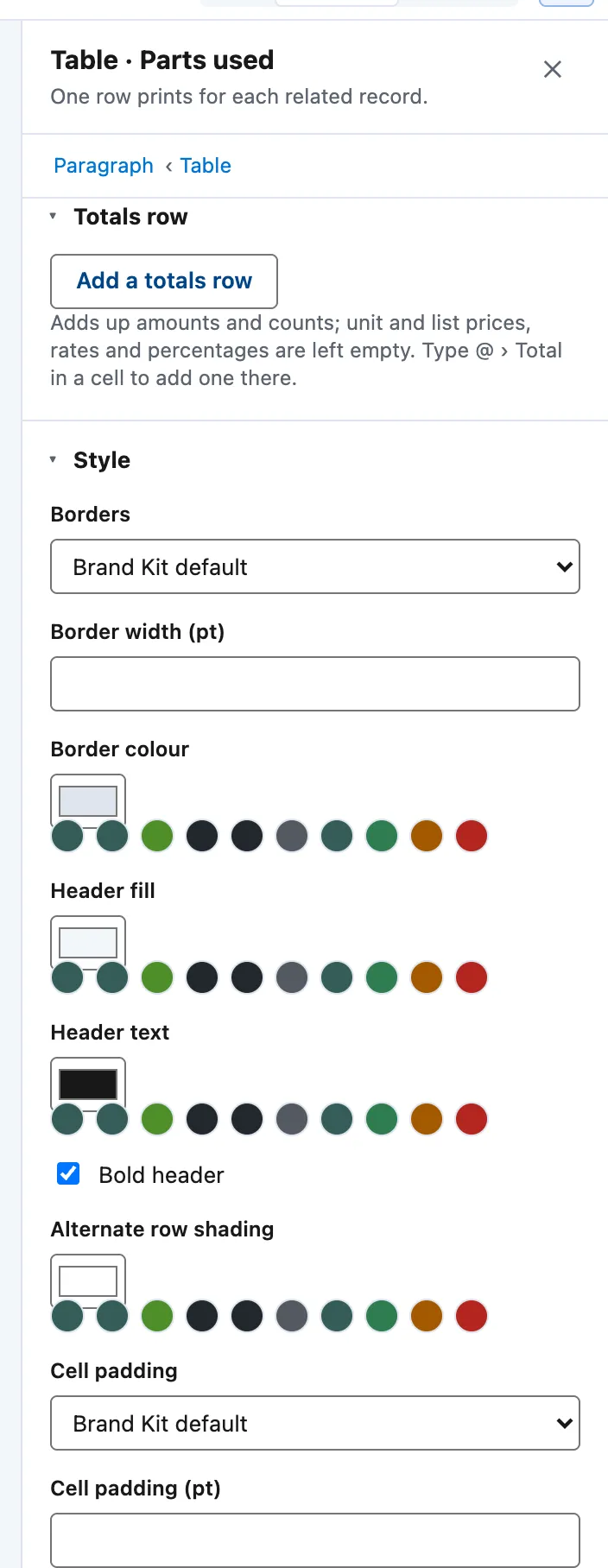
A table panel's Totals row section with Add a totals row, and the Style section under it. -
To change a total or calculation later, click its chip and choose Edit calculation….


Example
The ForgeFlow quotation asks for a Deposit rate when it is generated, then works the deposit out in three steps.
| Name | First value | Operation | Second value |
|---|---|---|---|
| Deposit before rounding | Grand Total | Multiply | Deposit rate |
| Deposit | Deposit before rounding | Round, 2 places | |
| Balance after deposit | Grand Total | Subtract | Deposit |
With a deposit rate of 30 and a grand total of 26,646.00, the deposit is 7,993.80 and the balance is 18,652.20.
Check it worked
In Preview, open Answers, enter a Deposit rate and choose Update preview. The deposit panel prints with both amounts. Leave the rate blank and the panel is hidden.
If it doesn’t work
| What you see | What to do |
|---|---|
The document stops with NUMERIC_PRECISION_REQUIRED. |
A calculation needs more than six decimal places. Add Round, or set Decimal places on the chip. |
| Validate warns that amounts in different currencies can meet. | Totals, comparisons, additions and subtractions convert at Salesforce’s dated exchange rates into the record’s currency, else the Brand Kit’s, else your corporate currency. Multiplying or dividing two amounts in different currencies is refused. |
| A list’s filter cannot use a total of a calculation. | Filter on the list’s own fields, or add a formula field to the object and total that. |
Next
Something unclear or wrong? Tell support. Product page: The editor.