
Make a document on a phone
Last updated 29 October 2026.
Make the document on the job. Sign it on the screen. No signal? It is made when you are back online.
Open a work order in the Salesforce app or the Field Service app, choose a document and make it. On a phone there is no Download link. The file goes into the work order’s Files, and the app opens it.
Before you start
- You have the Document User role and can open the work order.
- The template is active and shared with you.
- Your administrator has set up the app. See Set up Docable for the Field Service app.
- To collect signatures, the template has a signature block set to Signed when the document is made. See Set up the template.
Your administrator chooses the action’s label. The pictures here show Generate Service Document. With the one-click setting in App Builder, the button also carries the document’s name, for example Preview: Boiler service report.
Steps
-
Take the job’s photos first. A document with a photo gallery holds the photos on the work order when it is made. A photo added later is not in it.
-
Open the work order, then tap Actions. In the Salesforce app, tap the action bar, or ⋯.
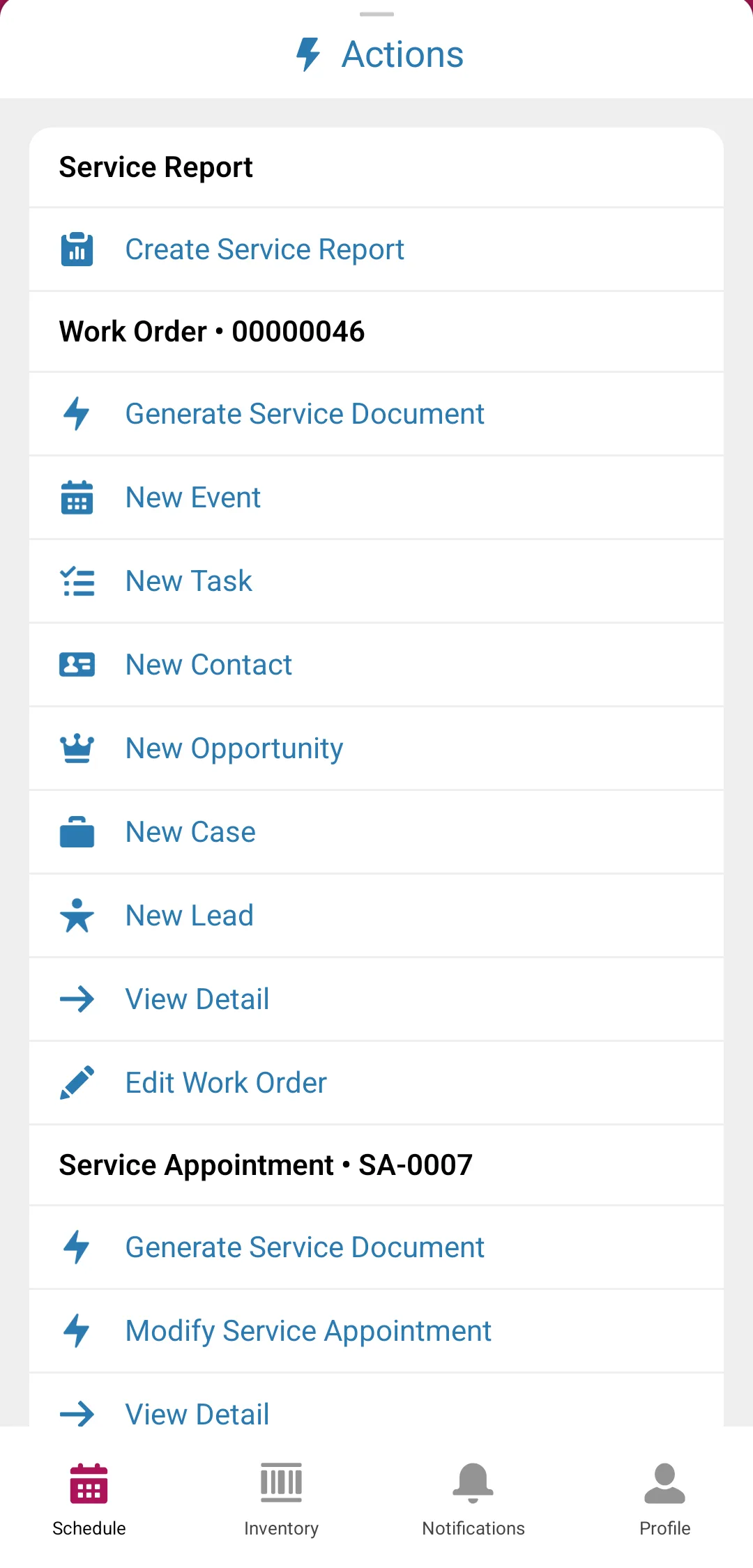
The work order in the Field Service mobile app with its Actions list open: Generate Service Document is one of the actions. -
Tap Generate Service Document, then choose the document. If it asks questions, answer them.
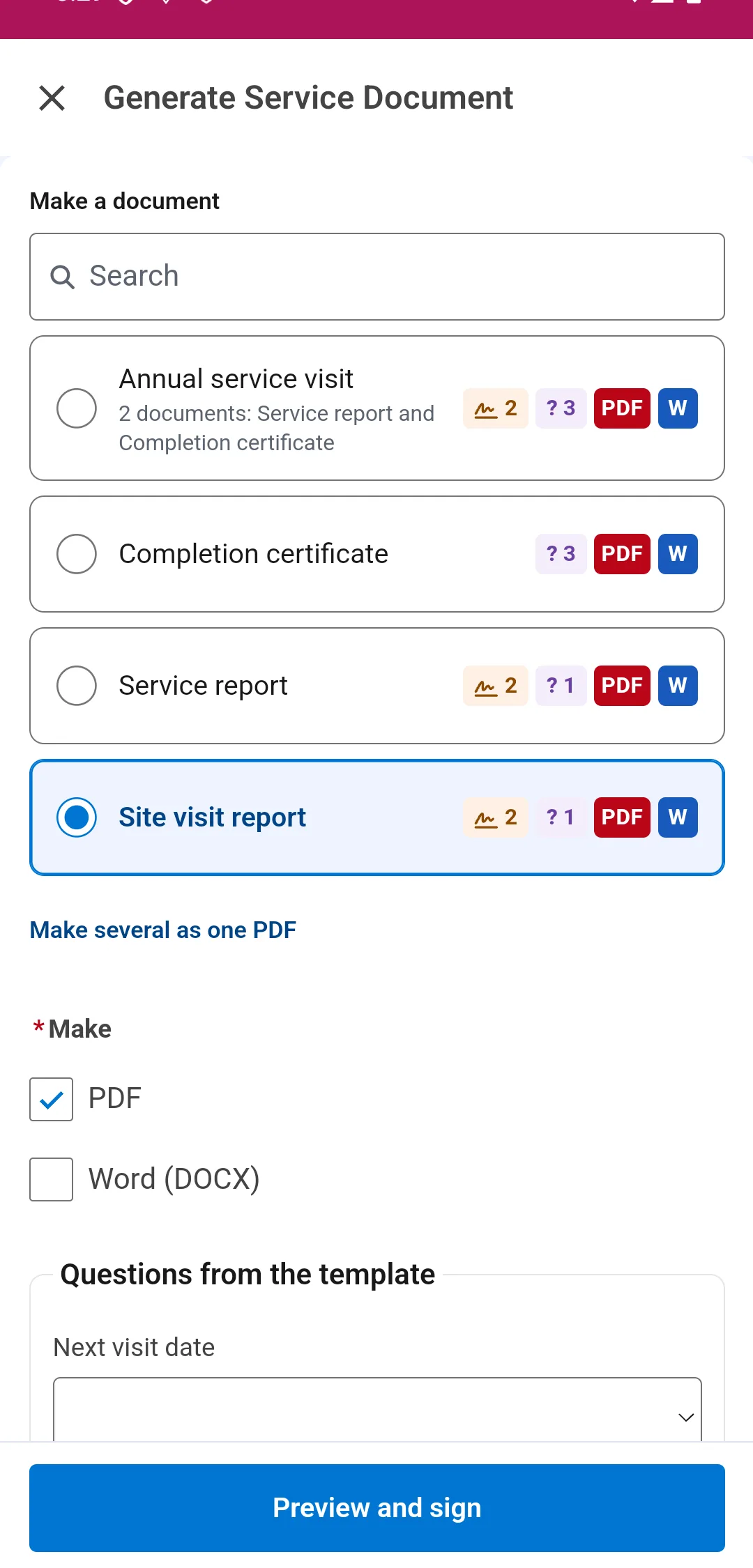
The documents for this job, listed with their badges: how many signatures each collects, how many questions it asks, and whether it makes a PDF, a Word file or both. -
Wait while the button reads Getting it ready…. It changes when the app knows which signatures the document needs.
-
Tap the button. It reads Preview and sign for a document with signatures, and Preview for one without. Every document is previewed before it is made. The preview fills the screen. Pinch to zoom in.
With no signature, the screen says Check the document, then make it.
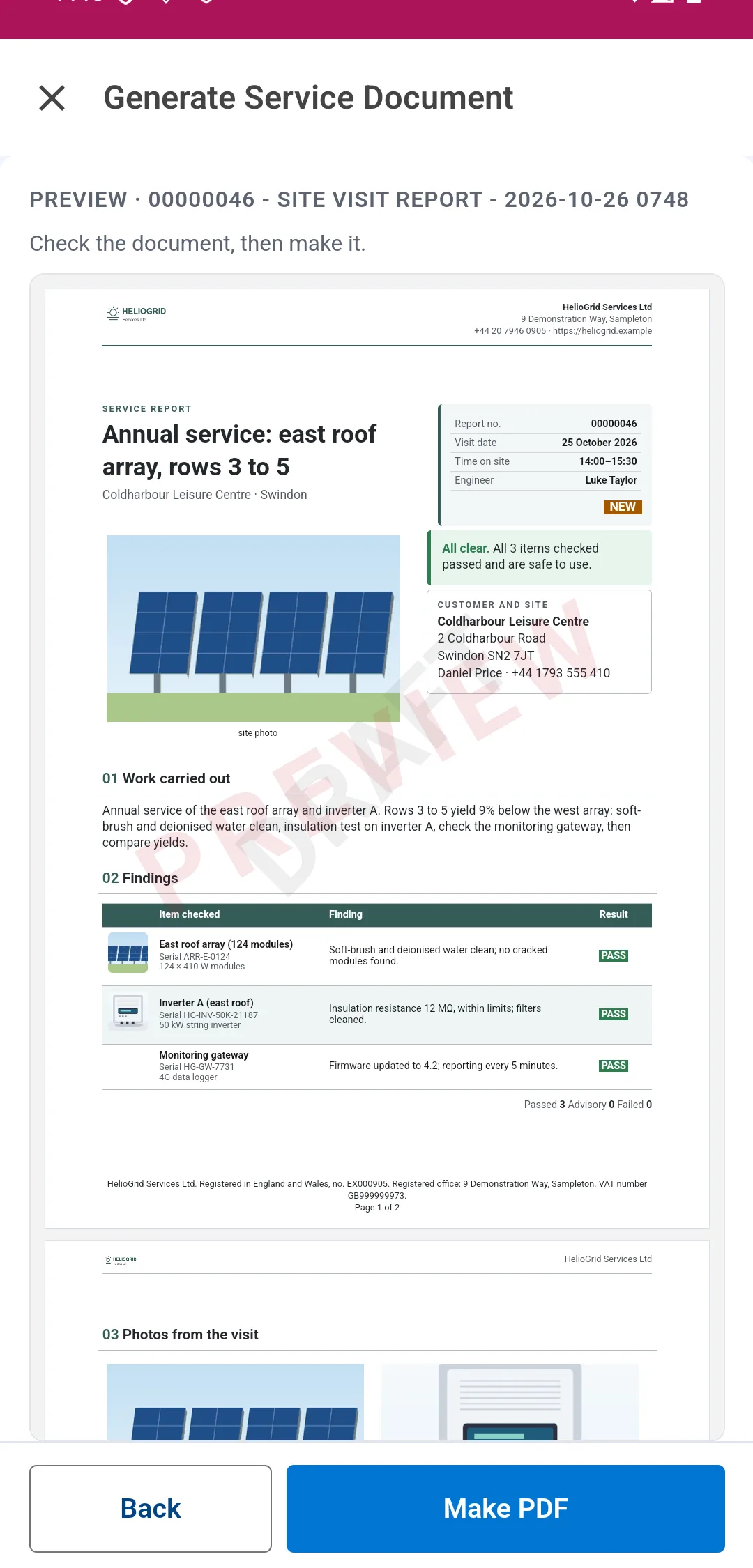
The full-screen preview of a document with no signatures: the page fitted to the width, the site photo and findings on it, the help line Check the document, then make it, and Back and Make PDF at the foot. With signatures, each signer has a Sign here box.
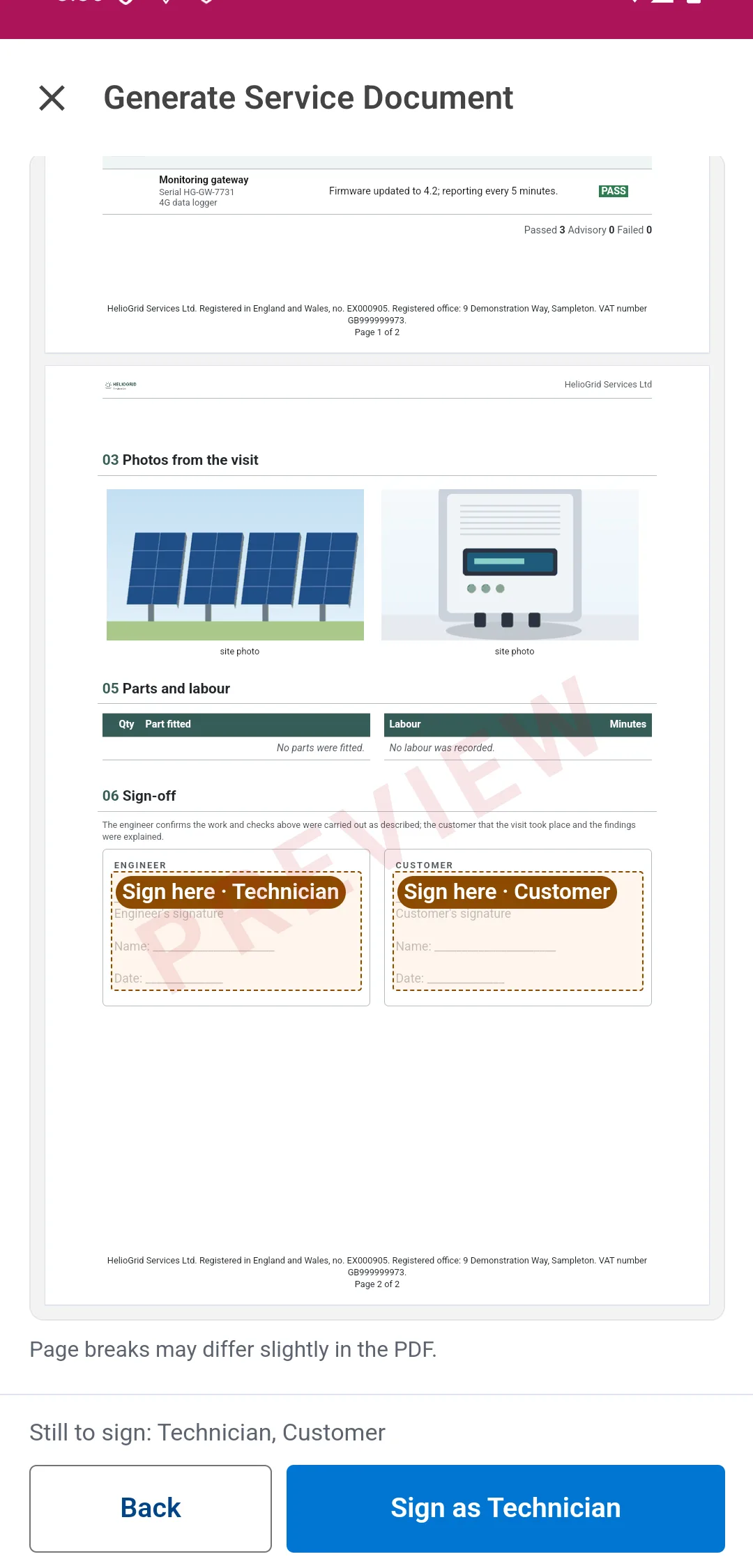
The preview at its sign-off: the visit photos, then a Sign here box for the Technician and one for the Customer, and Sign as Technician at the foot. -
For a document with signatures, tap each Sign here box and sign. See Sign on the screen.
-
At the foot, tap Make PDF, Make Word document or Make PDF and Word. With signatures, it waits until every signer has signed. Back returns to the list. Keep the screen open while the document is made. The action closes when it is done.
-
Open the work order’s Related tab, then Files. Tap the file to open it. The app’s viewer can share or save it.
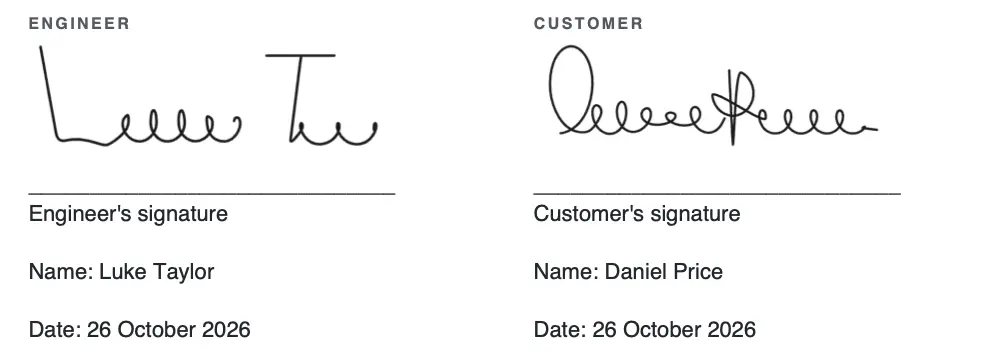
The sign-off in the finished PDF, filed on the work order: the two signatures drawn on the phone, with the names and the date.


Each signature is also saved on the work order as a Salesforce Digital Signature, under Related.
Sign on the screen
Tapping a Sign here box opens the signature sheet. It fills the phone.
- Check the Name. It is filled in for you: the customer from the work order’s contact, the technician from your Salesforce name. Change it if someone else signs.
- Sign with a finger above the line. Clear starts again. The date by the line is the date the document prints.
- Tap Save. It stays grey until there is a name and a signature. Cancel closes the sheet.

For the next signer, tap Use the signature you’ve just drawn if the same person signs twice. Tap Change on a signed row to sign again.
When someone can’t sign
The customer has gone, or won’t sign. Record why.
- Tap Unable to sign? under the signer, or under the pad.
- Choose the reason.
- Add a Note (optional). The reason Other needs a note, so its label reads Note.
- Tap Save. The row reads Not signed · Customer not on site.
Tap Change to pick another reason. Tap They can sign after all to clear it.
The document prints Not signed: Customer not on site where the signature would be, with the note, who recorded it and when.
The link shows when the template allows it. See Set up the template. Your administrator keeps the list of reasons.
No signal
The Field Service app keeps working with no signal. You choose the document, answer its questions, sign on the phone and tap Submit. The request is saved on the phone with the job’s other changes, and the document is made and filed on the work order when the phone syncs. There is nothing to come back to.
Every document the phone kept at its last sync is ready offline, up to 25 a job, with its example preview (the page with the job’s values, lines and photos), whether or not you have opened it online. A document activated since the last sync is listed after the next sync.
With no signal:
-
Open the work order, tap Actions, then Generate Service Document. For a moment the screen reads Finding the documents for this record…. Then the line at the top reads Offline · the document is made when you’re back online.
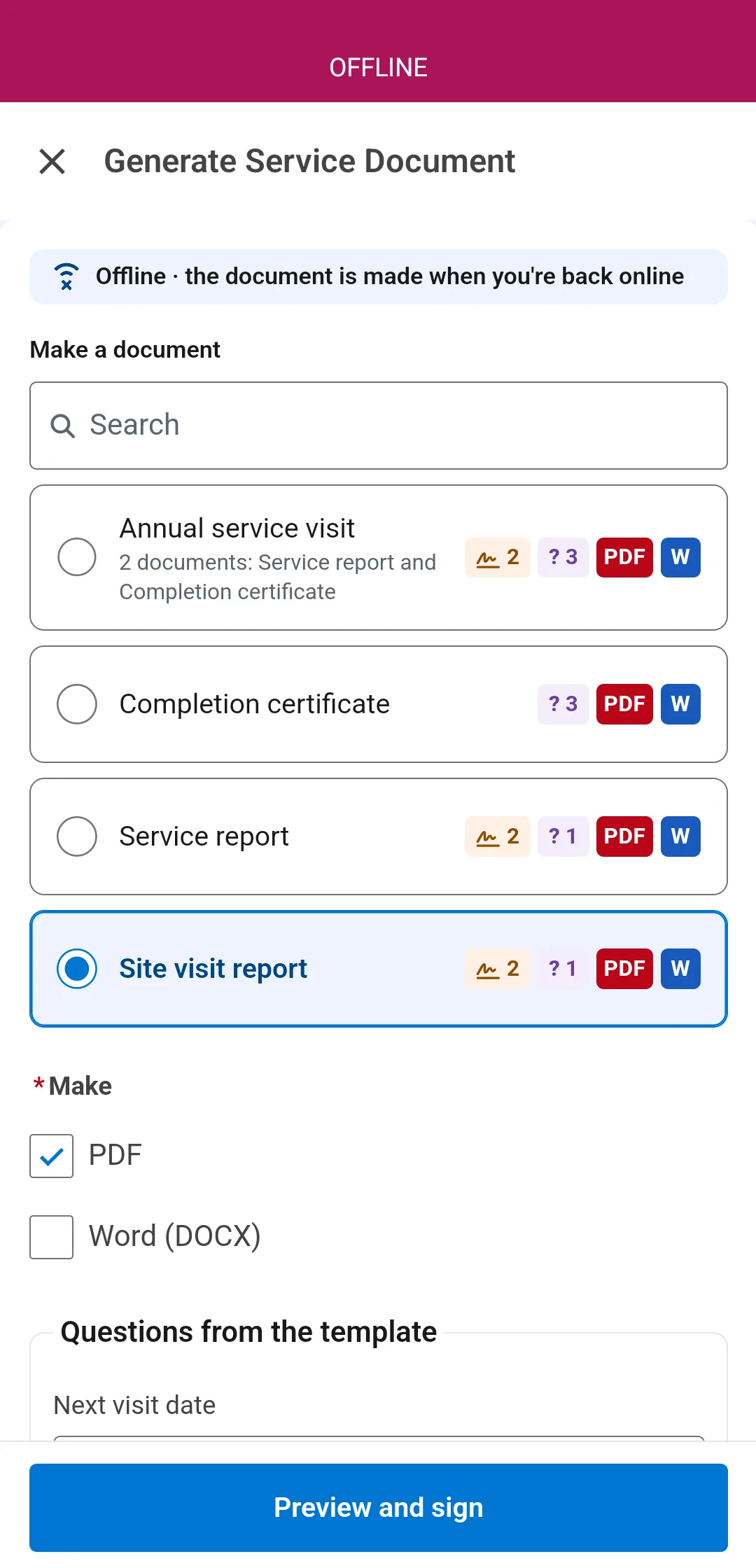
With no signal, the Generate screen says Offline · the document is made when you're back online, and the documents for the job are still listed. -
Choose the document. For a document with signatures, tap Preview and sign. For one with no signature, tap Preview.
-
The preview is an example made on the phone from the job. It shows what the document will show: the job’s values, its lines, the counts, and only the sections and results that apply. One banner says: Offline example · the document may differ and is made from the latest details when you’re back online. A faint EXAMPLE mark runs across the page. A value the phone does not have says Not on this phone.
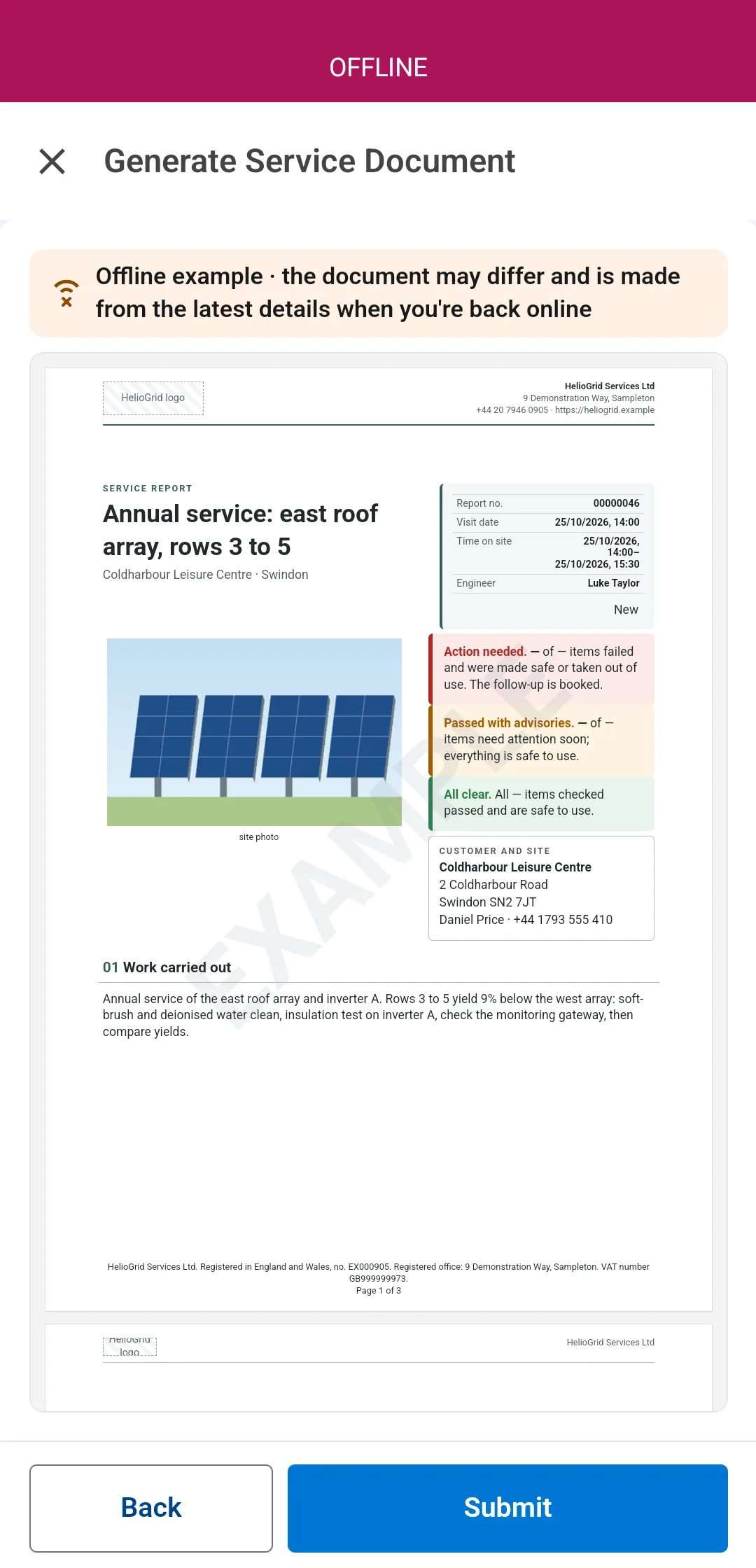
The offline example: the note that the document is made from the latest details when the phone is back online, and the example page filled from the phone, with its photo, marked EXAMPLE. -
If the document asks questions (a reading, pass or fail, a note for the office), answer them on the phone. A choice question opens a picker; a required one must be answered before Submit.
-
With signatures, tap each Sign here box and sign, as above. With none, check the example.
-
At the foot, tap Submit. Back returns to the list. The screen says Saved for later, then closes.
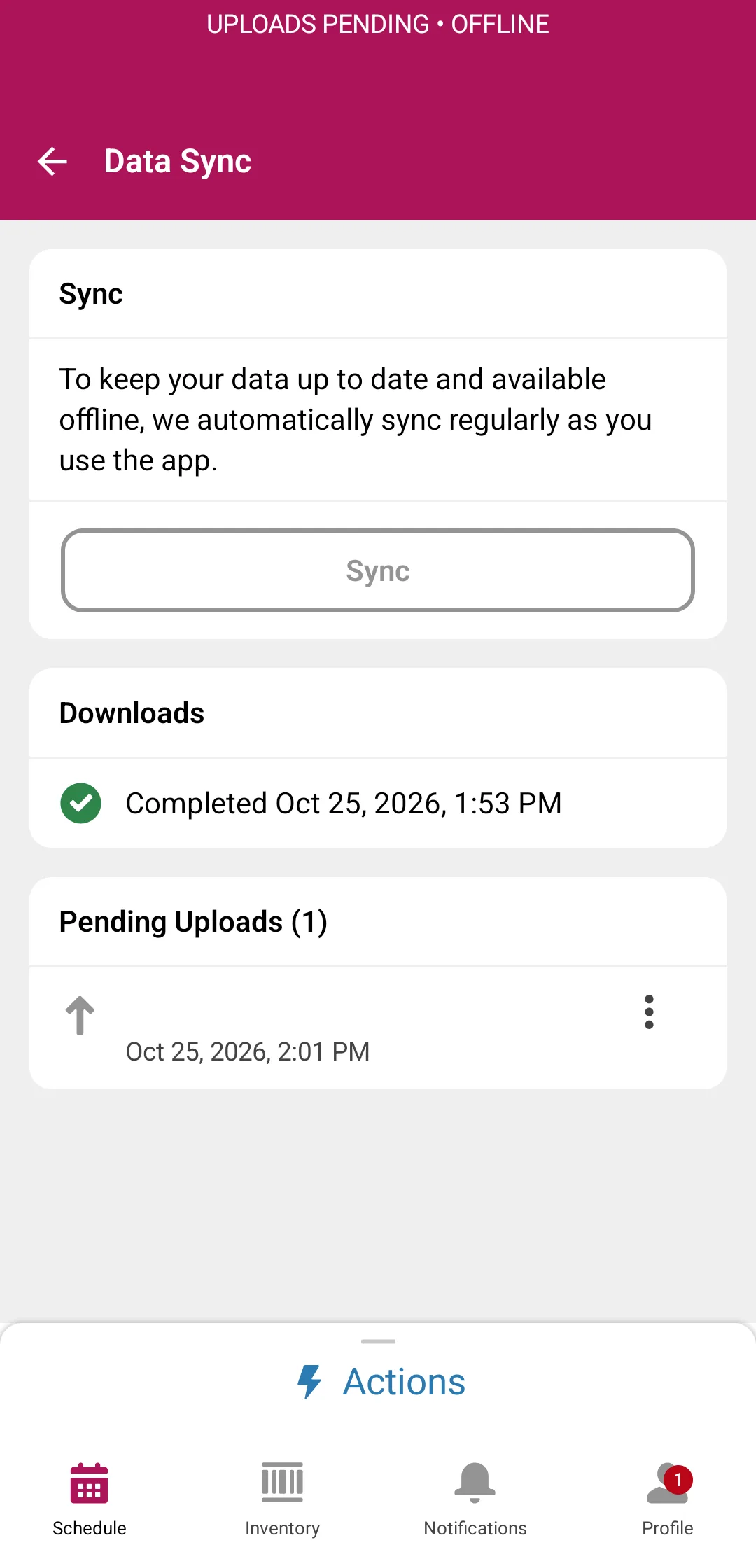
After Submit, the app's Data Sync page lists the saved request under Pending Uploads with the time it was saved; the document is made when the phone syncs. -
When the phone syncs, the document is made from the work order as it is then, with the answers, the signatures, names and dates. It is added to the work order’s Files, and each signature is saved as a Digital Signature. Your answers are checked on sync as they would be online; a wrong one fails that request with the reason, like a refused signature.


If the document can’t be made, Salesforce tells you with a notification, A document saved on your phone wasn’t made. Tap it to open the record, then make the document again. A request refused for a passing reason, such as a full queue, is tried again over about forty minutes first.
Your administrator can switch the example off. For a document with signatures, the button then reads Sign and submit, with no example. For one with no signature, Submit saves it at once.
Photos
The example shows the photos the phone has, chosen by the template’s own rule. A photo taken offline appears in it when the app shows its drafts. Otherwise the box reads Photos taken offline appear in the document once it’s made.
A photo taken before Submit is in the document, even if it is still uploading. A photo taken after is not. Make the document again online to include it.
Visit packs
A visit pack is two to six documents your administrator has grouped in Docable Setup, for example the service report, the gas safety record and the invoice for a boiler visit. Packs are listed first, online and offline. Choose one, sign once, and every document in it is made and joined into one PDF. Offline, a pack is listed once all of its documents are kept on the phone.
Greyed documents
A greyed document reads Open this document once online to use it offline. The phone never kept its details, for example because it was activated since. Open it online once, on the job.
How it works with no signal
- The document is made from the work order as it is when the phone syncs, so later changes on the job are in it. The document number and money totals are filled in then.
- The phone lists the documents it kept at its last sync, up to 25 for a job. A document made active since then arrives with the next sync.
- Offer when uses the record as it was at the last sync. A document whose rule the phone hasn’t checked yet says Checked when you’re back online.
- To make several documents with one signing, use a visit pack.
In a Guided Experience
Where your admin has built the job as a Guided Experience, Generate Service Document can be a card in one of its steps. Tap the card, make the document as above (sign, answer, Submit), and the step carries on. With no signal it works as it does from the record: the request is saved and the document is made when the phone syncs.
In the Salesforce app
The same screens, online. Open the work order, tap the action bar (or ⋯), then Generate Service Document. Making a document with no signal is for the Field Service app.
Set up the template
An author makes a template ask for signatures.
- In Docable Studio, open the template and click the signature block.
- Under Source, choose Salesforce Digital Signature and tick Signed when the document is made.
- Set the Signature type, such as Customer or Technician. A template can collect up to four.
- Leave Allow Unable to sign on if the signer may be recorded as unable to sign. It is on for a Customer, and off for a Technician or Engineer. Set Ask for a note to Off, Optional or Required.
The signatures are saved on a work order, work order line item, service appointment or order. The org needs Field Service switched on. The Signature type must be a value in the org’s Digital Signature Signature Type list, which starts with Default, so an administrator adds Customer and Technician first.
Where nobody signs, such as a scheduled or bulk run, the document prints a signing line instead.
See Sign when the document is made and When someone can’t sign.
Example
A boiler service report for the work order. The customer signs on the screen. So does the technician.
| Setting | Value |
|---|---|
| First signature block | Salesforce Digital Signature, Signature type Customer, Signed when the document is made ticked |
| Customer Allow Unable to sign | On, Ask for a note Optional |
| Second signature block | Signature type Technician, Signed when the document is made ticked |
| Photo gallery | The job’s photos, titled as the template’s picture rule expects |
Check it worked
Open the work order’s Files. The new PDF shows the signatures, the names and today’s date. Under Related, the work order lists a Digital Signature for each signer. If you had no signal, it is there once the phone has synced.
If it doesn’t work
| What you see | What to do |
|---|---|
| The action is not in Actions. | Your administrator sets it up once. See Set up Docable for the Field Service app. |
| There is no Sign here box, or a signature is refused. | Check the template’s signature block is set to Signed when the document is made, and that the Signature type is one the org has. |
| Unable to sign? is missing. | The template’s signature block has Allow Unable to sign off. |
| Offline says This document can’t be made offline yet. | Open Generate Service Document once while you are online. |
| Offline says These documents can only be made online. | The phone holds the documents’ details from before an update. Open Generate Service Document once while you are online; then they work offline too. |
| Offline says This document can only be made online. Keep this screen open. | Keep the screen open. Your signatures and answers stay, and you make the document when the signal is back. |
| After a Docable update the action looks or behaves as before. | The app keeps the old action until its cache is cleared. Online, open the app’s Profile, Settings, Advanced Settings, and tap Clear Cached Metadata once. |
| A notification says A document saved on your phone wasn’t made. | Tap it to open the record. Its message says why. Make the document again. |
| Offline says the signatures are too detailed to save. | Clear one, sign it again more simply, and tap Submit. |
| The made document has no photo you took. | The photo was taken after Submit, or its title is not the one the template’s picture rule expects. |
Next
Something unclear or wrong? Tell support. Product page: Field service.