
Put Salesforce data in a document
Last updated 26 October 2026.
For template authors: at the end, your template prints values from the Salesforce record it is made for.
Template: fields are chips

Result: the order's values

Before you start
- You have the Template Author role (Docable Configure and Docable Definition Author), and the template has a base object. You only see fields you can read.
Steps
-
Click where the value should print.
-
Type
@. The Insert picker opens on the Fields tab, with the base object’s fields.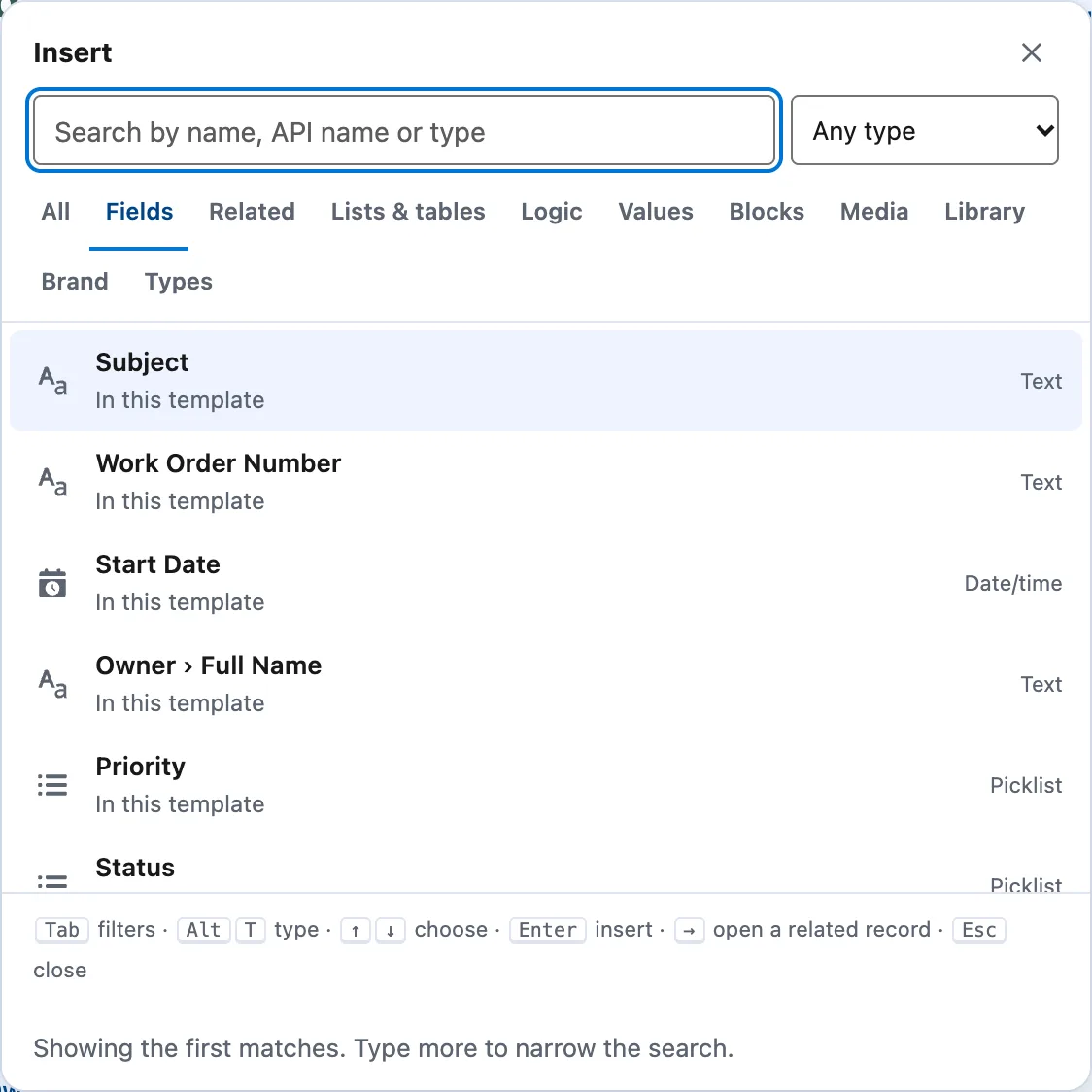
The Fields tab on a Work Order: each field with its type, and the ones already used marked In this template. -
Type part of the field’s name, then choose the field. It lands in the text as a chip.
-
For a field on a related record, open the Related tab instead.
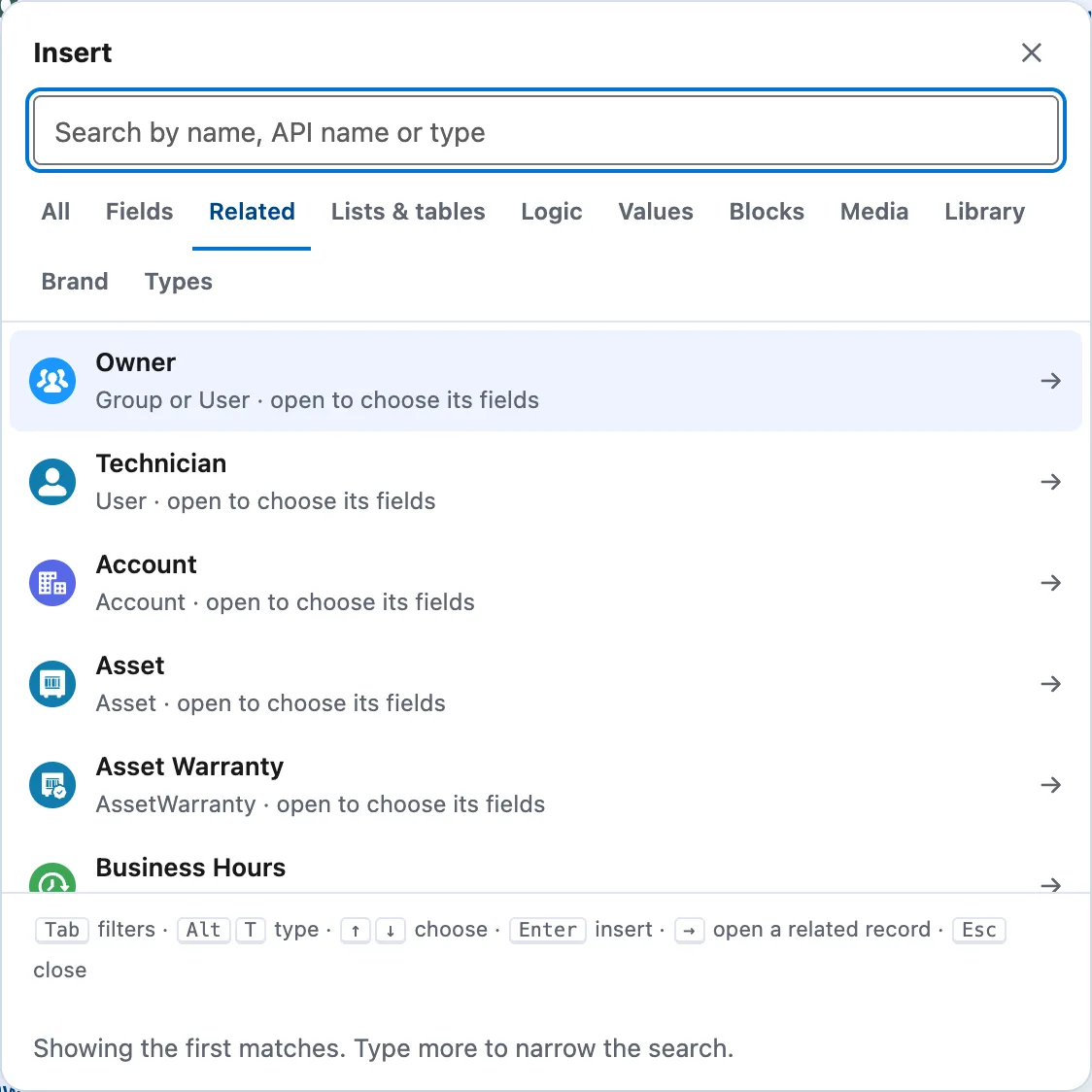
The Related tab on a Work Order: Owner, Technician, Account, Asset and more, each with Open to choose its fields. -
Choose Open beside the lookup, for example Account, then choose the field.
-
Select the chip. Under Format, choose how the value prints.
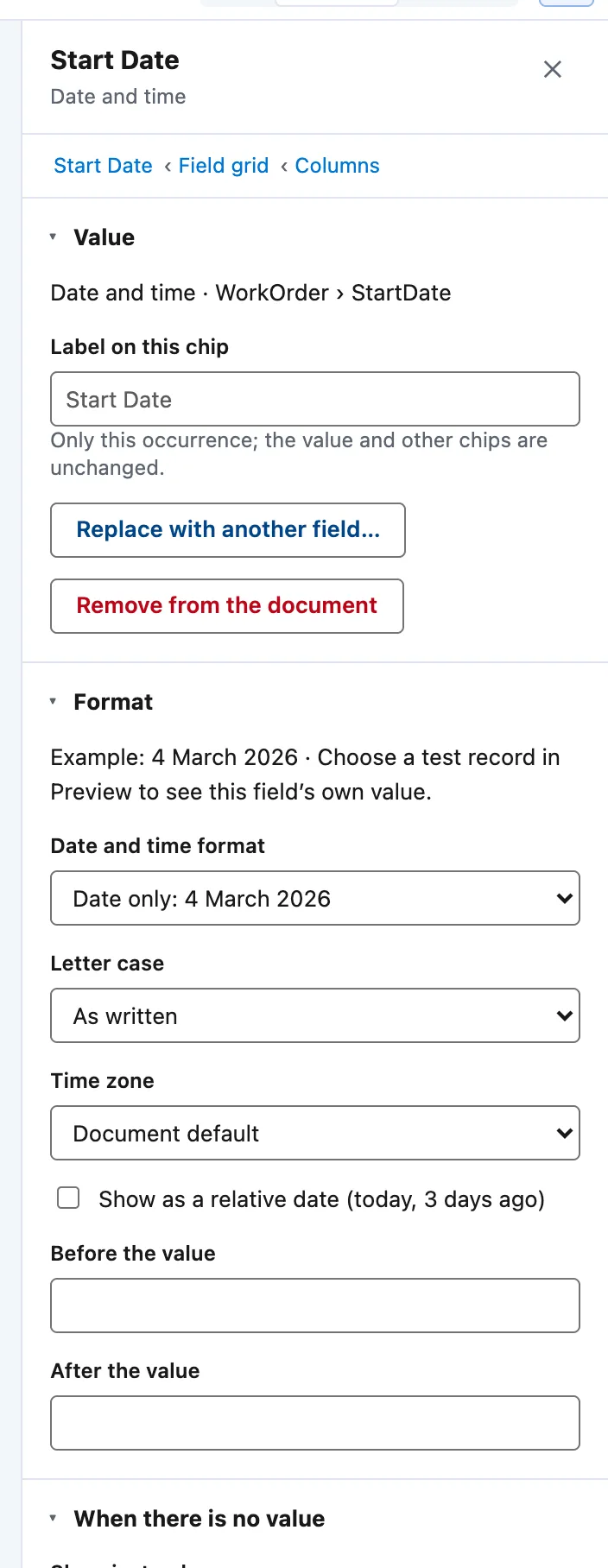
A date chip's panel: Value, Label on this chip, Format (date and time format, letter case, time zone) and When there is no value. -
Under When there is no value, set Show instead, or tick Hide the whole line when empty.
-
For a value that is not a field, such as a question or the page number, open the Values tab and choose it.
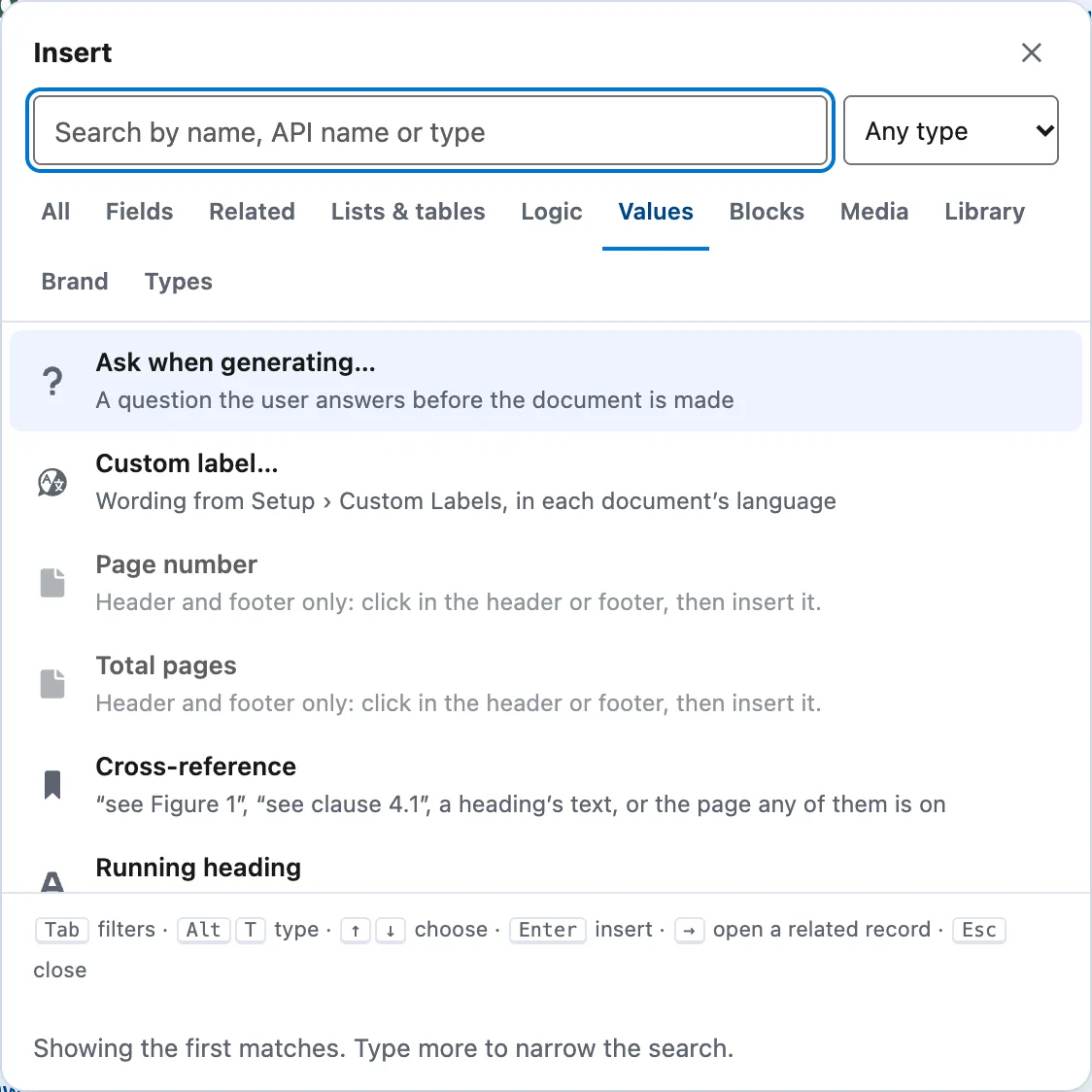
The Values tab: Ask when generating, Custom label, Page number, Total pages, Cross-reference and Running heading. -
No field yet? Open the Types tab and choose a placeholder such as Text placeholder. Connect it later: select it and choose Connect to a field….


Example
The order summary above fills from an Order.
| Where | Setting |
|---|---|
| Field grid | @ then Order Number, Order date, Customer, Status |
| Order date | Date format set to 4 March 2026: it prints 2 October 2026 |
| Order total | Inserted twice. The second chip has Write as set to Words (one hundred and five) and prints the amount in words |
Check it worked
Choose Preview and pick an order. Each chip shows its value. The panel reads Every value outside tables has data on this record, or says how many placeholders have none and that each follows its When empty setting.
If it doesn’t work
| What you see | What to do |
|---|---|
| A field you expect is not listed. | You can only insert fields you can read. Fields two or more lookups away, and fields through a lookup to several kinds of record such as Owner, are not found by search: open the Related tab, choose Open beside the lookup and choose the field there. |
| The chip shows Needs mapping. | It is a placeholder with no field yet. Select it and choose Connect to a field…. Validate lists each one. |
| A picture in a Rich Text Area field does not print. | The text prints, the picture does not. Attach the photo to the record as a File and use a record image or a photo gallery. |
Next
Something unclear or wrong? Tell support. Product page: The editor.