
How the ForgeFlow quotation was built
Last updated 26 October 2026.
Colours below are Brand Kit colours: Primary, Accent, Heading text, Body text, Muted text, Lines and Callout fill. They change with the kit you choose.
Before you start
- Docable installed, and access to create templates: see Permissions and readiness.
- An approved Brand Kit: see Give your documents a Brand Kit.
- A quote, FF-Q-0284 in the sample, with its quote line items. Give each product a File titled Product image to print its picture.
Start from the Branded quotation quick start
-
In the Docable app, open Templates, choose New, then Start from a quick start.
-
Choose Branded quotation.
-
Under Brand Kit, choose your approved kit. The sample uses ForgeFlow.
-
Choose Use as it is. The template opens in the editor, built on Quote, with the quote’s line items as the list Quote lines.
The blocks on the page
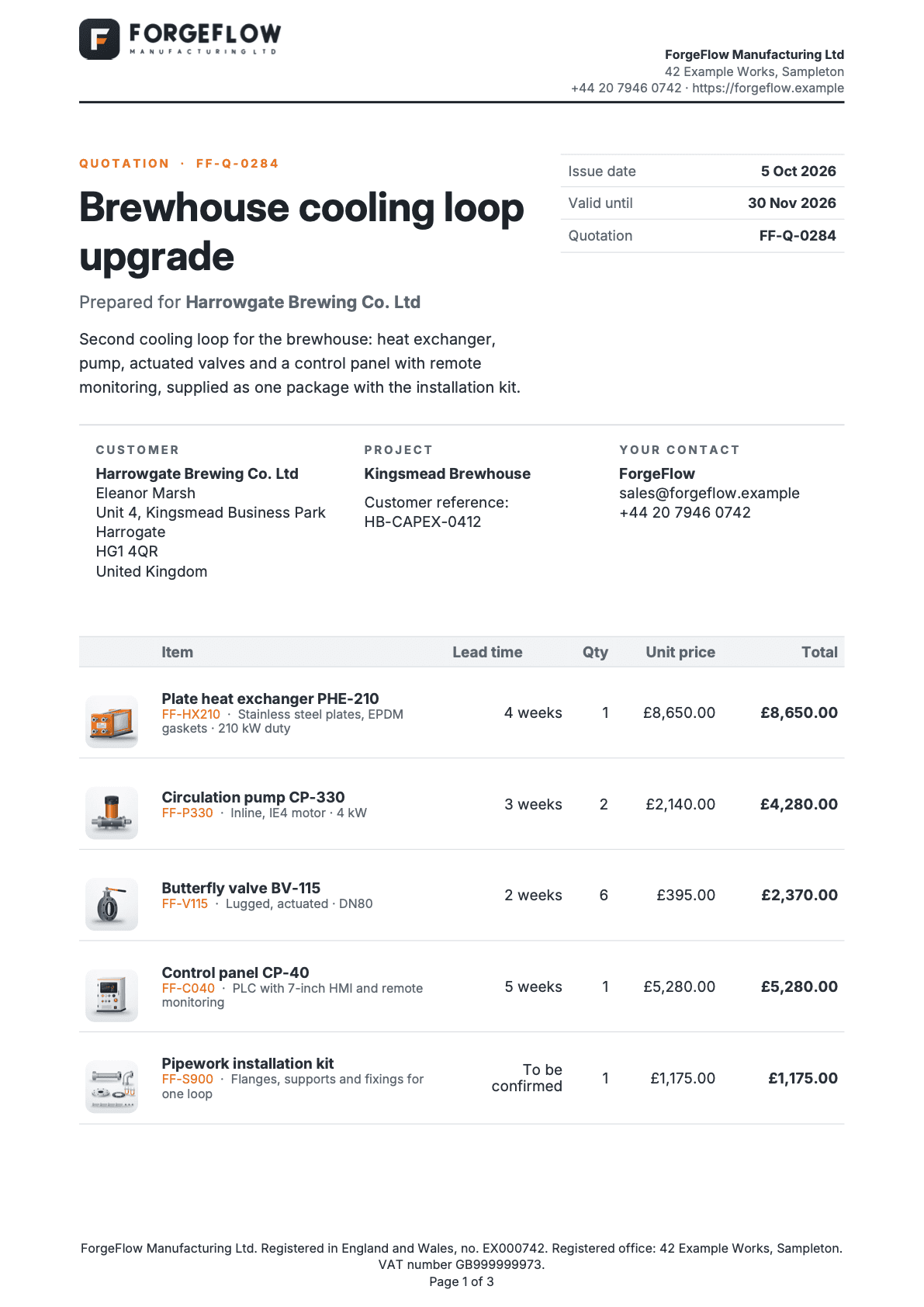
- Title and dates. The project title, with the dates beside it.
- Customer, project and contact. Three columns under a thin rule.
- Quote lines. A row for each quote line, with its picture and lead time.
Title and dates
The project on the left, the dates on the right. Guide: Put Salesforce data in a document.
| Part | Setting |
|---|---|
| Layout | Two columns, widths 62% and 38%: set them with Column 1 width (%) and Column 2 width (%) |
| Label | QUOTATION · and the quote’s name; bold, 7.5 pt, Accent |
| Title | Heading 1 with the opportunity’s name; bold, 26 pt, Heading text |
| Prepared for | Prepared for and the bill-to name; 11 pt, Muted text |
| Summary | The quote’s description; 10 pt, Body text |
| Dates | A Field grid with one column: Issue date, Valid until, Quotation. Borders Lines between rows, Label colour Brand: Muted text, Bold labels off |
| Date format | Date format 4 Mar 2026 on Issue date and Valid until: they print 5 Oct 2026 and 30 Nov 2026 |
Customer, project and contact
Three columns under a thin rule. Guide: Show a section only when it applies.
| Column | Content |
|---|---|
| Left, 36% | CUSTOMER: the bill-to name, the contact’s full name and the bill-to address |
| Middle, 34% | PROJECT: the ship-to name. Then Customer reference: and the Customer reference answer, shown only when the answer is not blank |
| Right, 30% | YOUR CONTACT: from the Brand tab, Company details › Trading name, Email and Phone |
| Box | The three columns sit in a Callout box with Sides Top, Border width (pt) 0.75, Padding (pt) 10 and a Lines border |
Quote lines
One row for each quote line, each with a picture. Guides: Show related records in a table and Add pictures and photos.

| Part | Setting |
|---|---|
| List | Quote lines. At most (records) 200, If there are more Stop generation and say why |
| Columns | Picture 10%, Item 38%, Lead time 16%, Qty 6%, Unit price 14%, Total 16% |
| Picture | Add an image column. Image from A File on each record, File title Product image, 34 by 34 pt, Fit Fill and crop, Rounded corners (pt) 6, If the image is missing Leave it out |
| Item | The product’s name in bold, its code in Accent, then the item detail in Muted text |
| Lead time | The lead time in weeks. Decimal places 0, After the value weeks, Show instead To be confirmed |
| Qty | The quantity. Decimal places 0, Thousands separators on |
| Unit price and Total | The unit price and the net amount. Currency shown as a symbol, Decimal places 2 |
| No lines | Message No lines on this quotation. |
| Style | Borders Rows, Border width (pt) 0.5, Header fill Callout fill, Header text Muted text, Cell padding (pt) 4, Vertical alignment Middle, Text size (pt) 9.5 |
| Layout | Repeat the heading row on each page on, Rows may split across pages |
Calculations
Eight, each made with Calculation on the Logic tab. Guide: Add totals and calculations.

| Name | Used | Operation |
|---|---|---|
| Issue date (today when not given) | Document | Use fallback when blank: the Issue date answer, else today |
| Item detail | Each line | Use fallback when blank: the line’s own description, else the product’s description |
| Lead time in days | Each line | Difference between dates, in days, from the issue date to the line’s date |
| Lead time weeks unrounded | Each line | Divide the days by 7 |
| Lead time (weeks) | Each line | Round to 0 places |
| Deposit before rounding | Document | Multiply the grand total by the Deposit rate answer |
| Deposit | Document | Round to 2 places |
| Balance after deposit | Document | Subtract the deposit from the grand total |
A line with no date has no lead time, so it prints To be confirmed.
Deposit and totals
Two columns. Guide: Add totals and calculations.

| Part | Setting |
|---|---|
| Layout | Two columns, widths 50% and 50% |
| Deposit panel (left) | A Callout box: Fill Callout fill, Padding (pt) 14, Sides None, Rounded corners (pt) 6. Show when Deposit requested: the Deposit rate answer > 0 |
| Deposit text | DEPOSIT in Accent, then a sentence that gives the deposit and its rate as a percent, says it is requested after acceptance, and gives the balance, payable 30 days from the final invoice date |
| Totals (right) | A Field grid with one column and Lines between rows: Subtotal, Freight, VAT |
| Freight | The quote’s shipping and handling, Show instead Not included |
| VAT | The quote’s tax |
| Total band | A Callout box: Fill Primary, Padding (pt) 10, Rounded corners (pt) 6. Two columns, widths 30% and 70%: TOTAL in Accent, then the grand total in white, 18 pt |
In the PDF the corners are rounded. Word keeps them square.
Terms
Fixed wording to replace, plus one field grid.
| Part | Setting |
|---|---|
| Heading | The label, then Heading 1 Scope & terms, 24 pt |
| Sections | Heading 2, 11.5 pt, Heading text: Scope of supply, Commercial terms, Delivery schedule, Assumptions & exclusions, Warranty |
| Commercial terms | A Field grid with three columns, Labels Above the value, Borders None: Pricing, Payment terms, Freight (Show instead Not included; quoted on request) |
| Delivery schedule | Says lead times count from the issue date, and that To be confirmed items are scheduled once the fabricator confirms |
Cost breakdown
A doughnut chart beside a grouped table, hidden when there is nothing to chart. Guide: Add a chart.

| Part | Setting |
|---|---|
| Section | Keep on one page. Show when Show charts: Custom logic. Rule 1: the Include charts answer is blank. Rule 2: it is true (ticked). Rule 3: the subtotal is not blank. Rule 4: the subtotal > 0. Logic (1 OR 2) AND 3 AND 4 |
| Chart | Chart type Doughnut, Records Quote lines, Group by (categories) the product’s family, Value Sum of the net amount |
| Chart size | Width (pt) 200, Height (pt) 180, Legend Bottom, Alternative text Share of the quoted net amount by product family |
| Table | Quote lines again, two columns: Family 55% and Net amount 45%. Group rows by the product’s family, Print One row per group, with its subtotals, Subtotal 1 in column Net amount, Calculation Sum |
| Layout | Keep the whole table on one page |
| Note | The sentence Net line amounts before freight and tax, in Muted text, 8 pt |
Supporting documents and acceptance
Four sections, each with its own Show when.
| Section | Shows when | Content |
|---|---|---|
| Supporting documents | The quote has attached Files: the list has more than 0 rows | A one-column table with each file’s title |
| Acceptance, to sign | The Invite acceptance answer is ticked, and the quote is neither accepted nor expired | Keep on one page. A table with Accepted by 30%, Position 25%, Signature 27% and Date 18%, one empty row, Vertical alignment Bottom |
| Acceptance, done | The quote’s status is Accepted | Says the quotation has been accepted and needs no further acceptance |
| Quotation expired | The expiration date is before today, and the quote is not accepted | Says the quotation expired on that date and asks the customer for a refreshed one |
Questions asked when generating
Five questions, each added with @ › Values › Ask when generating…. Guide: Put Salesforce data in a document.

| Question | Answer type | What it does |
|---|---|---|
| Issue date | Date | Prints as the issue date and starts the lead-time count. Blank means today |
| Customer reference | Text | Prints under Project. Blank hides the line |
| Deposit rate | Percent | Works out the deposit. 30 means 30%. Blank or 0 hides the deposit |
| Invite acceptance | Yes or no | Ticked adds the acceptance table |
| Include charts | Yes or no | Unticked hides the cost breakdown. Left out of an automated request, it counts as ticked |
Make it yours
- Choose Page › Brand Kit. Under How this template gets its brand, choose One Brand Kit and pick your own approved kit. The logo, colours, company details and legal line change.
- Click each fixed paragraph under Terms and type your own wording for scope, delivery, assumptions and warranty.
- Change Payment terms in the field grid, and the sentence in the deposit panel, if your terms differ.
- Save a File titled Product image on each product. The next proof prints it in the first column.
- Click the label VAT and retype it if your tax has another name.
- Choose Validate, then check, approve and generate.
Check it worked
In Preview, choose the quote FF-Q-0284. Under Answers, enter an Issue date of 5 October 2026 and a Deposit rate of 30, tick Invite acceptance and Include charts, then choose Update preview. The lines add up to 21,755.00, freight is 450.00 and VAT is 4,441.00, so the total is 26,646.00. The deposit is 7,993.80 and the balance is 18,652.20.
If it doesn’t work
| What you see | Why | What to do |
|---|---|---|
| The figures differ from the ones above. | They are for the sample record and answers. | Choose the sample record, enter the answers given, then choose Update preview. |
| Validate lists problems. | Proof, approval and activation refuse a draft until it is clean. | Fix them one block at a time and validate again. |
A field you expect is not listed after @. |
You see only fields you can read. Fields two or more lookups away are not found by search. | Open the lookup with its arrow in Insert and choose the field there. |
| A Show when section prints nothing, and neither does its Otherwise. | The value the rule tests is blank on that record. | Set If the rule can’t be checked to Show “Otherwise” instead. |
| A picture is missing. | The File title must match exactly, and a private File or one shared by a public link counts as missing. | Check the File’s title on the record. |
DATA_COLLECTION_TRUNCATED |
The record has more related rows than the list allows. | Raise At most (records) on that list. |
| The Generate a document panel lists no template. | A template appears once it is approved, activated and shared with you. | Finish check, approve and generate. |
More in Troubleshooting.
Next
Something unclear or wrong? Tell support.