
Check, approve and generate your first document
Last updated 26 October 2026.
By the end your template is approved and active, and your first document is saved on a record as PDF and editable Word. This guide is for template authors and approvers.
Before you start
- A template is open in Edit: the letter from the last guide will do.
- A second person holds Docable Activate Template and Docable Lifecycle Reviewer. By default an author cannot approve their own template.
- An administrator has added the Docable Generate Document panel to the record page.
Steps
-
Choose Save.
-
Choose Validate, and fix each problem it lists until it is clean.
-
Choose Preview, then pick a real record: here the contact Helen Achebe.
-
Choose Make PDF and Word proofs under Proofs in the right panel.
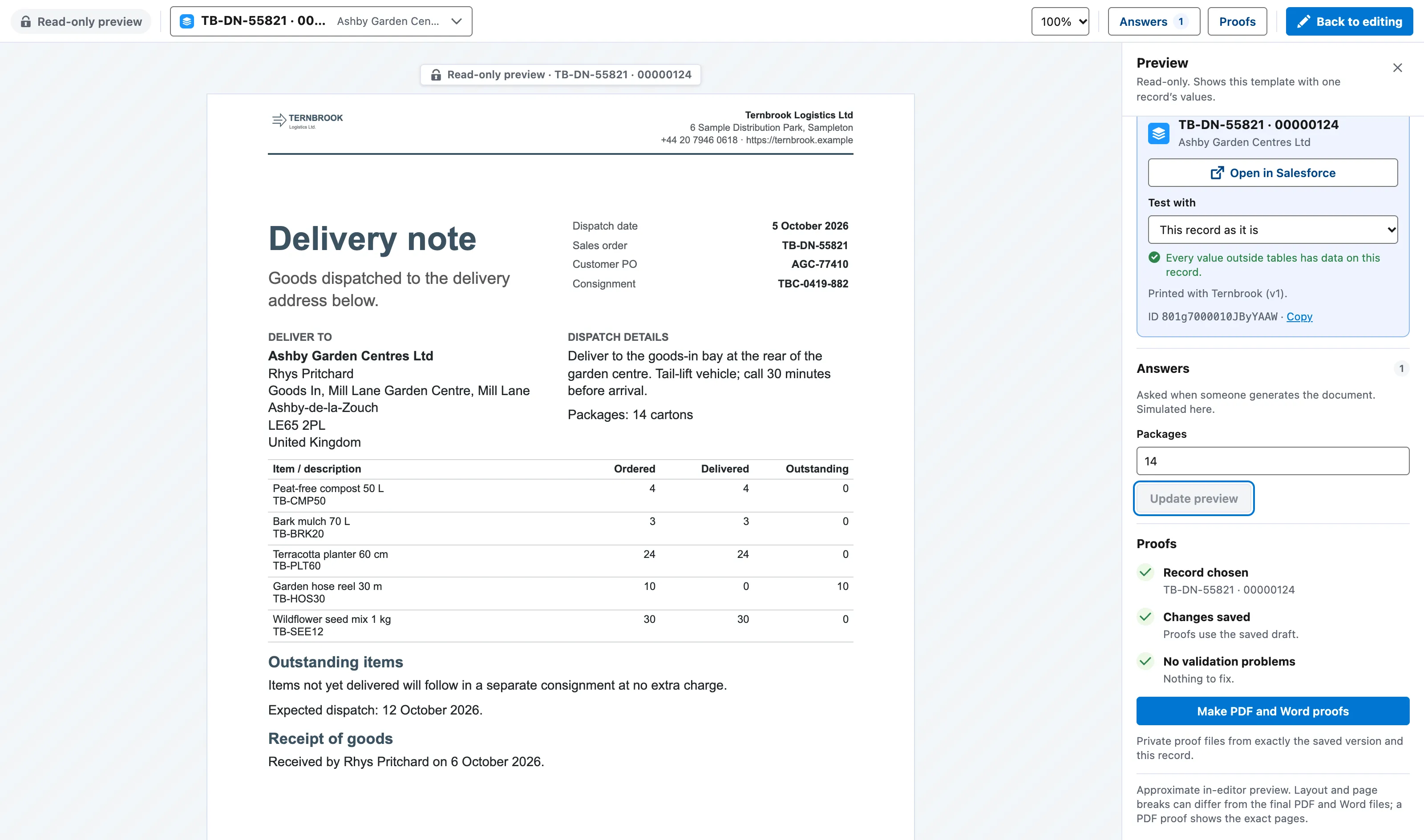
Preview with a record chosen, here a delivery note. The panel on the right holds the proof checks and Make PDF and Word proofs. 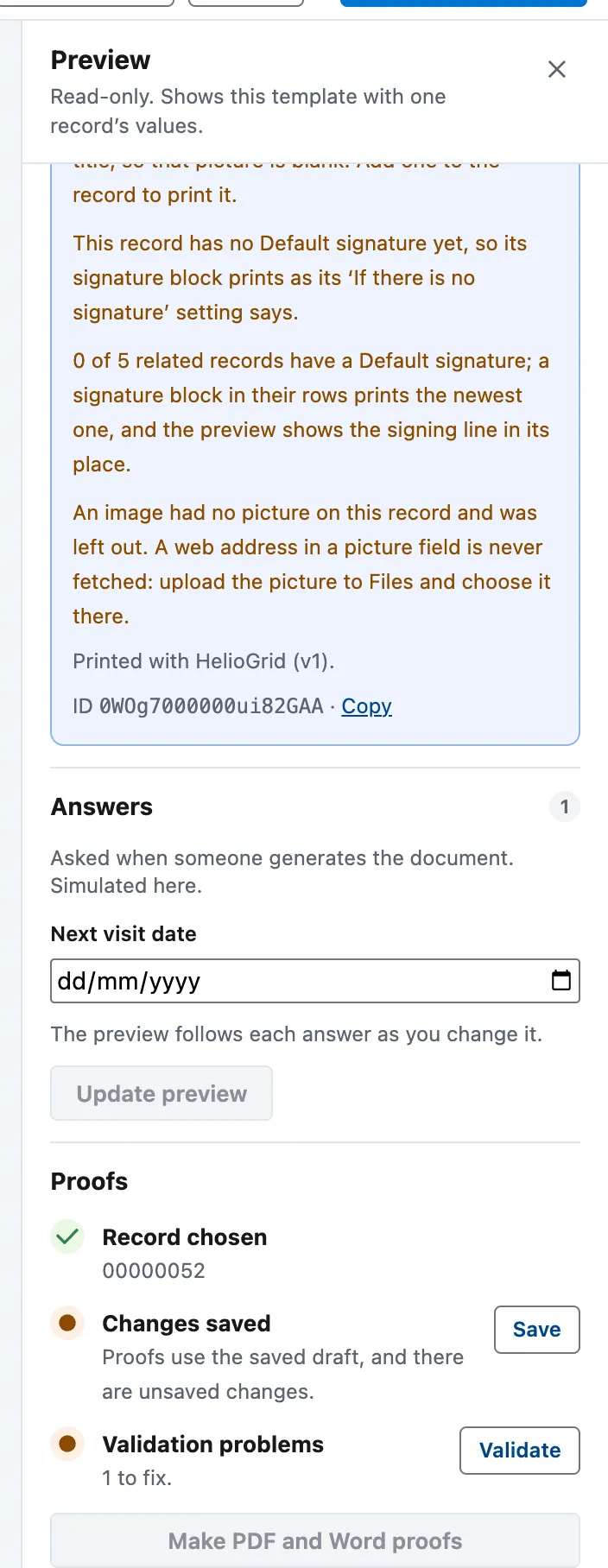
The Preview panel with a record chosen: the preview notes, the Answers box, and the Proofs section's three steps, two still to do. -
Choose Open the PDF proof and Open the Word proof. Check the values, the layout and every warning.
-
Ask the second person to approve. They open the template and choose Approve…. For each proof that lists warnings they choose I’ve checked these warnings, then Approve v1.
-
They choose Activate…, then Activate v1. The badge by the version reads Active.
-
Open the contact Helen Achebe.
-
In Generate a document, choose the template, leave Make on PDF and Word (DOCX), and choose Make PDF and Word.
-
Choose Open on each file. Open the Word file in Word, change a line, save and reopen it: it is a real Word document.


ApprovalA person, if used
Optional. A person accepts one exact version. By default not its author.
Approval does not activate
ActivationA person
Makes that version available to generate. Checks the Brand Kit, access, validation and a fresh proof.
Example
| Step | Value |
|---|---|
| Template | Formal customer letter on Contact, with the Cindervale Brand Kit |
| Proof record | The contact Helen Achebe |
| Approved by | A second person with Docable Activate Template |
| Generated from | The same contact, as PDF and Word (DOCX), kept on the record as Files |
Check it worked
Both files are saved on the contact, and the Generation Runs tab lists the run as Made. The two files hold the same values in the same order. Page breaks can differ: see Choose PDF, Word or both.

If it doesn’t work
| What you see | What to do |
|---|---|
| Make PDF and Word proofs is greyed out. | One of the three steps above it is not done. Save, then Validate, and choose a record. |
| Approve… says someone else has to approve. | Ask a colleague with Docable Activate Template. An administrator can switch the rule off in Docable Setup › Approval. |
| Generate a document lists no template. | A template appears once it is approved, activated and shared with you. |
Next
Something unclear or wrong? Tell support.