
How the Cairnline certificate was built
Last updated 25 October 2026.
The sample uses the Cairnline Brand Kit. Colours are Brand Kit colours (Primary, Negative status and Muted text) except the notice panel, which uses fixed greys.
Before you start
- Docable installed, and access to create templates: see Permissions and readiness.
- An approved Brand Kit: see Give your documents a Brand Kit.
- A work order, 00000020 in the sample, with the assets it covers. The org needs Field Service.
Start from the Completion certificate quick start
-
In the Docable app, open Templates, choose New, then Start from a quick start.
-
Choose Completion certificate.
-
Under Brand Kit, choose your approved kit. The sample uses Cairnline.
-
Choose Use as it is. The template opens in the editor, built on Work Order. The gallery offers it when the org has Field Service.
The blocks on the page
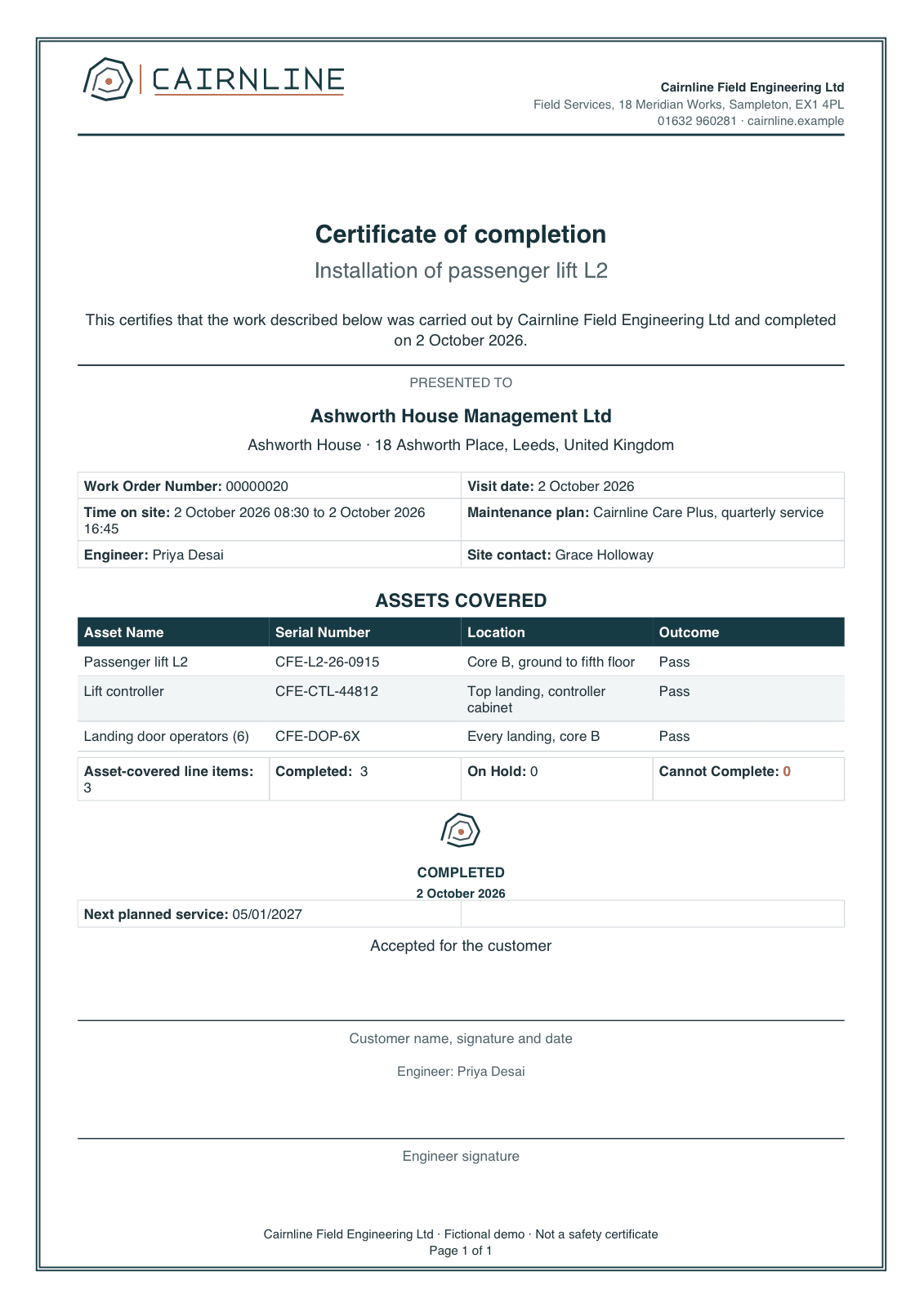
- One title for finished work, another for open work. This one is the certificate version.
- Presented to, and the visit. The customer, and the details of the visit.
- Assets covered. A table of the work order’s assets, with a count under it.
- Seal and customer acceptance. Shown only for finished work.
- Signatures. A captured signature, or lines to sign by hand.
- Page border and watermark. Set under Page. The watermark shows only for open work.
One title for finished work, another for open work
The certificate cannot be made for work that is not finished. Guide: Show a section only when it applies.
| Part | Setting |
|---|---|
| Rule | Work order completed or closed: the work order’s status is one of Completed and Closed |
| Show when | Heading 1 Certificate of completion, the work order’s subject, and: This certifies that the work described below was carried out by the Brand Kit’s legal name and completed on the end date. |
| Otherwise | Heading 1 Visit record and the subject |
| Open-work notice | A Callout box with Border width (pt) 1, a grey Border colour and a pale grey Fill, Padding (pt) 8. The heading WORK NOT COMPLETED, the sentence This visit record does not certify completion, then the work order’s description under Visit notes. Show when the work order not completed or closed: the status is not one of Completed and Closed |
Presented to, and the visit
| Part | Setting |
|---|---|
| Rule | A Divider, then PRESENTED TO |
| Customer | Heading 2 with the account’s name. Beneath it one line made of the account’s site, the street, the city and the country, each with Hide the whole line when empty |
| Details | A Field grid with two columns: Work Order Number, Visit date, Time on site, Maintenance plan, Engineer, Site contact |
| Time on site | The start date and time, then the end time on a same-day visit, or the end date and time on a later day. Two If / otherwise value calculations choose between them with the rule Visit ends within a day of its start |
| Maintenance plan | The answer to the Maintenance plan question |
Assets covered
A table of the work order’s line items that have an asset. Guide: Show related records in a table.
| Part | Setting |
|---|---|
| Heading | Heading 2 ASSETS COVERED |
| List | The work order’s line items, filtered with Filter, sort and limit… to the rule Has an asset: the asset’s name is not blank. At most (records) 200 |
| Columns | Asset Name, Serial Number, Location (the asset’s description) and Outcome, 25% each |
| Outcome | The Outcome word calculation, an If / otherwise value chain: Pass when the line’s status is one of Completed and Closed, Follow-up when it is On Hold, Unresolved when it is Cannot Complete, else Not inspected |
| No rows | Message No asset-covered line items are recorded. |
| Style | Use Brand Kit defaults, Keep the whole table on one page |
| Counts | A Field grid with four columns: Asset-covered line items, Completed, On Hold, Cannot Complete. Each is a Total with Count. Cannot Complete uses Add a style rule: Rule 1 Assets that cannot be completed (the count > 0), Bold on, the Negative status colour as Text colour |
Seal and customer acceptance
Shown only for finished work.
| Part | Setting |
|---|---|
| Section | Show when Completion details: the status is one of Completed and Closed |
| Seal | The Brand Kit’s mark (Brand tab, Logo › Logo mark), 30 by 30 pt, Fit Fit inside, If the image is missing Leave it out |
| Wording | Heading 3 COMPLETED, 9 pt, bold, Primary, then the end date, 8 pt, bold, Primary |
| Next service | A Field grid: Next planned service, the answer to Next visit date. Hide the whole line when empty |
| Acceptance | Show when the work order is completed or closed and the Requires acknowledgement answer is true (ticked): Accepted for the customer, then a Divider captioned Customer name, signature and date |
Signatures
Guide: Add a signature.
| Part | Setting |
|---|---|
| Signature | A Signature block: Salesforce Digital Signature, Signature type Default, label Signed, If there is no signature Leave it out |
| Engineer | Engineer: and the work order’s owner, then a Divider captioned Engineer signature |
The sample has no captured signature, so the block is left out and the pen lines stay.
Page border and watermark
Set under Page. Guide: Write and format a document.
| Section | Setting |
|---|---|
| Border and background | Page border width (pt) 1, Line style Double, Page border colour Primary |
| Watermark | Watermark Text, Text NOT A CERTIFICATE, Opacity (0.02–0.25) 0.15, Angle (°) 45, Size (pt) 54, Colour Negative status |
| Show the watermark | Work order not completed or closed. For finished work the page prints clean |
The watermark is faded and see-through, and prints over the page.
Questions asked when generating
Three questions, each added with @ › Values › Ask when generating….

| Question | Answer type | What it does |
|---|---|---|
| Maintenance plan | Text | Prints in the details grid |
| Next visit date | Date | Prints as Next planned service. Blank hides the line |
| Requires acknowledgement | Yes or no | Ticked adds the customer acceptance line to a finished certificate |
File name
Under Page, in File name: Add text Completion certificate, then Add a field and choose the work order number. The file for this work order is named Completion certificate 00000020.
Make it yours
- Choose Page › Brand Kit. Under How this template gets its brand, choose One Brand Kit and pick your own approved kit.
- Retype the certifying sentence and the headings for your trade.
- Change Text under Watermark if your open-work wording differs.
- Add a line to the details grid: select it and choose the field.
- Choose Validate, then check, approve and generate.
Check it worked
In Preview, choose the work order 00000020. The title reads Certificate of completion and the assets table lists three rows, each Pass. The counts read 3, 3, 0 and 0, and the seal reads COMPLETED. Choose a work order that is still open: the title reads Visit record, WORK NOT COMPLETED appears and NOT A CERTIFICATE crosses the page.
If it doesn’t work
| What you see | Why | What to do |
|---|---|---|
| Completion certificate is not in the gallery. | The gallery offers it only when the org has Field Service. | Ask an administrator to turn on Field Service. |
| The figures differ from the ones above. | They are for the sample record and answers. | Choose the sample record, enter the answers given, then choose Update preview. |
| Validate lists problems. | Proof, approval and activation refuse a draft until it is clean. | Fix them one block at a time and validate again. |
A field you expect is not listed after @. |
You see only fields you can read. Fields two or more lookups away are not found by search. | Open the lookup with its arrow in Insert and choose the field there. |
| A Show when section prints nothing, and neither does its Otherwise. | The value the rule tests is blank on that record. | Set If the rule can’t be checked to Show “Otherwise” instead. |
DATA_COLLECTION_TRUNCATED |
The record has more related rows than the list allows. | Raise At most (records) on that list. |
| The Generate a document panel lists no template. | A template appears once it is approved, activated and shared with you. | Finish check, approve and generate. |
More in Troubleshooting.
Next
Something unclear or wrong? Tell support.