
How the Aurevia invoice was built
Last updated 26 October 2026.
Colours below are Brand Kit colours: Primary, Accent, Muted text, Body text, Lines, Callout fill and Positive status. They change with the kit you choose.
Before you start
- Docable installed, and access to create templates: see Permissions and readiness.
- An approved Brand Kit: see Give your documents a Brand Kit.
- An order, AV-INV-10482 in the sample, with its order products. Give each product a File titled Product image to print its picture.
Start from the Branded invoice quick start
-
In the Docable app, open Templates, choose New, then Start from a quick start.
-
Choose Branded invoice.
-
Under Brand Kit, choose your approved kit. The sample uses Aurevia.
-
Choose Use as it is. The template opens in the editor, built on Order, with the order’s products as the list Invoice lines.
The blocks on the page
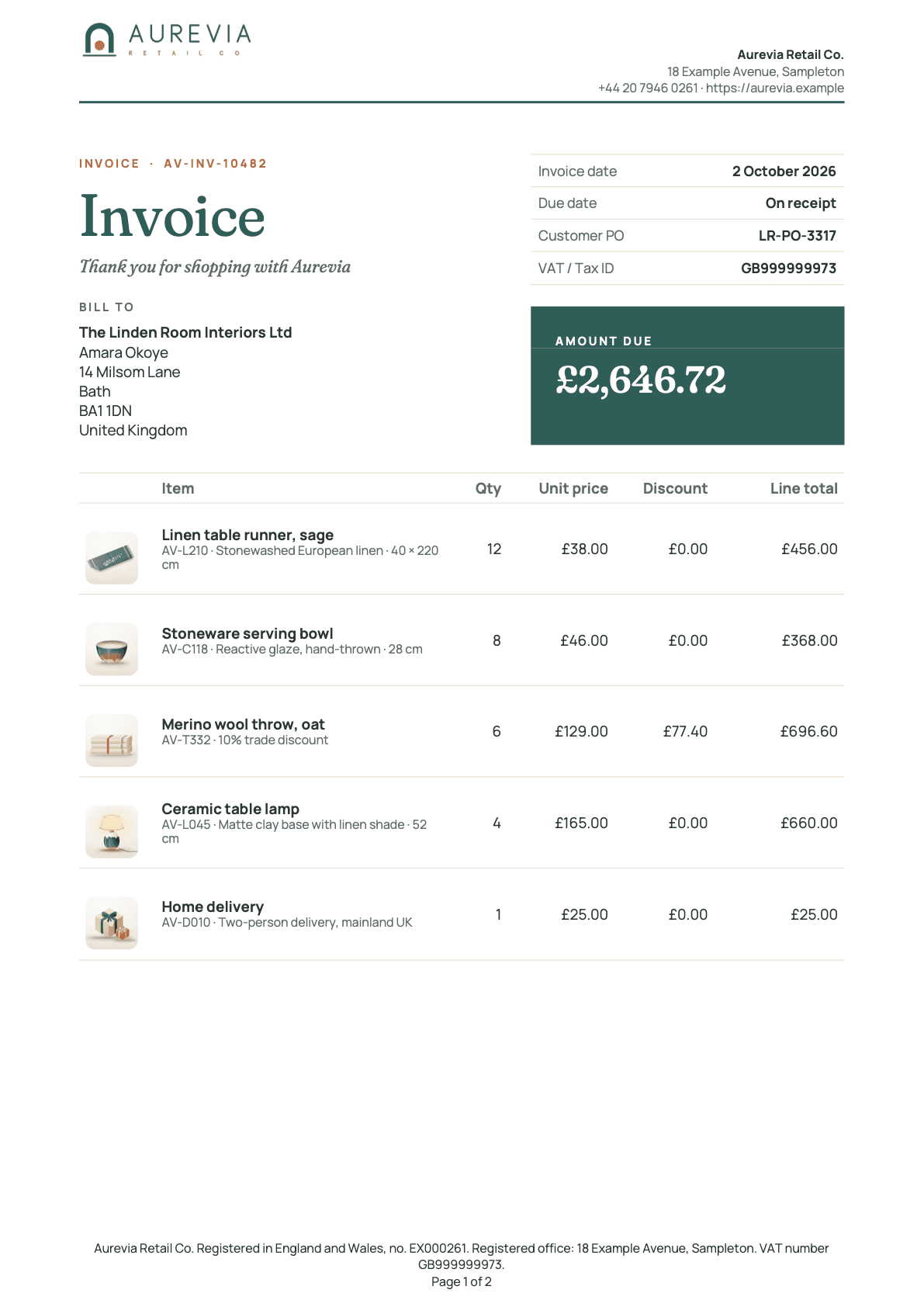
- Title and parties. The title, the thank-you line and the bill-to address.
- Dates and amount due. The invoice dates, the customer’s PO and the amount-due card.
- Invoice lines. A row for each product, with its picture.
Title and parties
Guide: Put Salesforce data in a document.
| Part | Setting |
|---|---|
| Layout | Two columns, widths 58% and 42% |
| Label | INVOICE · and the order’s name; bold, 7.5 pt, Accent |
| Title | Heading 1 Invoice, 38 pt, Primary, not bold |
| Thank you | Thank you for shopping with and the Brand Kit’s trading name (Brand tab, Company details › Trading name); 11.5 pt, Muted text |
| Bill to | Inside a two-column split, widths 56% and 44%: BILL TO, the account name in bold, the bill-to contact and the billing address |
| Ship to | The right half of the split: SHIP TO, the account, the ship-to contact and the shipping address. Show when the billing street is not the shipping street |
| Contact lines | Each contact line has its own Show when: the contact is not blank |
Dates and amount due
The right column. Guide: Show a section only when it applies.
| Part | Setting |
|---|---|
| Field grid | One column, Borders Lines between rows, Label colour Brand: Muted text, Bold labels off |
| Rows | Invoice date (the order’s start date), Due date (its end date), Customer PO, VAT / Tax ID (the Brand Kit’s tax ID) |
| Dates | Date format 4 March 2026. Due date has Show instead On receipt |
| Amount due card | A Callout box: Fill Primary, Padding (pt) 16, Sides None, Rounded corners (pt) 8. White bold text: AMOUNT DUE and the balance. Show when Amount owing: the balance > 0 |
Invoice lines
A table of the order’s products, each with a picture. Guides: Show related records in a table and Add pictures and photos.

| Part | Setting |
|---|---|
| List | Invoice lines, the order’s products, filtered to goods lines. At most (records) 200 |
| Filter | Filter, sort and limit…: the rule Goods line, where the product’s family is not Charges |
| Columns | Picture 10%, Item 38%, Qty 8%, Unit price 14%, a price reduction column 13%, Line total 17% |
| Picture | Add an image column. Image from A File on each record, File title Product image, 34 by 34 pt, Fit Fill and crop, If the image is missing Leave it out |
| Item | The product’s name, then its code and item detail in Muted text, with a dot between |
| Amounts | Currency shown as a symbol, Decimal places 2. Qty: Decimal places 0 |
| No products | Message No products on this invoice. |
| Style | Borders Rows, Border width (pt) 0.5, Header fill white, Header text Muted text, Cell padding (pt) 4, Vertical alignment Middle, Text size (pt) 9.5 |
Calculations
Sixteen, made with Calculation or Total on the Logic tab. The quick start names three of them with the plain word for a price reduction; this table calls them Line price reduction, Products after reduction and Reduction. Guide: Add totals and calculations.

| Name | Used | Operation |
|---|---|---|
| List amount | Each line | Multiply the list price by the quantity |
| Line price reduction | Each line | Subtract the line total from the list amount |
| Item detail | Each line | Use fallback when blank: the line’s description, else the product’s description |
| Subtotal | Document | Total, Sum of List amount over the goods lines |
| Products after reduction | Document | Total, Sum of the line total over the goods lines |
| Delivery | Document | Total, Sum of the line total over the lines whose product family is Charges |
| Reduction | Document | Subtract Products after reduction from Subtotal |
| Products and delivery | Document | Add the two |
| Taxable amount | Document | If / otherwise value: Products and delivery when delivery is charged, else Products after reduction |
| Tax rate applied | Document | If / otherwise value: 0 when Tax exempt is ticked, else the Tax rate answer |
| Tax before rounding | Document | Multiply Taxable amount by Tax rate applied |
| VAT | Document | Round to 2 places |
| Grand total | Document | Add Taxable amount and VAT |
| Total less payments | Document | Subtract the Payments received answer from the grand total |
| Balance | Document | If / otherwise value: Total less payments when a payment is received, else the grand total |
| Credit amount | Document | The balance with its sign reversed |
Totals
One Field grid for each row, so each row has its own Show when. Guide: Show a section only when it applies.
| Row | Shows when | Value |
|---|---|---|
| Subtotal | No price reduction is given | Subtotal |
| Subtotal before reduction, Reduction, Subtotal after reduction | A price reduction is given: Reduction > 0 | Subtotal, Reduction with a minus sign as Before the value, Products after reduction |
| Delivery | Delivery is charged: Delivery > 0 | Delivery |
| VAT | Tax is charged: the Tax exempt answer is blank or is false (not ticked) | VAT |
| VAT (exempt) | Tax exempt is ticked | VAT |
| Grand total | Always | Grand total, bold |
| Payment received | A payment answer > 0 | The Payments received answer, minus sign as Before the value |
Each grid has Borders Lines between rows and Label colour Brand: Body text. Bold labels is off, except on Grand total.
Amount due, paid in full and credit
Three Callout box panels, only one of which shows.
| Panel | Setting |
|---|---|
| Amount due | Fill Primary, Padding (pt) 8, Rounded corners (pt) 6. Amount due and the balance in white, bold, 12 pt. Show when the balance > 0 |
| Paid in full | Fill Callout fill. Paid in full — thank you, in Positive status. Show when the balance = 0 |
| Credit balance | Fill Callout fill. Credit balance and the credit amount, then: We will refund this or set it against your next order. Show when the balance < 0 |
Message, payment, tax and notes
The left half of the lower band. Each part has its own Show when.
| Part | Setting |
|---|---|
| Message | A Callout box, Fill Callout fill, Padding (pt) 14, Rounded corners (pt) 8. The Message for the customer answer, 13 pt, Primary. Show when the answer is not blank |
| Payment | PAYMENT, then one of two paragraphs: Please pay the balance by the due date, quoting the invoice number, when the order has an end date; the same with on receipt when it has none. Both end: Questions about this invoice: the Brand Kit’s email. Each has its own Show when |
| Tax | TAX, then the Tax exemption wording answer. Show when Tax exempt is ticked |
| Notes | NOTES, then the order’s description. Show when it is not blank |
Questions asked when generating
Five questions, each added with @ › Values › Ask when generating….

| Question | Answer type | What it does |
|---|---|---|
| Tax rate | Percent | Sets the tax. 20 means 20% |
| Tax exempt | Yes or no | Ticked sets the tax to 0 and shows the exemption wording |
| Tax exemption wording | Text | Prints under TAX when Tax exempt is ticked |
| Payments received | Amount (currency) | Takes the amount from the balance. Blank means none |
| Message for the customer | Text | Prints in the message panel. Blank hides it |
Stop when there are no lines
Under Page, in Don’t make the document when…, Rule 1 is No products on the order: the number of rows in the filtered Invoice lines = 0. Message people see: This order has no products, so no invoice was made. Add the products to the order and try again.
File name
Under Page, in File name: Add text Invoice, then Add a field and choose the order’s name. The file for this order is named Invoice AV-INV-10482.
Make it yours
- Choose Page › Brand Kit. Under How this template gets its brand, choose One Brand Kit and pick your own approved kit.
- Click each label that says VAT and retype it if your tax has another name.
- Give each delivery product the family Charges. Its price leaves the table and prints under Delivery.
- Retype the Payment sentence for your terms. The due date comes from the order’s end date.
- Save a File titled Product image on each product.
- Choose Validate, then check, approve and generate.
Check it worked
In Preview, choose the order AV-INV-10482 and enter a Tax rate of 20 under Answers. The subtotal is 2,283.00, the price reduction 77.40, VAT 441.12 and the grand total 2,646.72, so the card reads Amount due 2,646.72. Enter Payments received of 2,646.72 and choose Update preview: the card becomes Paid in full — thank you. Choose an order with no products: Preview shows the stop message.
If it doesn’t work
| What you see | Why | What to do |
|---|---|---|
| The figures differ from the ones above. | They are for the sample record and answers. | Choose the sample record, enter the answers given, then choose Update preview. |
| Validate lists problems. | Proof, approval and activation refuse a draft until it is clean. | Fix them one block at a time and validate again. |
A field you expect is not listed after @. |
You see only fields you can read. Fields two or more lookups away are not found by search. | Open the lookup with its arrow in Insert and choose the field there. |
| A Show when section prints nothing, and neither does its Otherwise. | The value the rule tests is blank on that record. | Set If the rule can’t be checked to Show “Otherwise” instead. |
| A picture is missing. | The File title must match exactly, and a private File or one shared by a public link counts as missing. | Check the File’s title on the record. |
DATA_COLLECTION_TRUNCATED |
The record has more related rows than the list allows. | Raise At most (records) on that list. |
| The Generate a document panel lists no template. | A template appears once it is approved, activated and shared with you. | Finish check, approve and generate. |
More in Troubleshooting.
Next
Something unclear or wrong? Tell support.