
Change a template with the assistant
Last updated 26 October 2026.
For template authors: at the end, the assistant has changed your saved draft the way you asked, and you have checked or undone each change.

Before you start
- The Assistant button is offered in the app bar. If it is missing, the AI set-up in Check what you need is not finished.
- Your draft is saved. The assistant changes the saved draft.
Steps
-
Choose Save.
-
Choose Assistant in the app bar, or select text and choose Ask AI in the selection bar.
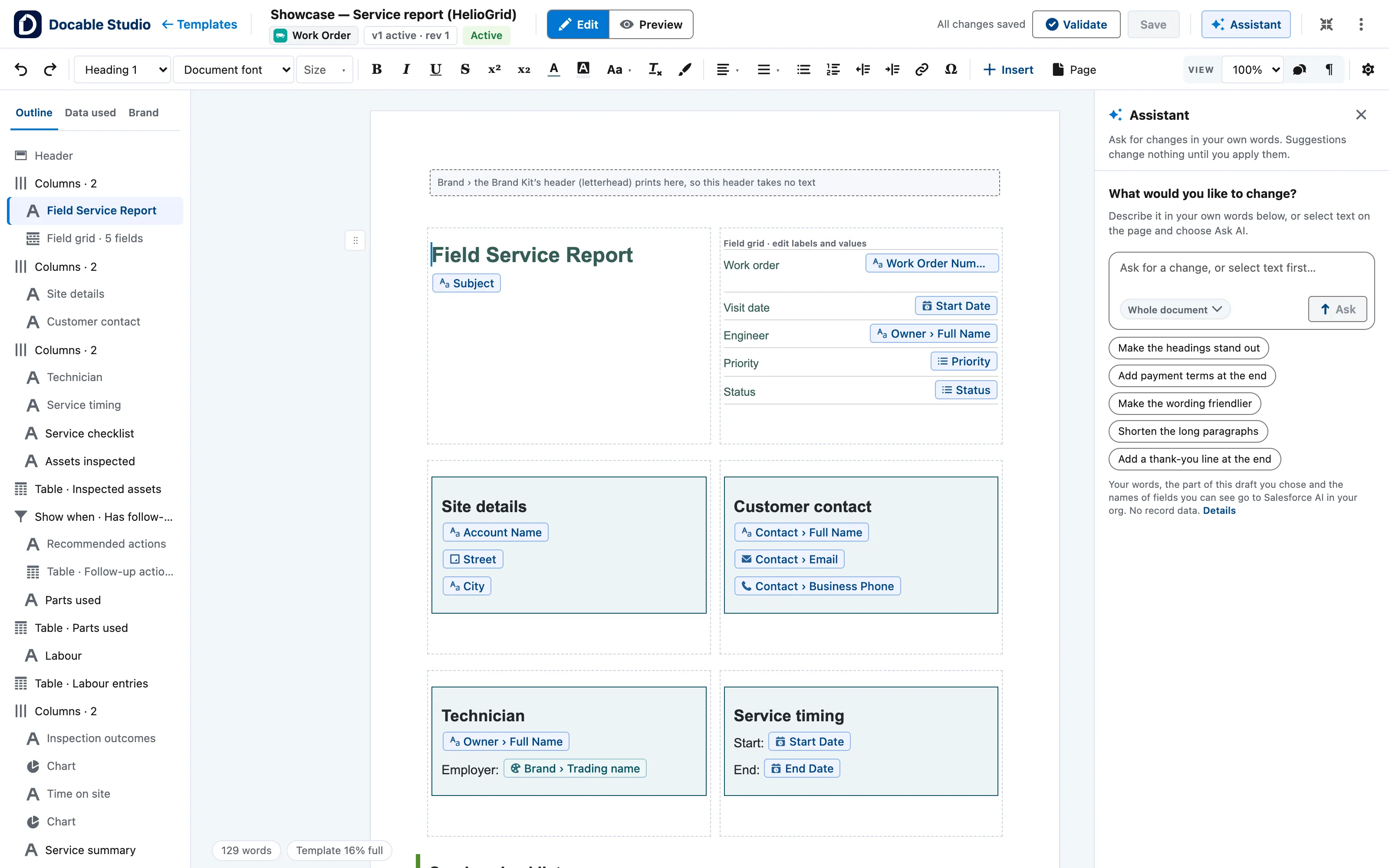
The Assistant panel beside the editor: the Whole document scope, the Ask for a change box and the suggestions it offers. -
Check the scope chip: Selection, This section or Whole document. It decides what the change may touch.
-
In Ask for a change, describe the change, then choose Ask.
-
If it asks a question, choose a chip or Answer in your own words. It asks at most three.
-
Read the suggestion, then choose Apply, or Discard.
-
Read the list of what changed. Choose Undo beside one change, or Undo all.
-
Choose Open Validate for anything under Must fix or Check.

Example
On the Aurevia invoice, set the scope to Whole document and choose the suggestion Add payment terms at the end. Apply it, read what changed, then run Validate.
Check it worked
The Assistant panel lists Changed N things and the page shows them. The assistant sees your words, the part of the draft you chose and the names of fields you can see. It never sees record values or your proofs.
If it doesn’t work
| What you see | What to do |
|---|---|
| The Assistant button is not offered. | The AI prerequisites are not all in place. Everything else in the editor still works. |
| The assistant says to save first. | Choose Save. It changes the saved draft, not unsaved edits. |
| A change is too large to undo one by one. | Reopen an earlier version from the version menu to go back. |
Next
Something unclear or wrong? Tell support. Product page: The editor.