
How the Velmora service agreement was built
Last updated 26 October 2026.
The sample above adds a cover picture to the quick start. The rest is the quick start as it comes. Colours are Brand Kit colours: Accent, Heading text, Muted text, Lines and Callout fill.
Before you start
- Docable installed, and access to create templates: see Permissions and readiness.
- An approved Brand Kit: see Give your documents a Brand Kit.
- A contract, VC-AGR-0441 in the sample, with an order and its products. The org needs Orders.
Start from the Service agreement quick start
-
In the Docable app, open Templates, choose New, then Start from a quick start.
-
Choose Service agreement.
-
Under Brand Kit, choose your approved kit. The sample uses Velmora.
-
Choose Use as it is. The template opens in the editor, built on Contract, with the contract’s orders and their products as lists. The gallery offers it when the org has Orders.
The blocks on the page
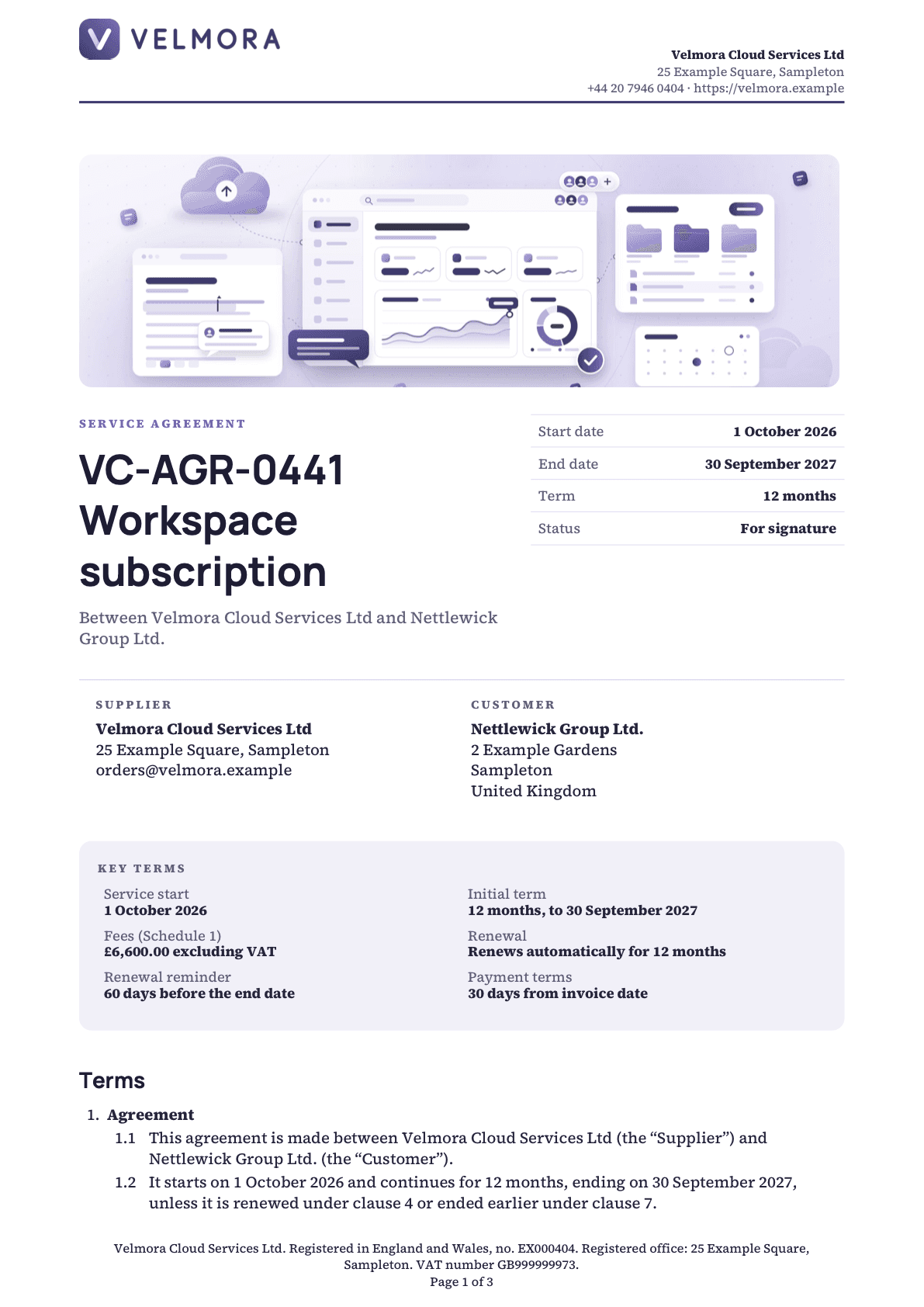
- Title, parties and dates. The agreement title with its dates, then the supplier and the customer.
- Key terms, in two versions. The panel changes with the Renews automatically answer.
- Numbered clauses. Clause numbers run on across separate lists.
Title, parties and dates
Guide: Put Salesforce data in a document.
| Part | Setting |
|---|---|
| Layout | Two columns, widths 58% and 42% |
| Label | SERVICE AGREEMENT; bold, 7.5 pt, Accent |
| Title | Heading 1 with the contract’s name; bold, 26 pt, Heading text |
| Between | Between and the Brand Kit’s legal name (Brand tab, Company details › Legal name), and, then the account’s name; 10.5 pt, Muted text |
| Dates (right) | A Field grid with one column: Start date, End date, Term, Status. Borders Lines between rows, Label colour Brand: Muted text, Bold labels off. Date format 4 March 2026 |
| Term | The contract’s term, then the word months typed after it |
| Status | The Status wording calculation: Signed when the customer’s signed date is not blank, else For signature |
| Parties | A Callout box with Sides Top, two columns, widths 50% and 50%: SUPPLIER with the Brand Kit’s legal name, registered office and email; CUSTOMER with the account’s name and billing address |
Key terms, in two versions
The panel changes with the Renews automatically answer. Guide: Show a section only when it applies.
| Part | Setting |
|---|---|
| Panel | A Callout box: Fill Callout fill, Padding (pt) 12, Sides None, Rounded corners (pt) 8. KEY TERMS in Muted text, bold, 7.5 pt |
| Grid | A Field grid with two columns, Labels Above the value, Borders None: Service start, Initial term, Fees (Schedule 1), Renewal, Renewal reminder, Payment terms |
| Show when | Renews automatically: the answer is true (ticked) |
| Renewal, ticked | Renews automatically for the contract’s term in months |
| Otherwise | The same grid with Renewal reading By new order only. Add it with Add or remove “Otherwise” |
| Fees | The total of the orders’ amounts. Show instead As set out in the order forms. After the value excluding VAT |
| Renewal reminder | The contract’s notice period, then days before the end date |
Numbered clauses
Up to nine clauses, numbered 1 to 9 with sub-clauses 1.1, 1.2. Guide: Write and format a document.

| Part | Setting |
|---|---|
| Heading | Heading 2 Terms, 14 pt, Heading text |
| List | A Numbered list: the clause heading at Level 1, its sentences at Level 2. Choose Legal numbering on every level (1, 1.1, 1.1.1) |
| Fixed clauses | Agreement, Services, Fees and invoicing, Data protection, Confidentiality, Ending the agreement, General |
| Fields in a clause | Clause 1 names the Brand Kit’s legal name, the account, the start date, the term and the end date. Clause 9 names where the company is registered (Company details › Registered in) |
| Several lists | A Show when section between clauses splits them into separate lists. Each list after the first has Numbering Continue from the list before, so the numbers run on |
Renewal and special terms
Two clauses change with the contract.
| Clause | Shows when | Wording |
|---|---|---|
| Renewal, renews | Renews automatically is ticked | The agreement renews for a further term at the end of each term unless either party gives written notice, with the contract’s notice period in days |
| Renewal, does not renew | Otherwise | The agreement does not renew automatically, and the supplier sends a renewal quotation before the end date |
| Special terms | The contract’s Special Terms is not blank | The special terms, printed as their own clause. Without them the clause and its number are gone, and General moves up |
Schedule 1: services and fees
One block for each order of the contract. Guides: Show related records in a table and Add totals and calculations.

| Part | Setting |
|---|---|
| Heading | Heading 2 Schedule 1: Services and fees, 14 pt |
| Section | Show when Has orders: the number of orders > 0. Otherwise: The services and fees are set out in the order forms placed under this agreement. |
| Repeat | Repeat for each Orders, Sort by the effective date, At most (records) 20 |
| Order line | Order, the order’s name, · Customer PO, the PO number, · ordered, the PO date. Shown when the order has a PO; without one the line reads only Order and its name |
| Table | Order products, Sort by the item number, At most (records) 50. Columns Service 38%, Period 26%, Qty 8%, Unit price 13%, Amount 15% |
| Service | The product’s name, then its description in Muted text |
| Period | A subscription line, which has an end date, prints its start and end dates with a dash. A one-off line prints One-off · booked and its date, or One-off · to be arranged when it has none |
| Totals | A Field grid in the right half: Subscription fees, One-off services (Show instead None), Total fees excl. VAT. Lines between rows |
| No lines | Message No products on this order. |
Signatures
| Part | Setting |
|---|---|
| Section | Keep on one page, with Heading 2 Signatures, 14 pt, and a sentence that by signing each party agrees to the terms |
| Layout | Two columns, widths 50% and 50%: FOR the supplier’s legal name, FOR the account’s name; bold, 7.5 pt, Muted text, in capitals |
| Signed | Show when the signed date is not blank: the signer’s name, for the customer also the title, then Signed on and the date |
| Not signed | Otherwise: three Divider lines captioned Signature, Name and position and Date, to sign by hand |
Questions asked when generating
One question, added with @ › Values › Ask when generating….

| Question | Answer type | What it does |
|---|---|---|
| Renews automatically | Yes or no | Ticked prints the automatic renewal wording in the key terms and clause 4. Unticked prints By new order only |
Make it yours
- Choose Page › Brand Kit. Under How this template gets its brand, choose One Brand Kit and pick your own approved kit.
- Click each fixed clause and type your own wording. Keep the clause headings at Level 1 and the sentences at Level 2.
- Change Payment terms in the key terms, and the payment sentence in clause 3, if your terms differ.
- To add a clause, put the caret at the end of a clause, press Enter, then choose Indent this item for a sub-clause.
- Add a cover picture: type
@at the top of the page, open the Media tab and choose Image from the library. Guide: Add pictures and photos. - Choose Validate, then check, approve and generate.
Check it worked
In Preview, choose the contract VC-AGR-0441 and tick Renews automatically under Answers. Fees read 6,600.00 excluding VAT and Status reads For signature. Schedule 1 lists the two services: subscription fees 6,000.00, one-off services 600.00, total fees 6,600.00. Clear Renews automatically and choose Update preview: Renewal reads By new order only and the renewal clause says the agreement does not renew automatically.
If it doesn’t work
| What you see | Why | What to do |
|---|---|---|
| Service agreement is not in the gallery. | The gallery offers it only when the org has Orders. | Ask an administrator to turn on Orders. |
| The figures differ from the ones above. | They are for the sample record and answers. | Choose the sample record, enter the answers given, then choose Update preview. |
| Validate lists problems. | Proof, approval and activation refuse a draft until it is clean. | Fix them one block at a time and validate again. |
A field you expect is not listed after @. |
You see only fields you can read. Fields two or more lookups away are not found by search. | Open the lookup with its arrow in Insert and choose the field there. |
| A Show when section prints nothing, and neither does its Otherwise. | The value the rule tests is blank on that record. | Set If the rule can’t be checked to Show “Otherwise” instead. |
DATA_COLLECTION_TRUNCATED |
The record has more related rows than the list allows. | Raise At most (records) on that list. |
| The Generate a document panel lists no template. | A template appears once it is approved, activated and shared with you. | Finish check, approve and generate. |
More in Troubleshooting.
Next
Something unclear or wrong? Tell support.