
How the HelioGrid service report was built
Last updated 26 October 2026.
Colours are Brand Kit colours (Primary, Muted text and the Brand Kit’s table style), except the panels and the status banner, which use fixed colours.
Before you start
- Docable installed, and access to create templates: see Permissions and readiness.
- An approved Brand Kit: see Give your documents a Brand Kit.
- A work order, 00000019 in the sample, with its assets, and photos if you want the Site photos section. The org needs Field Service.
Start from the Branded service report quick start
-
In the Docable app, open Templates, choose New, then Start from a quick start.
-
Choose Branded service report.
-
Under Brand Kit, choose your approved kit. The sample uses HelioGrid.
-
Choose Use as it is. The template opens in the editor, built on Work Order. The gallery offers it when the org has Field Service.
The blocks on the page
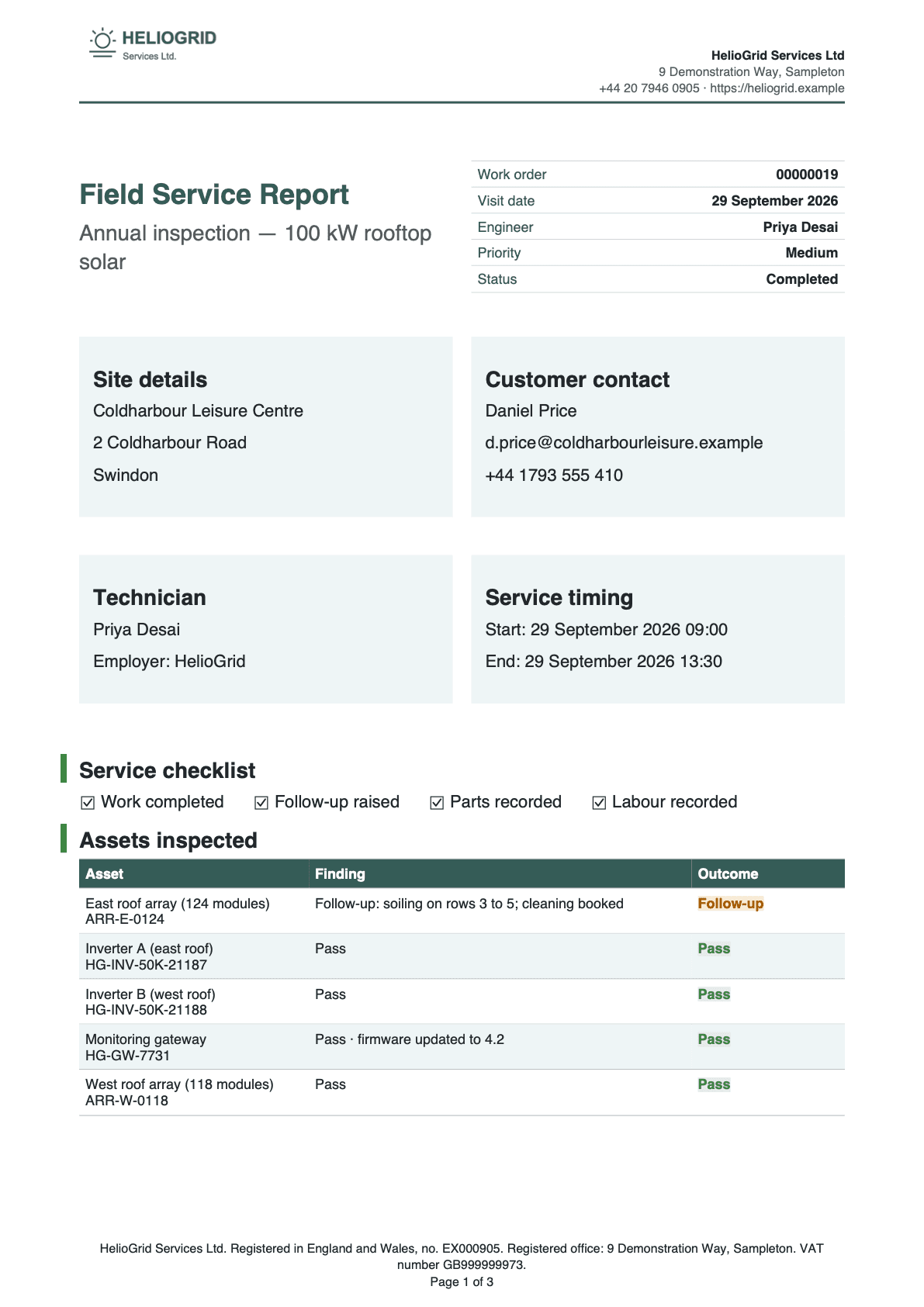
- Title and visit facts. The report title with the work order’s facts beside it.
- Four panels. Site, customer, technician and timing.
- Service checklist. Four ticks worked out from the work order.
- Assets inspected. One list of line items, filtered to the assets.
Title and visit facts
Guide: Put Salesforce data in a document.
| Part | Setting |
|---|---|
| Layout | Two columns, widths 50% and 50% |
| Title | Heading 1 Field Service Report, coloured Primary |
| Subject | The work order’s subject |
| Facts (right) | A Field grid with one column: Work order (the number), Visit date, Engineer (the owner’s name), Priority, Status. Borders Lines between rows, Label colour Brand: Primary, Bold labels off. Date format 4 March 2026 on Visit date |
Four panels
Three rows of two panels.
| Panel | Content |
|---|---|
| Site details | Heading 2, then the account’s name, the street and the city |
| Customer contact | Heading 2, then the contact’s name, email and phone |
| Technician | Heading 2, then the owner’s name and Employer: with the Brand Kit’s trading name |
| Service timing | Heading 2, then Start: and the start date and time, End: and the end date and time. Date format with the time. Hide the whole line when empty on the end line |
| Each panel | A Callout box: Border width (pt) 1, Border colour a teal, Fill a pale teal, Padding (pt) 8 |
Service checklist
Four ticks, each a calculation. Guide: Show a section only when it applies.
| Tick | Ticked when |
|---|---|
| Work completed | The work order’s status is Completed |
| Follow-up raised | The work order has follow-up work orders: their number > 0 |
| Parts recorded | The parts table has rows |
| Labour recorded | The labour table has rows |
Each tick is an If / otherwise value that gives ☑ or ☐ as text. They sit in one line of text, separated by spaces.
Assets inspected
One list, the work order’s line items, shown three ways: assets, parts and labour. Guide: Show related records in a table.

| Part | Setting |
|---|---|
| List | Inspected assets: the work order’s line items, filtered with Filter, sort and limit… to the rule Line is an asset inspection, where the asset is not blank. Sort by the asset’s name, At most (records) 100 |
| Columns | Asset 30%, Finding 50%, Outcome 20% |
| Asset | The asset’s name, then its serial number on a second line |
| Finding | The line’s description |
| Outcome | The Asset outcome calculation: Pass when the line’s status is Completed, else Follow-up. Add a style rule: Rule 1 Asset line passed, Bold on, green text on a pale green Fill. Rule 2 Asset line needs follow-up, Bold on, dark orange text on a pale orange Fill |
| No assets | Message No assets were inspected on this visit. |
| Style | Use Brand Kit defaults |
| Layout | Keep the whole table on one page |
Recommended actions, parts and labour
| Table | Setting |
|---|---|
| Recommended actions | The work order’s child work orders, in a section with Show when Has follow-up actions: their number > 0. Columns Action, Priority, Target date, Details, 25% each. Date format 4 March 2026 |
| Parts used | The same line items, filtered to the rule Line is a part: the quantity is not blank. Columns Qty 15%, Part 45%, Notes 40%. Decimal places 0 on Qty. Message No parts were used on this visit. |
| Labour | The same line items, filtered to the rule Line is labour: the duration in minutes is not blank. Columns Work carried out 50%, Minutes 50%, with After the value min. Message No labour was recorded on this visit. |
Charts
Two charts side by side. Guide: Add a chart.
| Part | Setting |
|---|---|
| Layout | Two columns, widths 50% and 50%, each with a Heading 2: Inspection outcomes, Time on site |
| Outcomes | Chart type Doughnut, Records Inspected assets, Group by (categories) Status, Value Count of records, Width (pt) 225, Height (pt) 170, Legend Automatic (bottom, as the chart is narrow) |
| Time on site | Chart type Bar, Records Labour entries, Group by (categories) Description, Value Sum of the duration in minutes, Width (pt) 225, Height (pt) 170 |
| Alternative text | Alternative text Inspection outcomes by status, and Minutes on site by activity |
Service summary and status
| Part | Setting |
|---|---|
| Summary | Heading 2 Service summary, then the work order’s description with Hide the whole line when empty |
| List | A Bulleted list: Assets inspected, Part lines recorded, Time on site (minutes, After the value minutes, hidden when empty), Follow-up actions raised, Next planned visit (the answer, hidden when empty). Each count is a Total on the Logic tab |
| Status banner | A Callout box: Border width (pt) 1, green Border colour, pale green Fill, Rounded corners (pt) 6. Service status: and the work order’s status |
Sign-off and photos
Guides: Add a signature and Add pictures and photos.
| Part | Setting |
|---|---|
| Table | Heading 2 Sign-off, then a Static table: columns Item 20%, Engineer 40%, Customer 40%. Rows Signature (empty), Name (the owner’s name, then empty) and Date (empty). Borders All, Vertical alignment Top |
| Signature | A Signature block: Salesforce Digital Signature, Signature type Default, label Signed on the device:, If there is no signature Leave it out |
| Photos section | Show when Site photos attached: Pictures with “site” in the title > 0 and Pictures with “photo” in the title > 0 |
| Gallery | Heading 2 Site photos, then a Photo gallery of the Files whose title contains site photo: Photos across 3, Photo height (pt) 96, At most 6, newest first |
Questions asked when generating
One question, added with @ › Values › Ask when generating….

| Question | Answer type | What it does |
|---|---|---|
| Next visit date | Date | Prints as Next planned visit. Blank hides the line |
Make it yours
- Choose Page › Brand Kit. Under How this template gets its brand, choose One Brand Kit and pick your own approved kit.
- Retype the panel headings and the checklist labels for your service.
- Set each section’s Show when to match what your technicians record: parts, labour or follow-ups.
- Change the photo title: select the gallery and choose Change which photos….
- Choose Validate, then check, approve and generate.
Check it worked
In Preview, choose the work order 00000019 and set a Next visit date. The assets table has five rows: four read Pass and one reads Follow-up. Parts lists a DC string fuse, quantity 4, labour totals 270 minutes, the doughnut reads 80% Completed and 20% On Hold, and the summary reads Follow-up actions raised: 1. Choose a work order with no photos: the Site photos section is gone.
If it doesn’t work
| What you see | Why | What to do |
|---|---|---|
| Branded service report is not in the gallery. | The gallery offers it only when the org has Field Service. | Ask an administrator to turn on Field Service. |
| The figures differ from the ones above. | They are for the sample record and answers. | Choose the sample record, enter the answers given, then choose Update preview. |
| Validate lists problems. | Proof, approval and activation refuse a draft until it is clean. | Fix them one block at a time and validate again. |
A field you expect is not listed after @. |
You see only fields you can read. Fields two or more lookups away are not found by search. | Open the lookup with its arrow in Insert and choose the field there. |
| A Show when section prints nothing, and neither does its Otherwise. | The value the rule tests is blank on that record. | Set If the rule can’t be checked to Show “Otherwise” instead. |
DATA_COLLECTION_TRUNCATED |
The record has more related rows than the list allows. | Raise At most (records) on that list. |
| The Generate a document panel lists no template. | A template appears once it is approved, activated and shared with you. | Finish check, approve and generate. |
More in Troubleshooting.
Next
Something unclear or wrong? Tell support.