
Check a template with Preview, Validate and proofs
Last updated 26 October 2026.
By the end of this guide your template has a clean Validate and PDF and Word proofs, ready for approval. It is for template authors.
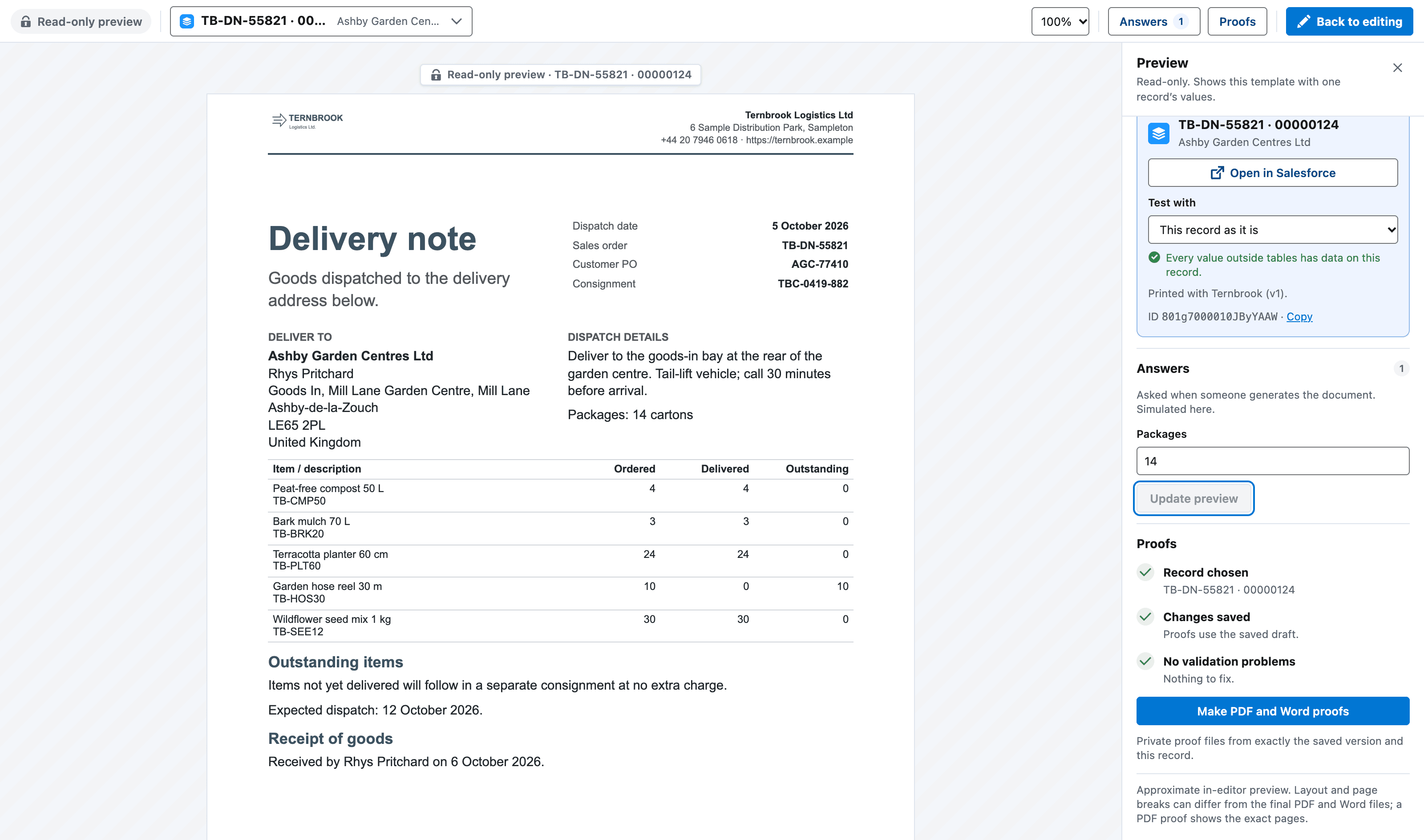
- The test record. Preview uses one record. Change it to see other values.
- The page with approximate values from that record. This is not the output file.
- Answers. The questions asked when someone generates the document, simulated here.
- Proofs. Three checks, then the button that makes the PDF and Word proofs.
ApprovalA person, if used
Optional. A person accepts one exact version. By default not its author.
Approval does not activate
ActivationA person
Makes that version available to generate. Checks the Brand Kit, access, validation and a fresh proof.
Before you start
- You have the Template Author role (Docable Configure and Docable Proof Author).
- You can read a real record for the template.
Steps
-
Choose Validate. The panel reads No problems found, or N to fix · M to check.
-
Choose Go to it beside each problem and fix it.
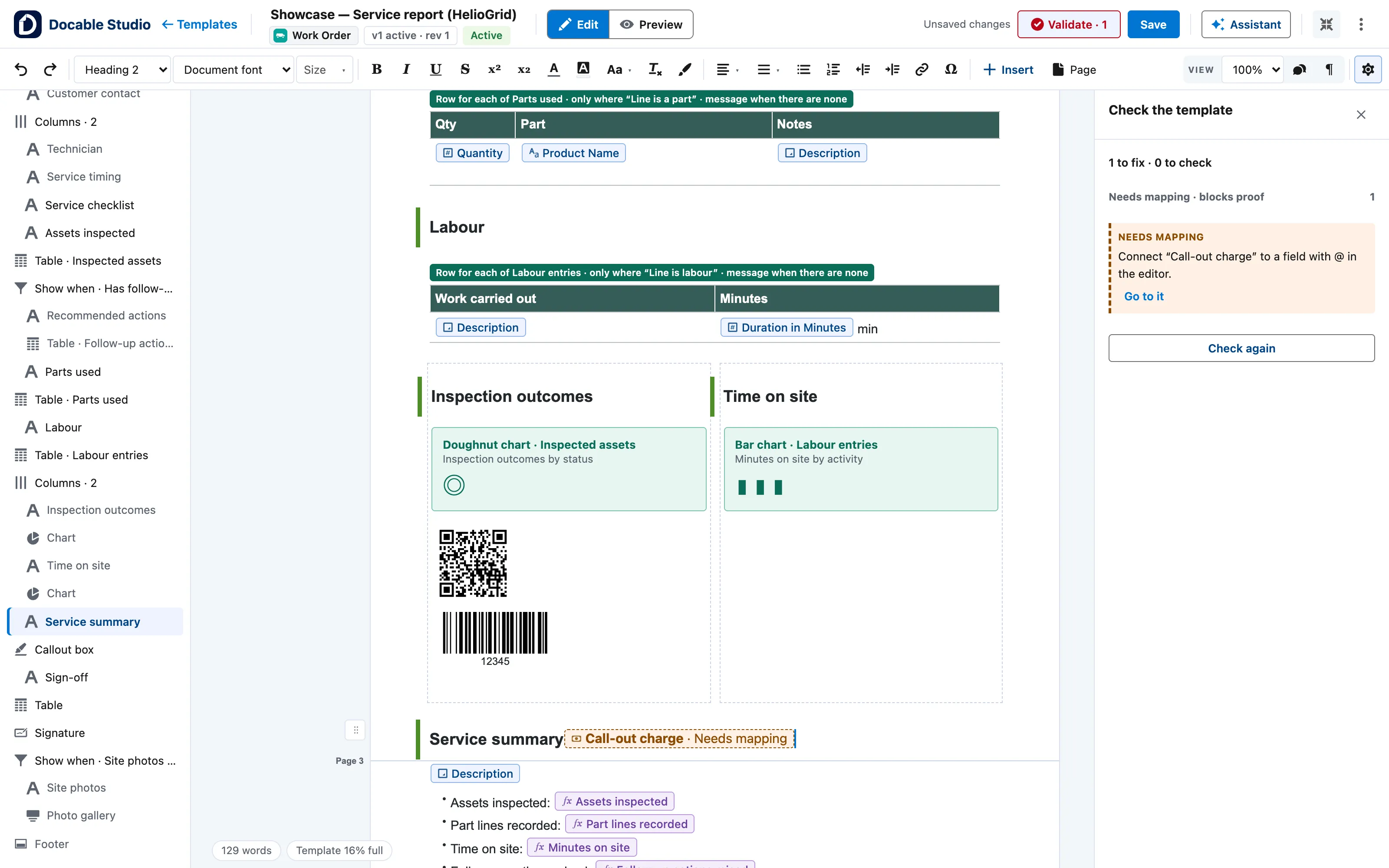
Validate on a template with a problem: 1 to fix · 0 to check, the Needs mapping item with Go to it, the chip it points to on the page, and Check again. -
Choose Check again until the panel reads No problems found.
-
Choose Save. Proofs use the saved draft.
-
Choose Preview and pick a test record. Search by number, subject or account name.
-
Under Answers, answer each question the template asks.
-
Choose Update preview and check the page. Preview is approximate; the proofs are the real files.
-
Under Proofs, check that Record chosen, Changes saved and No validation problems are done.
-
Choose Make PDF and Word proofs.
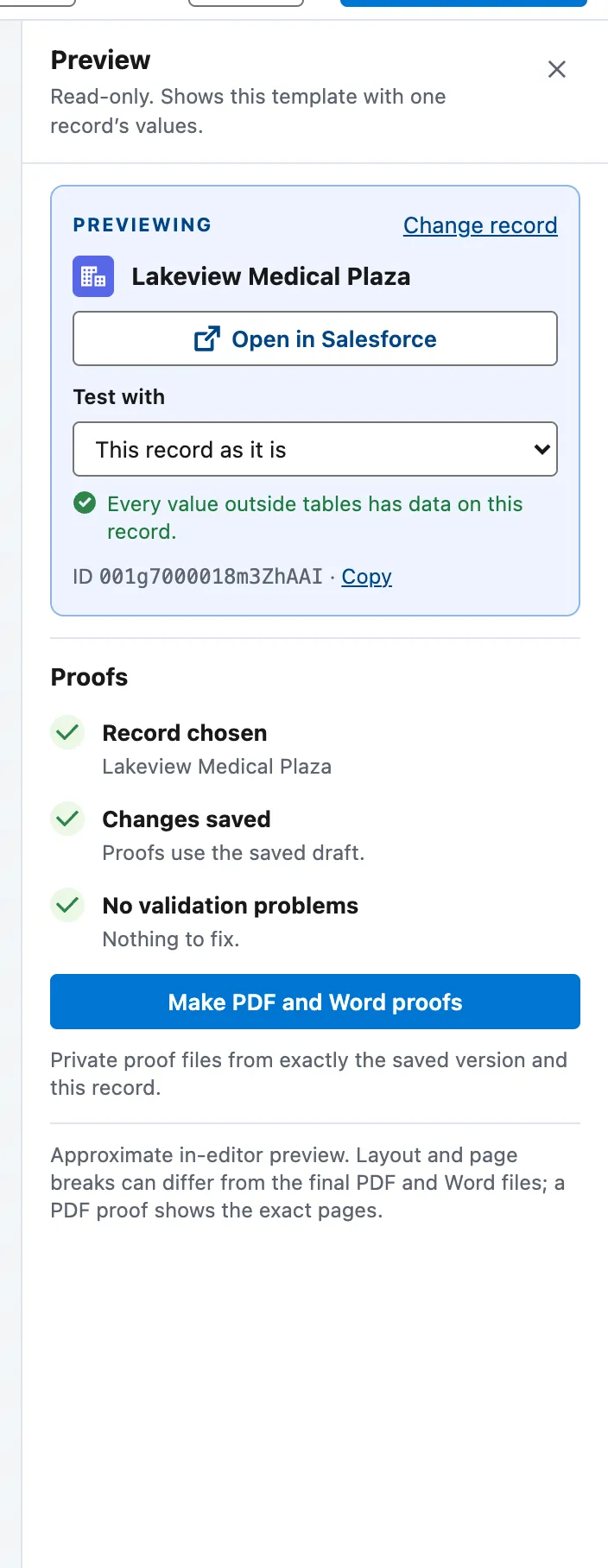
The Proofs section with every step done: Record chosen, Changes saved, No validation problems, and Make PDF and Word proofs. -
Choose Open the PDF proof and Open the Word proof. Check the values, the layout and every warning.
-
If the template allows other Brand Kits when generating, choose each one under Prove with and choose Make PDF and Word proofs again. A run can choose a kit only once it is proved with the version that goes live.


Example
The ForgeFlow quotation, proved on the quote FF-Q-0284.
| Step | Setting |
|---|---|
| Preview record | FF-Q-0284 for Harrowgate Brewing Co. Ltd |
| Answers | Issue date 5 October 2026, Customer reference HB-CAPEX-0412, Invite acceptance ticked, Include charts ticked, Deposit rate left blank |
| Proof | Make PDF and Word proofs makes both files. The proof lists no warnings |
Check it worked
Validate reads No problems found, both proofs open, and their values match the record. Approval and activation refuse a draft that has problems.
If it doesn’t work
| What you see | What to do |
|---|---|
| Make PDF and Word proofs is greyed out. | Read the line under it. Save, run Validate, and choose a record. |
| Validate lists a placeholder under Needs mapping · blocks proof. | Choose Go to it and connect the field or choose the picture. Proofs, approval and activation wait until it is connected. |
| A proof warns that a font was replaced. | The PDF replaces a font that is not a standard PDF font and not uploaded. Upload the font in Page › Fonts, or in the Brand Kit. |
Next
Something unclear or wrong? Tell support. Product page: Proof and approval.