
Make your first document with AI
Last updated 25 October 2026.
By the end you have a first draft of a template, written by Salesforce AI from your description and open in the editor. This guide is for template authors.
Before you start
- Describe it with AI is offered on the New template dialog. If it reads Not available, an administrator finishes the AI set-up in Check what you need.
- You have the Template Author role, which includes Docable Use AI and, with the AI extension installed, the AI authoring storage set.
Steps
-
In the Docable app, open Templates.
-
Choose New.
-
Choose Describe it with AI.
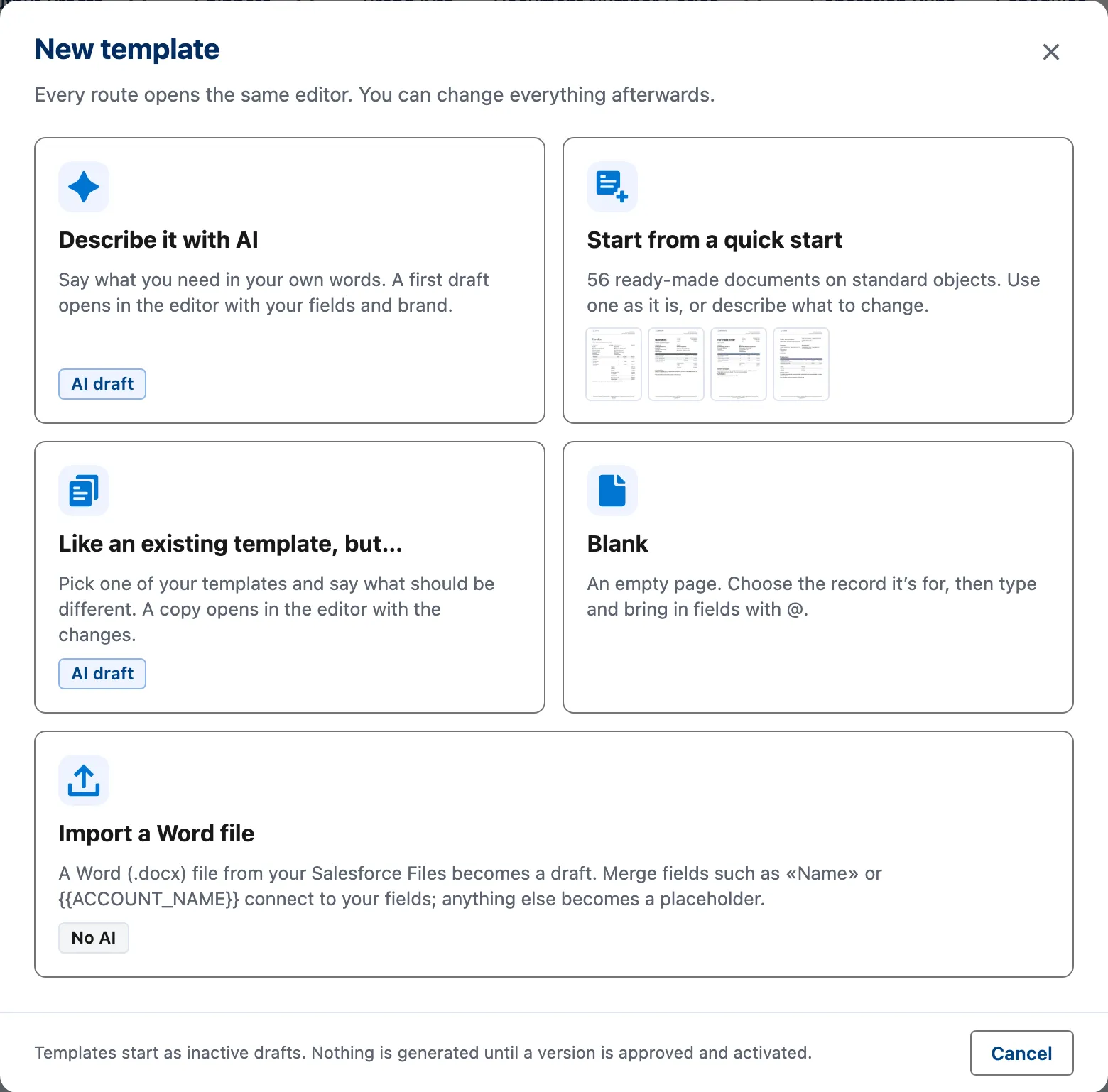
The New template dialog. Describe it with AI is the first card. -
Under What document do you need?, describe the document in your own words. Say what it is for, which record it comes from and what it should show.
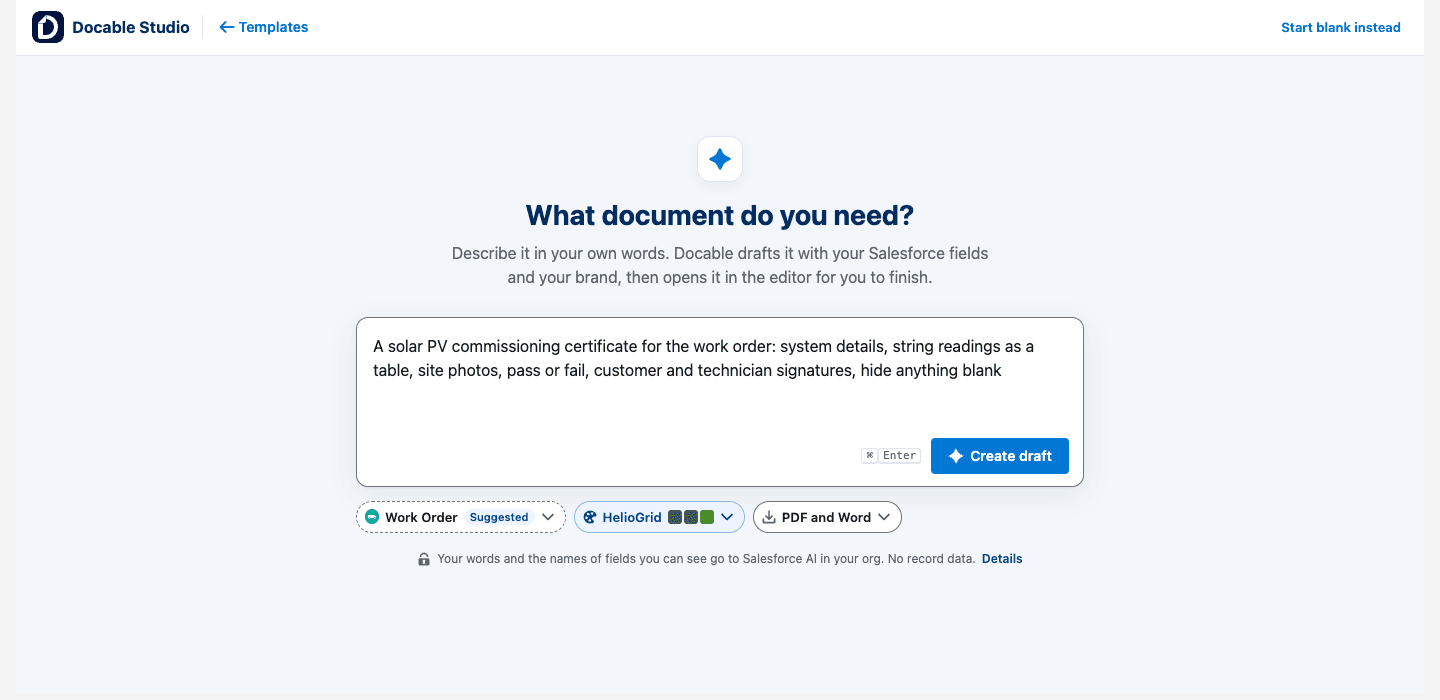
- Your request. Say what the document is for in your own words.
- Record, Brand Kit and outputs. Choose the record it is for, the Brand Kit, and PDF, Word or both.
- Create draft. Starts the draft.
- What goes to AI. Your words and the names of fields you can see go to Salesforce AI in your org. No record data.
- Try an example. Choose one to fill the box.
Build with AI, before a request is written. View full size -
Choose the record under Which record is it for?
-
Choose your Brand Kit. Create one for me makes a kit from your logo; None for now leaves the template unbranded.
-
Leave the output on PDF and Word, or choose PDF only or Word only.
-
Choose Create draft. Answer any question that appears (up to three) and keep the page open.
-
Look over Your draft is ready, then choose Open in the editor. Change something asks for another version; Discard removes it.
-
Finish the draft in the editor. Where the assistant was unsure of a field or picture it left a placeholder: choose Connect a field or Choose a picture in the Assistant panel.
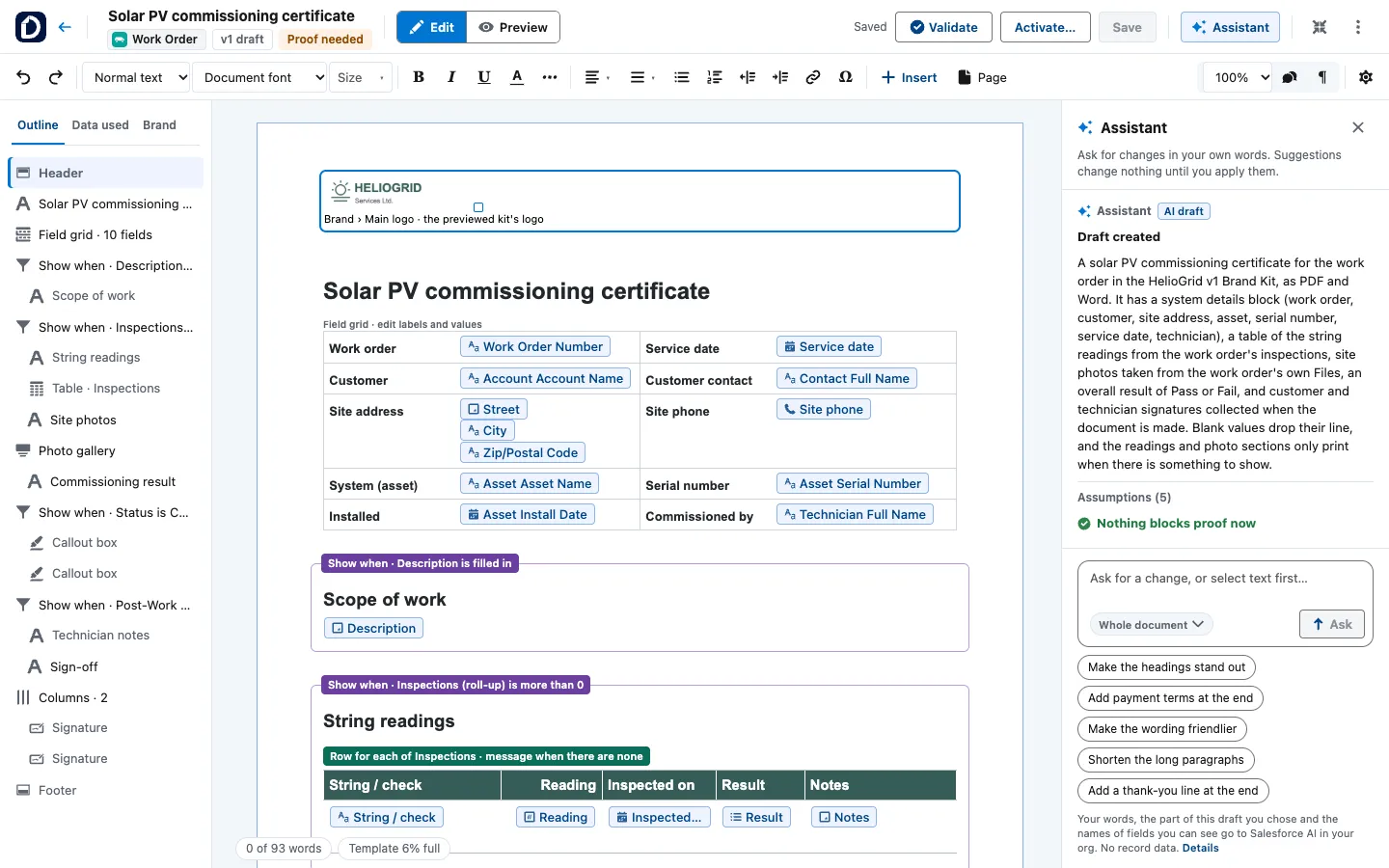
A draft open in the editor. The Assistant panel on the right says what it made, what it assumed and what is left for you. -
Choose Validate, then check, approve and generate.


Example
Choose the example Invoice with product photos. It fills the box with: An invoice for our orders. Our logo at the top, the customer’s address, a line for each product with a small photo, VAT at 20% and payment due within 30 days. End with a short thank-you.
| Setting | Value |
|---|---|
| Which record is it for? | Order |
| Brand Kit | Aurevia |
| Outputs | PDF and Word |
Check it worked
The editor opens on your draft with Proof needed beside its version. Validate lists what still needs you, and the Assistant panel says what it left for you.
If it doesn’t work
| What you see | What to do |
|---|---|
| Describe it with AI reads Not available. | The dialog says why. Start from a quick start or Blank now, and ask your administrator to finish the AI set-up. |
| The draft leaves out part of what you asked for. | The assistant saves the rest and lists what it left out. Ask again for that part, or add it in the editor. |
| The page says the outcome is not confirmed. | Choose Check again. Nothing is sent a second time. |
Next
Something unclear or wrong? Tell support.