
Add pictures and photos
Last updated 26 October 2026.
For template authors: at the end, your template prints logos, product pictures and photos from the record.

Before you start
- You have the Template Author role (Docable Configure and Docable Definition Author).
- Your pictures are PNG, JPEG or still GIF files. For a logo, a simple SVG also works. WebP and animated GIFs are not supported.
Steps
-
Click where the picture goes.
-
Type
@and open the Media tab.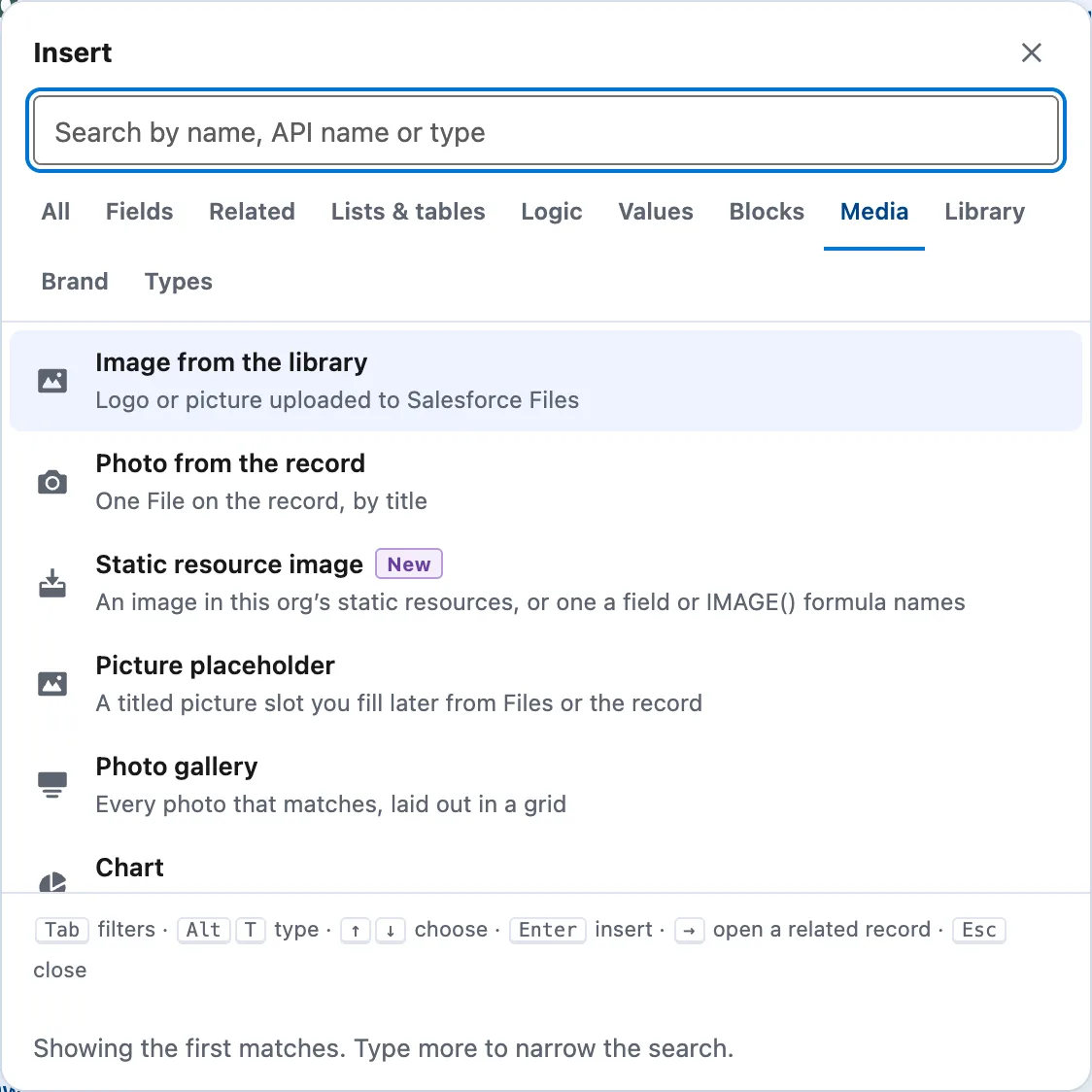
The Media tab: Image from the library, Photo from the record, Static resource image, Picture placeholder, Photo gallery and Chart. -
Choose the kind: Image from the library, Photo from the record, Photo gallery or Picture placeholder.
-
For Image from the library, choose a picture, or choose Upload a picture… to save one as a private File you own. The library lists only private Files you own or that are shared with you directly.
-
For Photo from the record, type the File title on the record. Each document shows the File with exactly that title.
-
For a picture in every row of a table, select the table and choose Add an image column under Columns. Set Image from to A File on each record, then set Whose Files and File title.
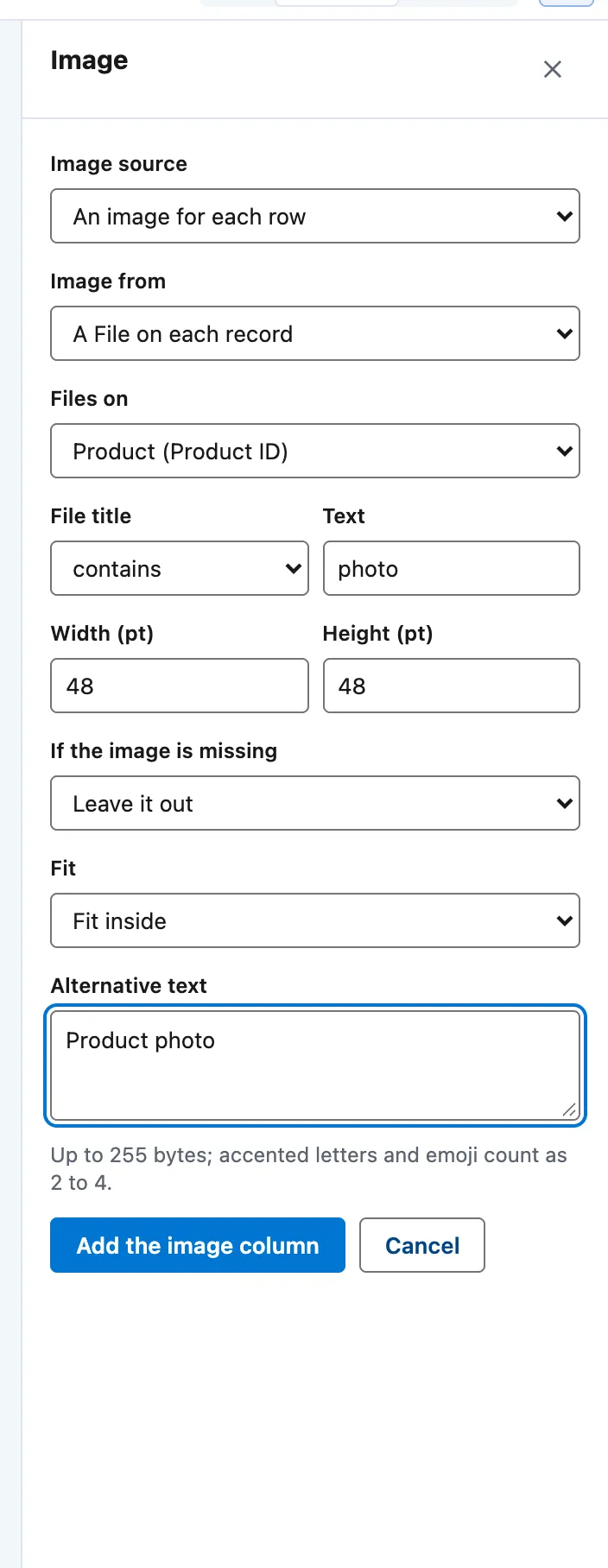
Image column settings: Image from A File on each record, Files on, File title contains photo, width and height, If the image is missing, Fit and Alternative text. -
Select the picture. Set Width (pt), Height (pt) and Fit.
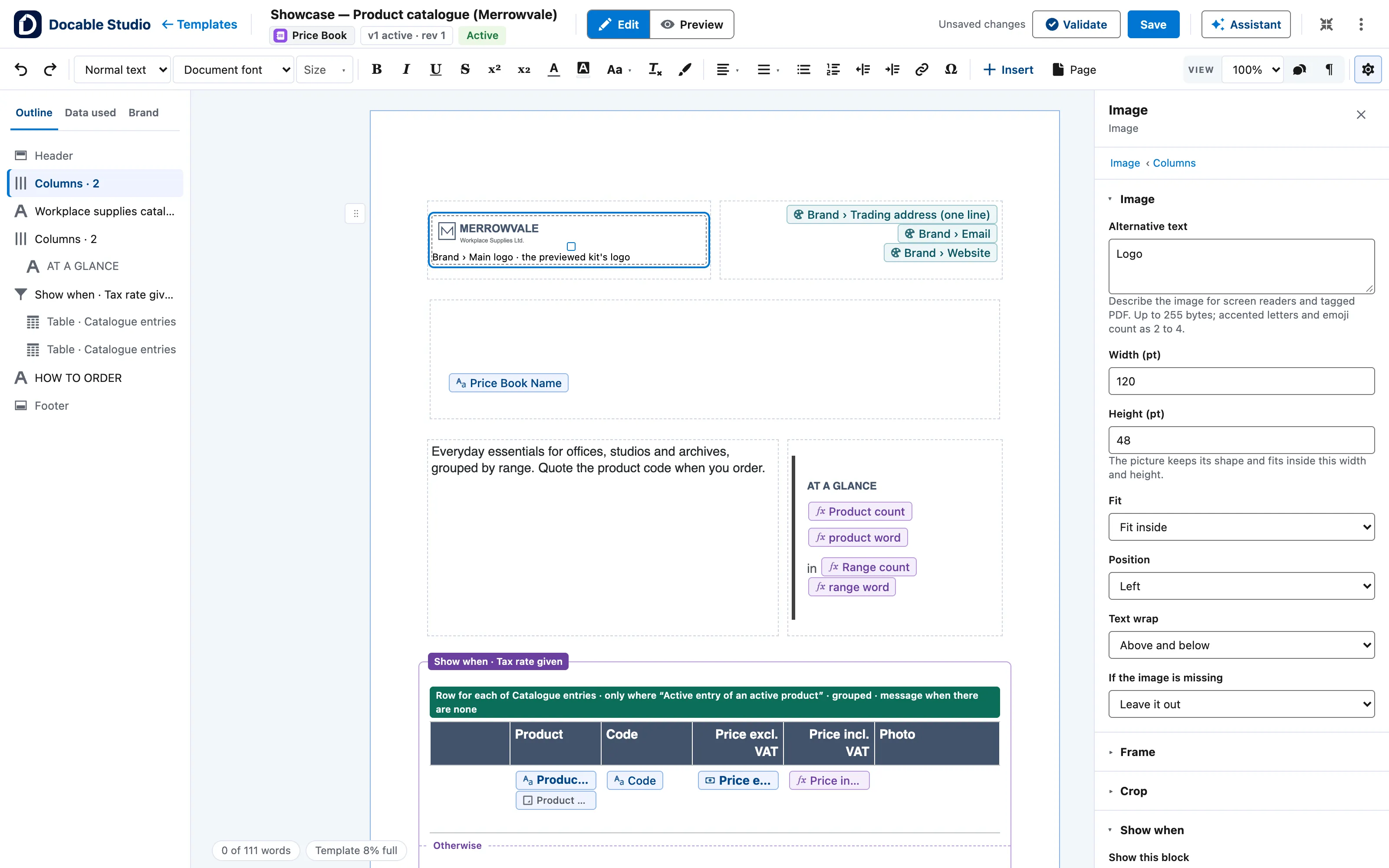
A logo selected on the page with its Image panel open: Alternative text, Width (pt), Height (pt), Fit, Position, Text wrap and If the image is missing. -
Choose If the image is missing: Leave it out, Show a blank tile of this size or Stop generation.
-
Optional: to cut the edges, choose Crop on the page and drag the handles.


Example
The Aurevia invoice shows a picture of each product, from a File titled Product image on the product record.
| Setting | Value |
|---|---|
| Column | Picture, 10% wide |
| Image from | A File on each record |
| Whose Files | The line’s product |
| File title | Product image |
| Width (pt) and Height (pt) | 34 and 34 |
| Fit | Fill and crop, with Rounded corners (pt) 6 |
| If the image is missing | Leave it out |
Check it worked
Preview shows each record picture as a box with its name. Make a proof to see the real pictures: each line shows its product, and a product with no File has no picture.
If it doesn’t work
| What you see | What to do |
|---|---|
| A record has no picture. | The File title must match exactly. A File someone keeps private counts as missing, and a File shared by a public link is refused. |
| Your photo is not in the library. | The library lists private Files you own, or that are shared with you directly, that are not attached to a record. Use Upload a picture…. |
| A picture pasted into a Rich Text Area field does not print. | Attach the photo to the record as a File and use Photo from the record or Photo gallery. |
Next
Something unclear or wrong? Tell support. Product page: The editor.