
Add a signature
Last updated 26 October 2026.
For template authors: at the end, your template prints a captured signature, collects one on screen when the document is made, or leaves lines to sign by hand.

Before you start
- You have the Template Author role (Docable Configure and Docable Definition Author).
- For a captured signature, the signature is on the record as a Salesforce Digital Signature (needs Field Service), a File, or an image field.
- To collect signatures on screen when the document is made, the org has Field Service, so it has the Digital Signature object. See Sign when the document is made.
Steps
-
Click where the signature goes and type
/. -
Choose Signature block.
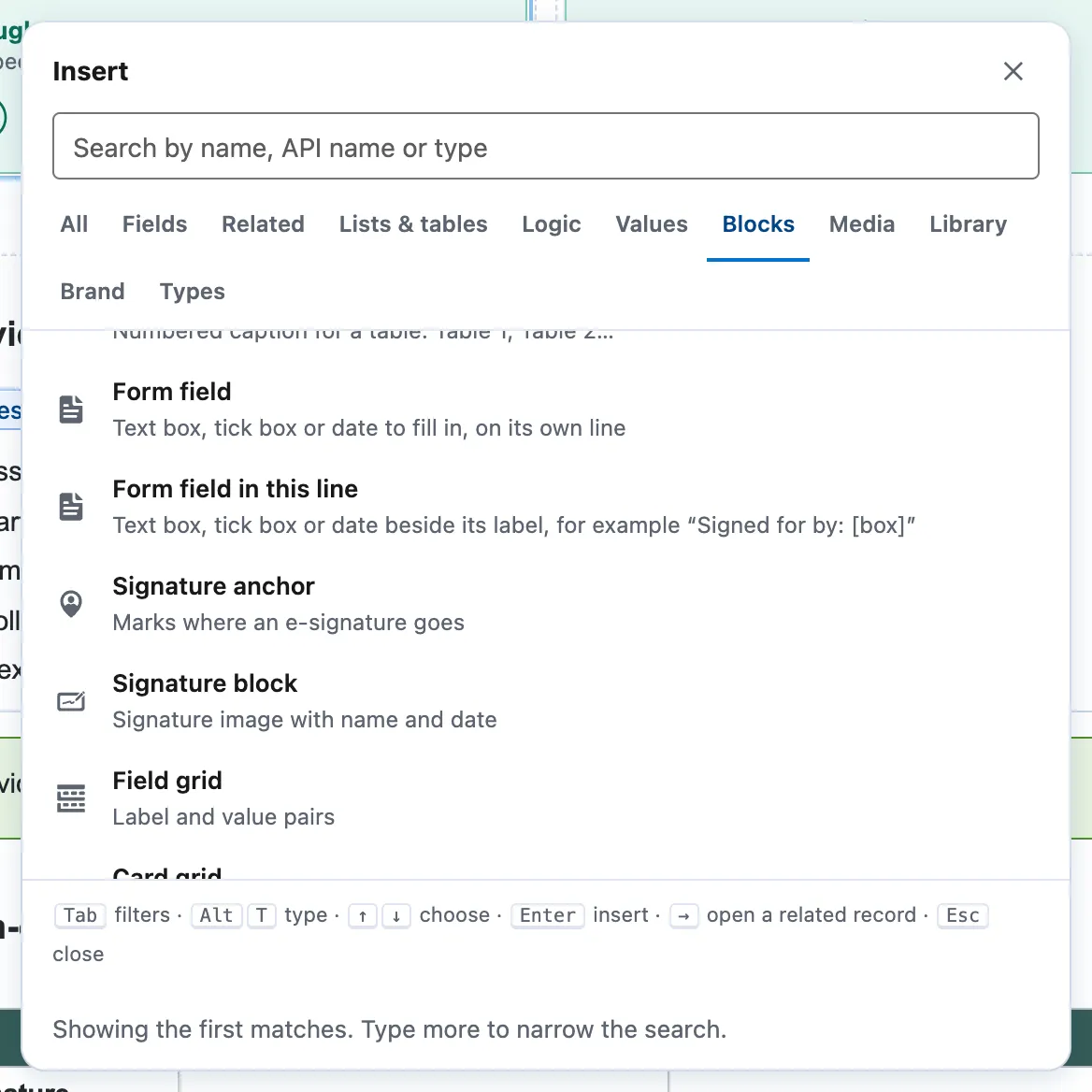
The Insert picker on the Blocks tab: Signature anchor and Signature block among the blocks. -
Choose where the picture comes from: Salesforce Digital Signature, Signature File on the record, Image field or Signature image from Files. For a Digital Signature, set the Signature type. The newest signature of that type prints.
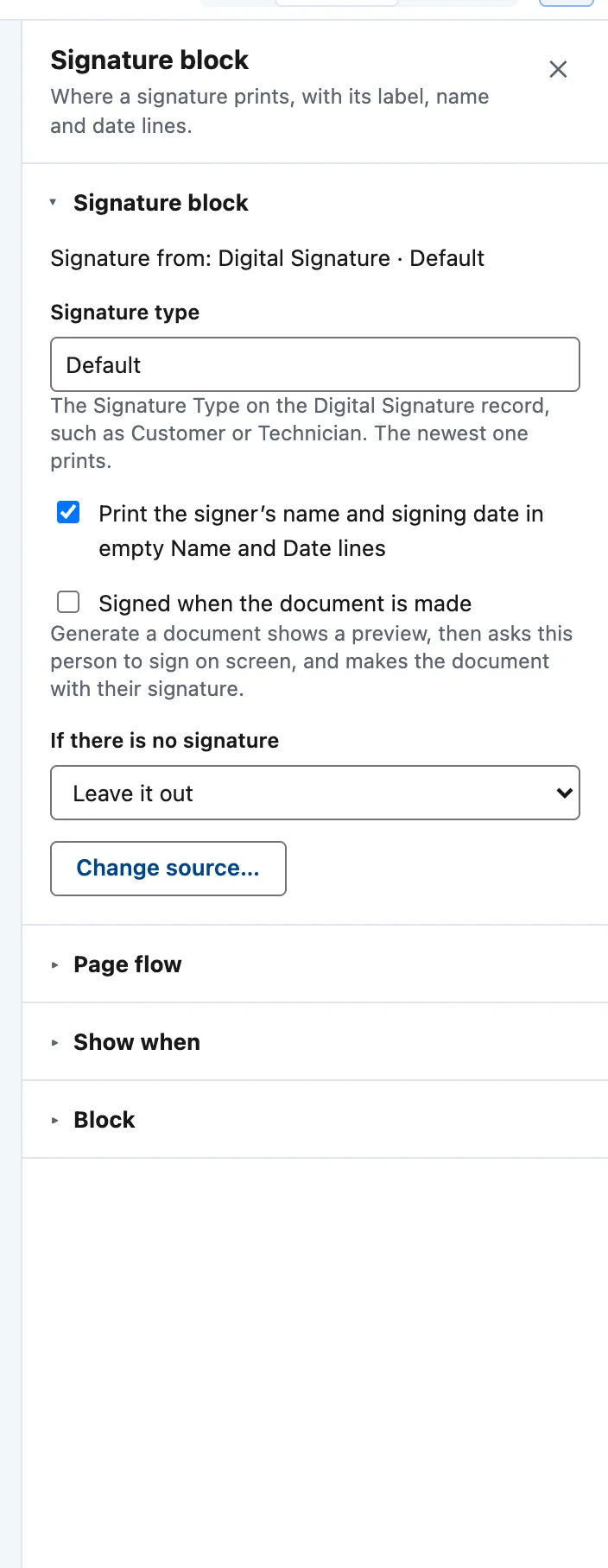
The Signature block panel: Signature from Digital Signature, Signature type, Print the signer's name and signing date, Signed when the document is made, and If there is no signature. -
Tick Print the signer’s name and the signing date in empty Name and Date lines if you want them printed.
-
Set If there is no signature to Leave it out, Show a placeholder or Stop generation.
-
For lines to sign by hand, add a table or dividers with captions such as Customer name, signature and date. Choose Signature anchor to mark where an e-signature tool places its field.


Sign when the document is made
A Digital Signature block can ask for the signature on screen, at the moment the document is made, as Field Service does for its service report. The person previews the document, each signer types a name and signs, and the document is made with their signatures.
It is a simple electronic signature: a drawn mark, a typed name and the time. For an advanced signature, use an e-signature tool and a Signature anchor.
- Click the signature block. Under Source, choose Salesforce Digital Signature.
- Set the Signature type, such as Customer or Technician. A document can collect up to four.
- Tick Signed when the document is made. This block never stops a document, so if If there is no signature was Stop generation, Docable changes it to Show a placeholder. A scheduled or bulk run has nobody to sign, so the block prints its signing line there.
- Leave Allow Unable to sign on if the signer may be recorded as unable to sign. See When someone can’t sign.
Making the document. On the record, open Generate a document and choose the template. The button reads Preview and sign.
- A large preview opens, with the signers in a column beside it.
- Choose Sign for each signer, or a Sign here box on the page. The Name is filled in. Sign with the mouse, trackpad or a finger, then choose Save signature.
- When everyone has signed, make the document. Each signature is saved as a Salesforce Digital Signature on the record, and printed with the name and the date.
On a phone, the same steps fill the screen, and the Field Service app also works with no signal. See Make a document on a phone.
The signatures are saved on a Work Order, Work Order Line Item, Service Appointment or Order. A signature block inside a repeating section prints each related record’s own stored signature, and nobody is asked to sign it. The document is made from the data the preview showed. If the record changed after the preview, Docable refuses it, and the person previews again.
When someone can’t sign
The customer is not on site, or will not sign. The technician records why instead of a signature.
- On a signature block that is signed when the document is made, tick Allow Unable to sign. It is on by default, except for a Technician or Engineer type.
- Set Ask for a note to Off, Optional or Required. The reason Other always needs a note.
- When the document is made, Unable to sign? shows under that signer. The technician chooses a reason and adds a note, if one is asked for.
The reasons are your administrator’s own list. See Set up Docable for the Field Service app.
No Digital Signature is made for that signer. The document prints Not signed: Customer not on site, the note, and Recorded by with the technician’s name and the date, in place of the signature. Docable keeps the reason with the generation run. It does not copy it to a field on the record yet.
The words around the reason, Not signed and Recorded by, are in English. The reason prints in the technician’s language.
With Claude
Claude can set up a signature that is signed when the document is made, with Allow Unable to sign and Ask for a note. Its template check warns when nobody would be asked to sign, for example because the org has no Digital Signature object or the template’s records cannot hold one. Only a person signs, or records why a signer could not. See Connect Claude to Docable.
Example
The Completion certificate quick start ends with a signed declaration.
| Setting | Value |
|---|---|
| Source | Salesforce Digital Signature, Signature type Default |
| Names and dates | Print the signer’s name and the signing date in empty Name and Date lines ticked |
| If there is no signature | Leave it out |
| Pen lines | A divider with the caption Engineer signature |
A job sheet signed on site, on the work order:
| Setting | Value |
|---|---|
| Customer block | Salesforce Digital Signature, Signature type Customer, Signed when the document is made ticked |
| Customer Allow Unable to sign | On, Ask for a note Optional |
| Technician block | Signature type Technician, Signed when the document is made ticked |
Check it worked
Make a proof for a work order with a captured signature of that type: the signature prints with its name and date. The Cairnline sample has none, so the block is left out and the pen lines remain.
For a signature signed when the document is made, open a work order, choose Preview and sign, sign and make the document. The document prints the signature with its name and date, and the work order lists a Digital Signature for each signer.
If it doesn’t work
| What you see | What to do |
|---|---|
| Salesforce Digital Signature is not offered. | Digital Signature records need Field Service switched on in the org. Choose another source. |
| The signature is missing from the document. | If there is no signature is set to Leave it out, and no signature of that type is on the record. Check the Signature type. |
| Nobody is asked to sign. | Check Signed when the document is made is ticked, and that the org has Field Service. The template must be made from a Work Order, Work Order Line Item, Service Appointment or Order, and the block must not sit in a repeating section. A scheduled or bulk run asks nobody. |
| A signature is refused. | The Signature type must be a value in the org’s Digital Signature Signature Type list. Ask an administrator to add it. |
| Unable to sign? is missing. | Allow Unable to sign is off, or the block is not signed when the document is made. |
| Docable refuses the document with “The record changed after the preview was shown.” | Preview it again and check it with the signer. |
| A signing tool needs to find where to sign. | Docable prints signatures that exist or are collected on screen. For an e-signature tool such as DocuSign or Adobe Sign, choose Signature anchor to mark where it places its field. |
Next
Something unclear or wrong? Tell support. Product page: The editor.