
Set up Docable for the Field Service app
Last updated 29 October 2026.
Technicians make documents from the work order, sign on the screen, and carry on with no signal. This is the one-time set-up. The Salesforce app needs only steps 1, 2 and 5.
See what technicians do in Make a document on a phone.
Before you start
- You can edit objects, page layouts and permission sets in Setup.
- Field Service is switched on in the org, and the technicians already use the Field Service app.
- A template for Work Orders is active, and shared with them.
Steps
-
Add the action. In Setup, open Object Manager, then Work Order, then Buttons, Links, and Actions, and choose New Action. Set Action Type to Lightning Web Component, choose Docable Generate Document (quick action), and give it the label people will see. You choose the label. The guides use Generate Service Document. Save.
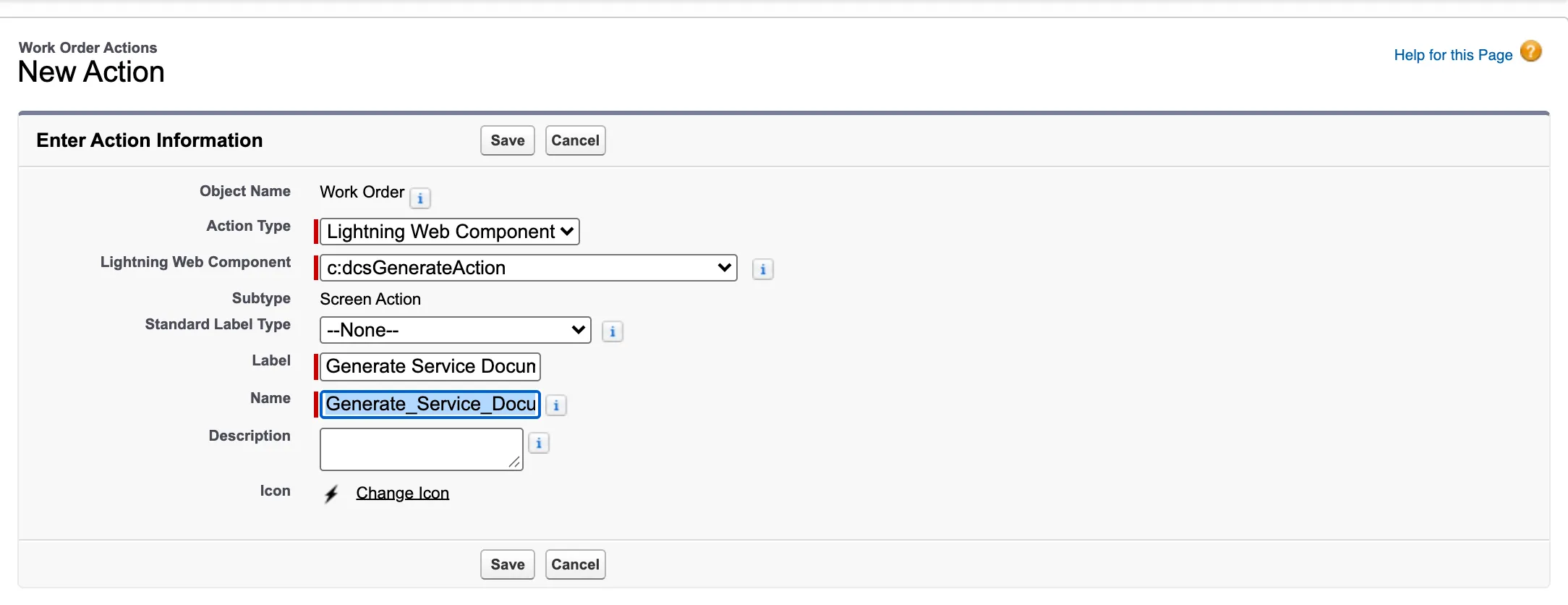
New Action on Work Order: Action Type Lightning Web Component, the Docable Generate Document component, and the label Generate Service Document. -
Put it on the layout. Open the object’s Page Layouts, edit the layout technicians use, and drag the action into Salesforce Mobile and Lightning Experience Actions. If the section shows a link to override the predefined actions, choose it first. Save.

The Work Order page layout: Generate Service Document among the Salesforce Mobile and Lightning Experience Actions. -
Switch on the Lightning SDK. Open Field Service Settings and turn on Lightning SDK for Field Service Mobile. It lets the app run Lightning web component actions such as this one.
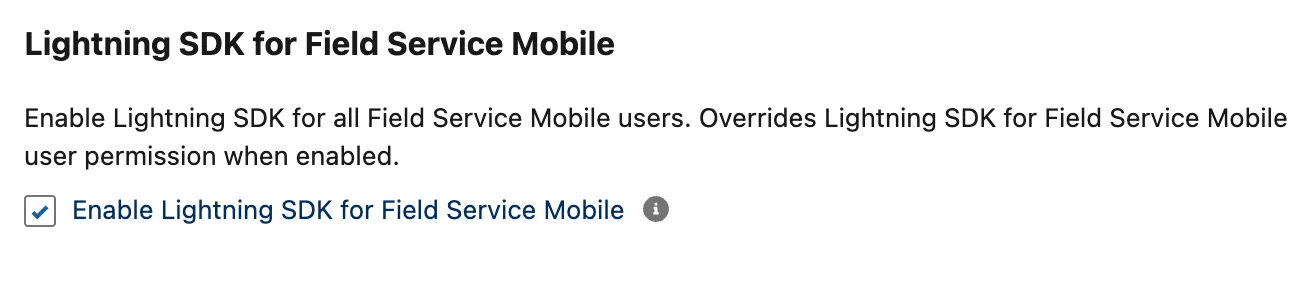
Field Service Settings: Enable Lightning SDK for Field Service Mobile, ticked. -
Give technicians the Lightning SDK. In a permission set assigned to them, switch on the system permissions Lightning SDK for Field Service Mobile and Custom Applications for Field Service Mobile.
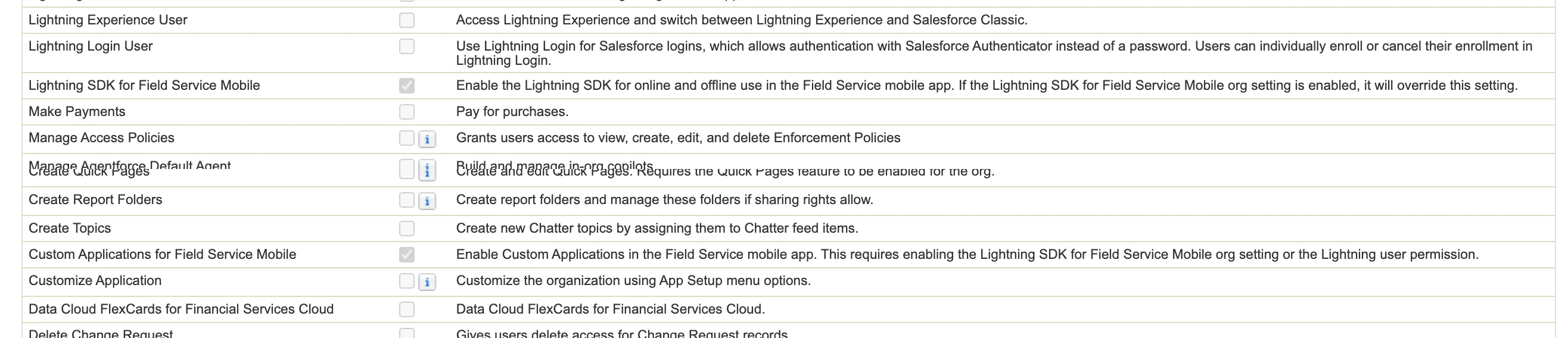
A permission set's System Permissions: Lightning SDK for Field Service Mobile and Custom Applications for Field Service Mobile, both ticked. -
Give technicians what Docable needs. Assign the Docable Document User permission set group, and create access to Digital Signature, so signatures can be saved on the work order. Add the Signature Type values the templates use, such as Customer and Technician, to the Digital Signature object’s list, which starts with Default.
-
Sign in again. The app picks up new permissions at sign-in. In the Field Service app, open Settings, choose Log Out, then sign in.
-
Get each phone ready for no signal. The app keeps what it saw when it was last online, and loads a changed action only on a fresh start. On each phone:
- Online, open a work order, tap Actions, Generate Service Document, then Close.
- Fully close the Field Service app (swipe it away in the app switcher) and open it again. Let it sync.
- Repeat 1.


Do 7.1 again on a job after you activate a new template, so the document is listed offline.
- After every Docable install or upgrade, clear the app’s cache once. The app keeps the old action until it is cleared; a sync or a restart is not enough. On each phone, online, open the app’s Profile, then Settings, Advanced Settings, and tap Clear Cached Metadata. Then repeat 7.1.
Choose the reasons for Unable to sign
A technician who cannot get a signature picks a reason from your list.
- In Setup, open Picklist Value Sets, then Docable unable-to-sign reasons.
- Edit, reorder, deactivate or translate the values. Keep Other: it always asks for a note.

Docable keeps the reason with the generation run and prints it in the document. Phones have the changed reasons after their next sync.
To keep who couldn’t sign and why on the record itself, add a text field to the object, for example Unable to sign
on Work Order. Then in Setup open Custom Metadata Types, Docable Setting, Manage Records, Default, and
set Copy unable-to-sign reasons to field to the field’s API name, such as Unable_To_Sign__c. Docable fills it with a
line such as Customer: Customer not on site, gate locked, as the person who made the document.
Switch the offline example off
Offline, the technician sees an example of the document before signing. It is on by default.
- In Setup, open Custom Metadata Types. Beside Docable Setting, choose Manage Records, then Edit beside Default.
- Untick Offline example preview, and save.

Offline, the technician then signs and taps Sign and submit, with no example.
Let Docable check the setup
Docable Setup › Field Service checks every requirement above for the org and for a technician you choose, read-only, and shows each one as Ready or Action needed with the fix beside it: the Lightning SDK for Field Service Mobile setting, the technician’s two Field Service mobile permissions, their Docable Document User role, their access to Digital Signatures, how many active templates each object has, and whether the job is on their schedule. Run it before a technician’s first visit and after each Docable upgrade.
Add it to a Guided Experience
In a Guided Experience, add Generate Service Document to a step as a Lightning Quick Action card, with the action on Work Order, Work Order Line Item or Service Appointment as its source, required or optional. The technician makes, signs and submits the document inside the step, online or offline. The card does not pass the document back to the orchestration; a data retrieval flow can read the record’s Files if a later step needs to know.
Visit packs
To make several documents with one signing, define a visit pack in Docable Setup › Visit packs: a name, two to six active templates built on the same object (a service report, a gas safety record and an invoice on Work Order, say), and the order they are joined in. Packs are listed first on the phone, online and offline, and the pack is filed as one PDF.
Check it worked
- Open a work order in the Field Service app. Actions lists the action.
- Choose a document. Online, the button reads Preview and sign, or Preview for a document with no signature. The preview’s foot offers Make PDF.
- Switch on aeroplane mode and open the action again. The top line reads Offline · the document is made when you’re back online, and the documents are listed.
- Make a document with no signal. When the phone is back online and has synced, the file is in the work order’s Files.
If it doesn’t work
| What you see | What to do |
|---|---|
| The Field Service app lists only its own actions, such as Create Service Report. | Check the settings and permissions above, then log out of the app and sign in again. Clearing the cached metadata (Settings, Advanced Settings) alone does not reload permissions. |
| After a Docable install or upgrade the app still opens the old Generate Document. | Online, in the app’s Profile, open Settings, Advanced Settings and use Clear Cached Metadata once. A sync or a restart is not enough. |
| The action is on the work order but not on another object. | An action belongs to one object. Add it to the layout of each object where people start. |
| Offline, the app shows its own can’t-connect screen. | Open the action online, fully close the app, open it again, and repeat. |
| Offline says This document can’t be made offline yet. | Open Generate Service Document once while online. |
| A document is greyed, Open this document once online to use it offline. | The phone never kept its details, for example because the template was activated since. Open it online once on the job. |
| The reasons say The reasons haven’t reached this phone yet. | Let the phone sync while online, then try again. |
| There is no Sign here box, or a signature is refused. | Check the template’s signature block is set to Signed when the document is made, and that the Signature type is a value in the org’s Digital Signature list. |
| Offline says the signatures are too detailed to save. | The technician clears one, signs it again more simply, and taps Submit. |
| A technician gets the notification A document saved on your phone wasn’t made. | Docable has already tried again for about forty minutes. Tap the notification to open the record, read the reason, fix it (often a template or permission change), and make the document again. |
Next
Something unclear or wrong? Tell support. Product page: Field service.