
Go back to an earlier version
Last updated 25 October 2026.
By the end of this guide an earlier approved version of a template is active again, and the version you replaced is kept. It is for Approvers.
Every save of a draft is a version in the template’s history. Only the active version, or one that was active before, makes documents.
Before you start
- You have the Approver role (Docable Activate Template).
- An earlier version of the template was active before.
Steps
-
Open the template and choose the version badge in the app bar.
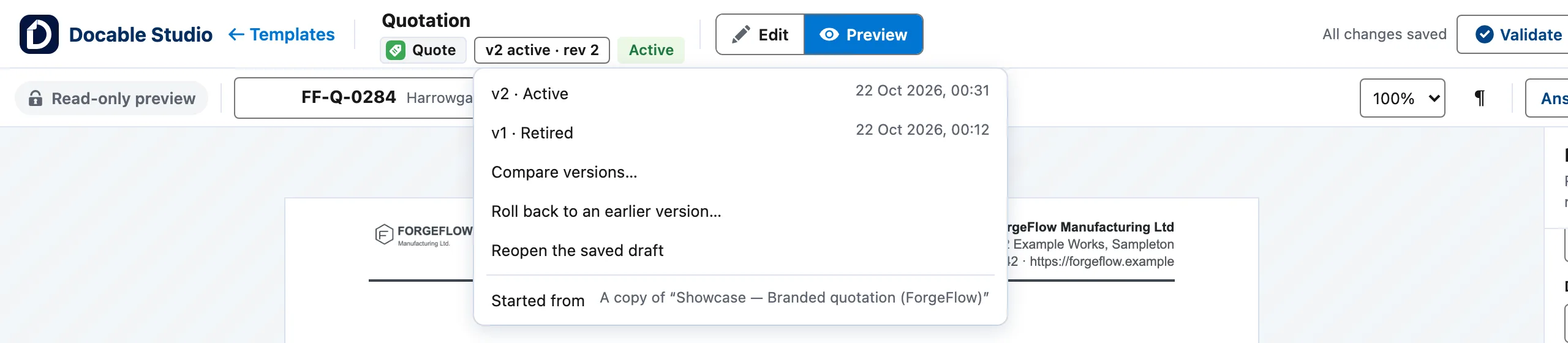
The version menu: each version with its status and date, Compare versions and Roll back to an earlier version. -
Choose Roll back to an earlier version….
-
Under Make this version active again, choose the version.
-
Choose the button that names your version, such as Make v1 active. The version you chose makes documents from now on; the current one becomes inactive and is kept.

Look before you roll back
- View this version read-only opens any version without changing it.
- Compare versions… lists what changed between two versions.
- New draft from this version starts a new draft from it, to edit, prove and approve.
Example
The ForgeFlow quotation is at v2. Choose Roll back to an earlier version…, pick v1 under Make this version active again, and choose Make v1 active. v2 becomes inactive and is kept for history. Documents already made keep the version they used.
Check it worked
The version badge shows the version you chose as active. Make a document from a record: it uses that version.
If it doesn’t work
| What you see | What to do |
|---|---|
| Roll back to an earlier version… is not offered. | It needs an earlier active version, Docable Activate Template, and a template that is not retired. |
A request is refused with GENERATION_VERSION_NOT_ACTIVE. |
Only the active version, or one that was active before, makes documents. A version that was never active cannot be chosen; approve and activate it instead. |
| Activation is refused because the template is retired. | Choose More actions › Restore…, then activate again. A retired template keeps its history and makes no documents. |
Next
Something unclear or wrong? Tell support. Product page: Proof and approval.