
Offer when: which documents on which jobs
Last updated 29 October 2026.
Each template carries an Offer when rule. It decides on which records Generate offers the template: a gas safety record only where the work type is an annual service, a commissioning certificate only on an installation, a warranty claim only on an asset under warranty. The person sees only the documents that fit the record in front of them.
Offer when decides whether a document is offered. Show when decides what prints inside it. See Show a section only when it applies.
What a rule can read
A rule can read any field of the record the template is built on, the records its lookups point to, and the account. For a Work Order, that is the work order itself, its work type, its asset and its account, among others.
Before you start
- The template is built on the object people make the document from, for example Work Order. See Where each document is made.
- You can edit the template in Docable Studio.
- You have two test records of that object: one the rule should fit, and one it should not.
Steps
-
In Docable Studio, open the template in Edit.
-
Open the template’s Offer when rule.
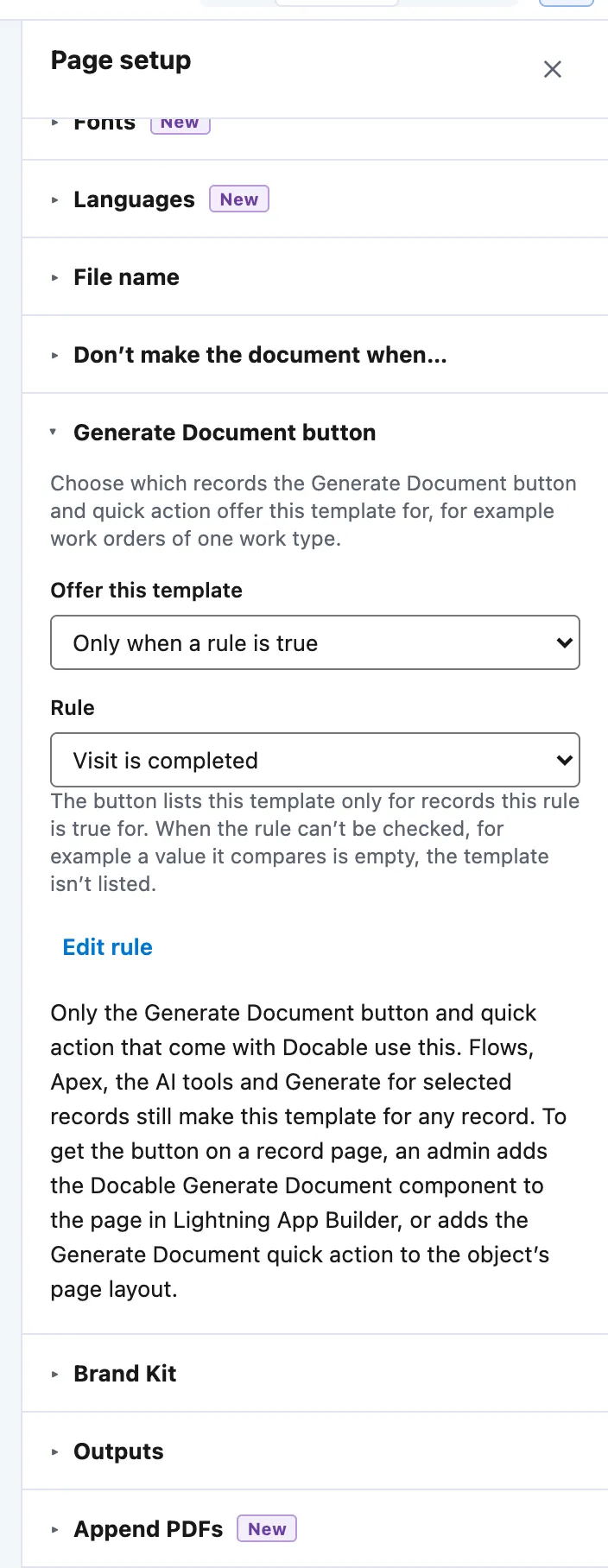
Page setup › Generate Document button: Offer this template Only when a rule is true, the rule Visit is completed, and Edit rule. -
Choose what to test: a field of the record, a field on one of its lookups, or a field of the account.
-
Choose the test and the value, for example the work type’s name equals Annual service.
-
To add another test, add a rule and choose whether all rules or any rule must be met.
-
Save the rule, then save the template.
-
Send the template through approval and activate the new version. People are offered documents from the active version. See Approve and activate a template.

Example
Three boiler templates on Work Order, each offered only where it applies.
| Template | Offer when |
|---|---|
| Landlord gas safety record | The work type’s name is Annual service |
| Commissioning certificate | The work type’s name is Installation |
| Warranty claim | The asset is under warranty |
On a technician’s phone
The Field Service app decides Offer when from the record as the phone kept it at its last sync. A change made with no signal, such as a new work type on the job, is not seen by the rule until the phone syncs again. A document whose rule the phone has never checked reads Checked when you’re back online.
After you activate a template or change its rule, open Generate Service Document online once on a job on each phone, so the phone keeps the new list. See Set up Docable for the Field Service app and Make a document on a phone.
Test it on one record
- Open the record the rule should fit, and open Generate a document (or Generate Service Document). The template is listed.
- Open the record the rule should not fit. The template is not listed.
- On a phone, sync while online, then repeat both checks in the Field Service app.
Docable Setup › Field Service also shows how many active templates each object has, for the org and for a technician you choose.

Check it worked
On the record the rule fits, the template is offered. On the record it does not fit, the template is not offered. On the phone, after a sync, the list matches the desktop.
If it doesn’t work
| What you see | What to do |
|---|---|
| The template is offered everywhere. | Check that the new version with the rule is the active one. |
| The template is offered nowhere. | Open a record the rule should fit and check each value the rule tests, including the lookup and account fields. |
| The phone still shows the old list. | Sync while online, then open Generate Service Document once on a job. |
| The phone reads Checked when you’re back online. | The phone has never checked that rule. Open the job once online. |
| A Service Appointment does not offer its work order’s documents. | Open the work order. A document is offered on the record it belongs to. |
Next
Something unclear or wrong? Tell support.